Time entries
Review employee time by period, add or correct entries and breaks, and move accurate records through approval without losing their history.
No login required. Opens in one click.
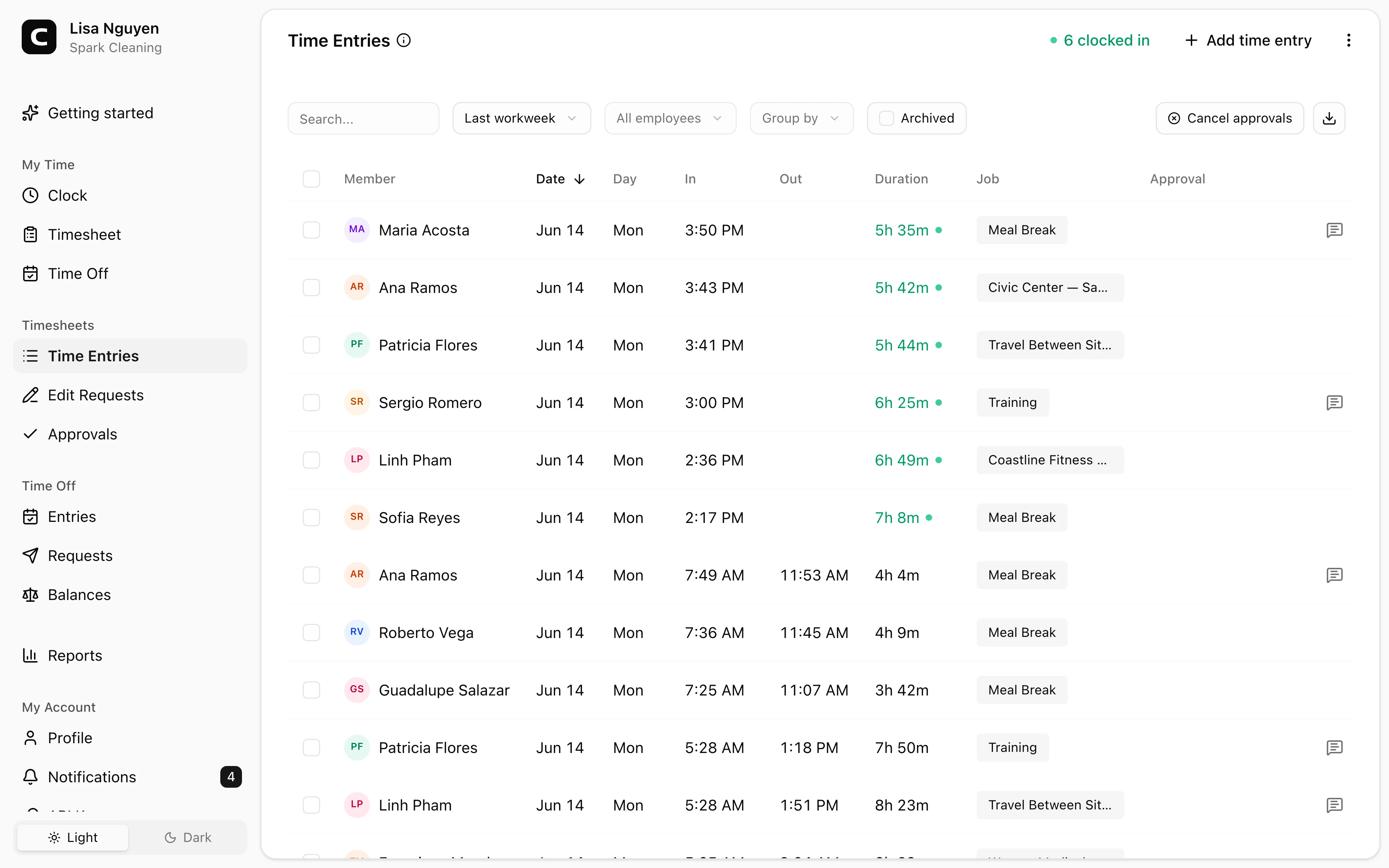
What this page shows
The table shows employee clock-ins and clock-outs with date, time, paid duration, recorded breaks, job, and approval status when those fields apply. Use the toolbar to choose a period, filter by employee, group records, or search the visible entries.
Add time entry in the page header adds a time entry for any employee. Open Who’s Working when you need the live employee roster.
Reviewing and editing
Click cells to edit inline; the row menu's Edit time entry opens the full form for in/out times and work details. Open Edit history to see the recorded time changes for a time entry.
The Breaks column shows each break's type and duration and identifies paid, unpaid, and automatically deducted breaks. Paid breaks remain in Duration; active unpaid breaks are subtracted using their exact overlap with the entry.
Use the row menu's Manage breaks action to add a completed break, correct its type or times, or archive it. These corrections appear in Edit history. For the break policy and automatic-deduction behavior, see Breaks & Lunches.
The clock-verification indicator on a row shows the recorded outcome for clock-in and clock-out. Open it to see whether the event was Verified, Unverified, Not checked, or unavailable for a manual or older entry, along with the captured GPS, IP, browser, or phone context and any attributed Work Site. Work Site attribution and verification are separate.
Checking for mistakes
Use Time Entries when you already know which record needs review. Use reports when you need to scan a whole period for cleanup work:
- Schedule vs Actual compares published shifts with worked time, including differences, missed shifts, and unscheduled work. Daily Summary finds missing clock-outs.
- Verification Exceptions finds unverified clock events, conflicting Work Site approvals, missing kiosk photos, and missing phone voice recordings.
- Timesheet Audit shows the change history for time entries, including direct edits and edit requests.
- Payroll Readiness checks the selected period for readiness blockers and warnings before you rely on payroll totals.
If Payroll Readiness shows Ready, Clockspot did not find readiness blockers or warnings for that period. It does not mean payroll has been submitted or that every business-specific review is complete.
Understanding approval status
Each row's approval pill reflects the submission state of the timesheet that includes the time entry:
- Submitted — employee submitted; awaiting your decision
- Approved — locked; employees use edit requests for changes
- Rejected — sent back with a note
- Not submitted — the time entry isn't part of a submitted timesheet yet
Approval status is context on Time Entries, not an approval control. Open Approvals to approve or reject submitted timesheets. Reopen an approved timesheet there before making a manager correction, or let the employee submit an edit request.
Adding time entries
Press Add time entry in the page header. Choose the employee and set the in time (required). Out time, job, and note are optional — leave the out time blank for an open shift the employee will close themselves.
Archiving
The row menu's Archive removes a time entry from timesheets and reports. For several entries, press Select, choose the rows, then press Archive selected in the floating selection bar.
Open the toolbar's secondary-actions menu and choose View archived entries to review archived records. Use Restore on one row or Restore selected for several, then press View current entries to leave the archived view.
Common questions
- An employee's time entry is wrong but their timesheet is approved.
Open Approvals, reopen the timesheet with a note, edit the time entry, then approve the corrected timesheet. Alternatively, the employee can submit an edit request from their Timesheet page.
- I added a time entry but it doesn't have an approval status.
Time entries get a Submitted/Approved/Rejected status only when they're part of a timesheet submission. Direct Administrator-added time entries don't go through that flow until the employee submits the period.
- Where do I see overtime hours?
The Overtime report breaks out which hours triggered which rule. Hours Summary shows per-employee totals split into regular, overtime, and paid time off.
Clockspot keeps clock-ins, corrections, approvals, and payroll-ready hours connected so owners and managers can review the workweek before payroll.
Want to simplify how your team tracks time? See how Clockspot works.