Payroll Readiness
Check payroll blockers and warnings by employee, follow the suggested cleanup action, and confirm the underlying time and pay records are ready.
Questions this report answers
- Which employees have an open punch or missing time?
- Is this pay period ready for payroll?
- What could block or delay payroll?
- What should I fix before using payroll totals?
- Which timesheets still need approval before payroll?
No login required. Opens in one click.
What this report shows
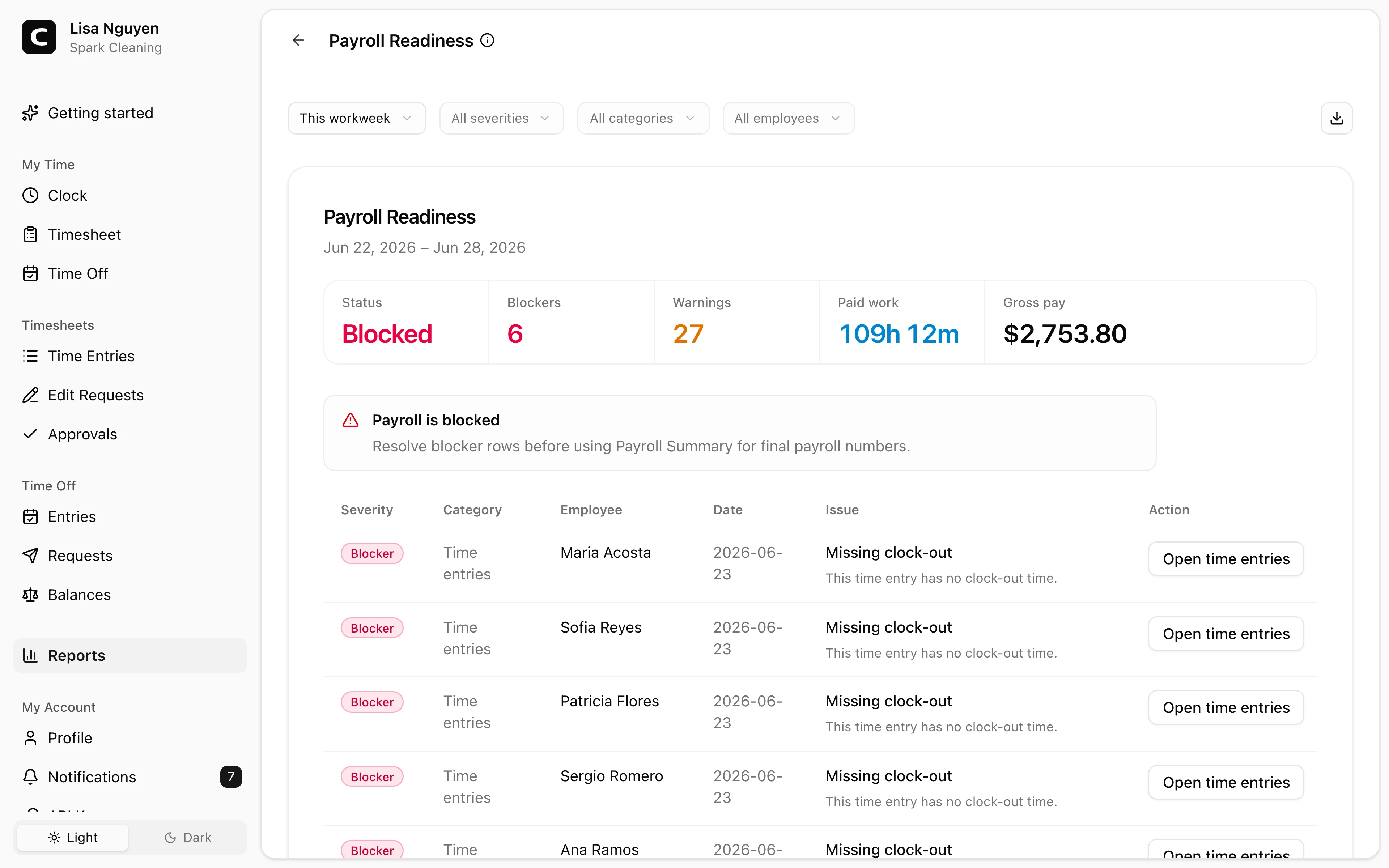
Payroll Readiness tells Administrators what needs review before payroll numbers are treated as final. It groups items by Blocker, Warning, or Info and by category: Time entries, Approvals, Pay, Locations, Audit, or Artifacts.
The summary shows Status, Blockers, Warnings, Paid work, Overtime, and Gross pay. The review queue keeps each issue's priority, employee, date, explanation, and next step together.
Rows can link to the place that needs attention, with actions such as Open time entries, Open edit requests, Open approvals, Open employee payroll, Open jobs, or Open payroll summary.
Filters
Pick a whole-workweek date range, then use All severities, All categories, and All employees. The employee filter changes the readiness scope. Severity and category filters only narrow the displayed rows; the readiness verdict still reflects the full requested employee scope.
Reading the status
- Ready means no readiness blockers or warnings were found for the selected scope.
- Upcoming means the selected period has not started. Its facts are not final.
- In progress means the selected period has not ended and no blockers or warnings were found yet. Recheck after the period closes.
- Needs review means warnings remain.
- Blocked means at least one blocker remains.
An employee who is still clocked in today appears as Info, not a missing-clock-out blocker. The open entry stays out of final payroll totals until clock-out. An older open entry is still a Blocker.
Resolve blockers before using Payroll Summary for final payroll numbers.
Exporting
Open the Export menu and choose Download CSV, Download Excel, or Download PDF. The export includes readiness rows with their severity, category, issue, description, and action label.
Common questions
- I filtered to Warnings, but the status still says Blocked.
Severity and category filters change which rows are displayed. They do not change the readiness verdict, because blockers outside the displayed facet can still affect the selected period or employee scope.
- Does Ready mean payroll has been submitted?
No. Ready means Clockspot did not find readiness blockers or warnings in the selected scope. You still export or enter payroll using your own payroll process.
- Where should I go after blockers are resolved?
Open Payroll Summary for payroll-ready hours and pay totals, then export the format your payroll process expects.
Clockspot keeps clock-ins, corrections, approvals, and payroll-ready hours connected so owners and managers can review the workweek before payroll.
Want to simplify how your employees track time? See how Clockspot works.