Edit Requests
Review the original and requested time-entry details side by side, then approve or reject employee changes to shifts and breaks.
No login required. Opens in one click.
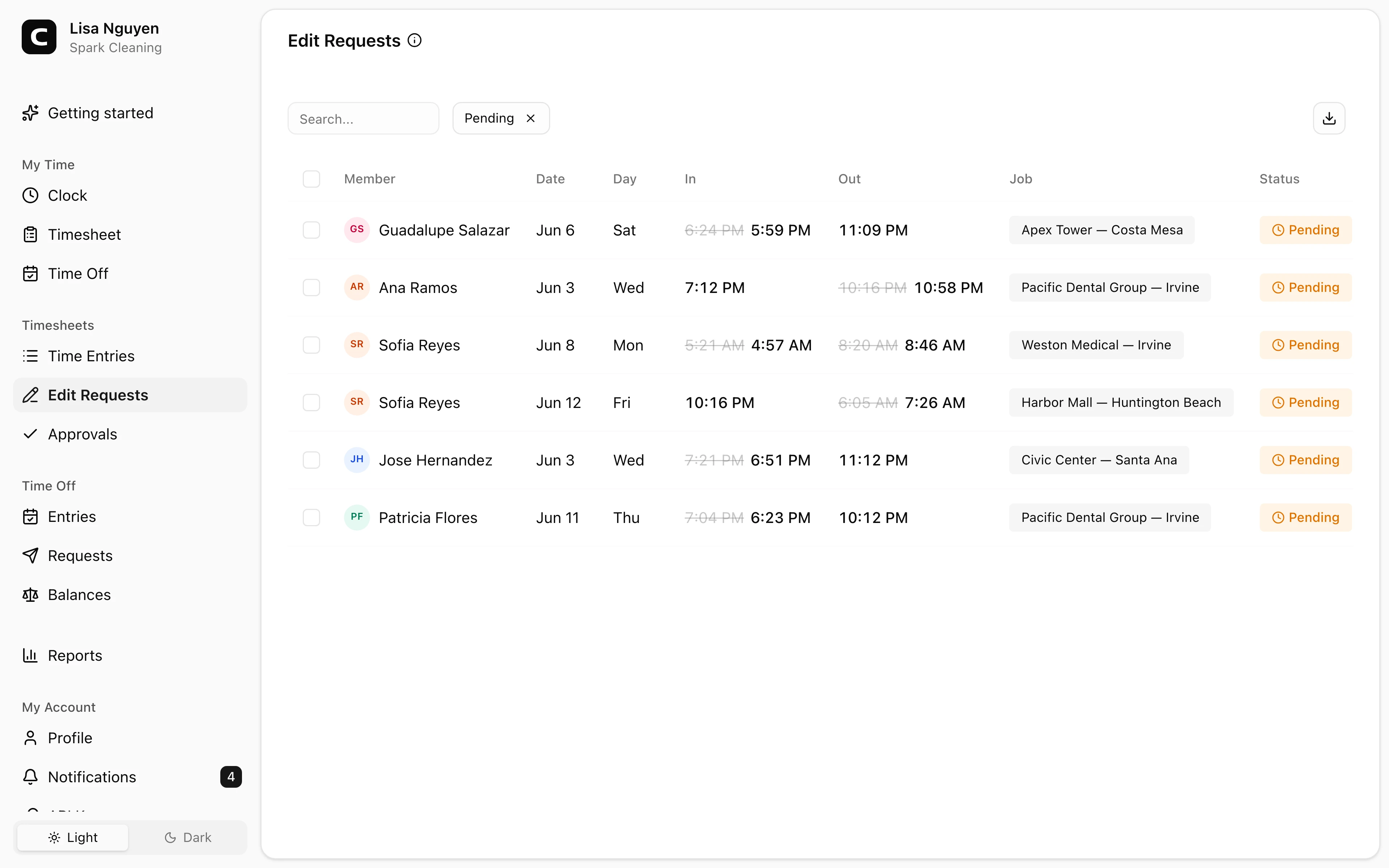
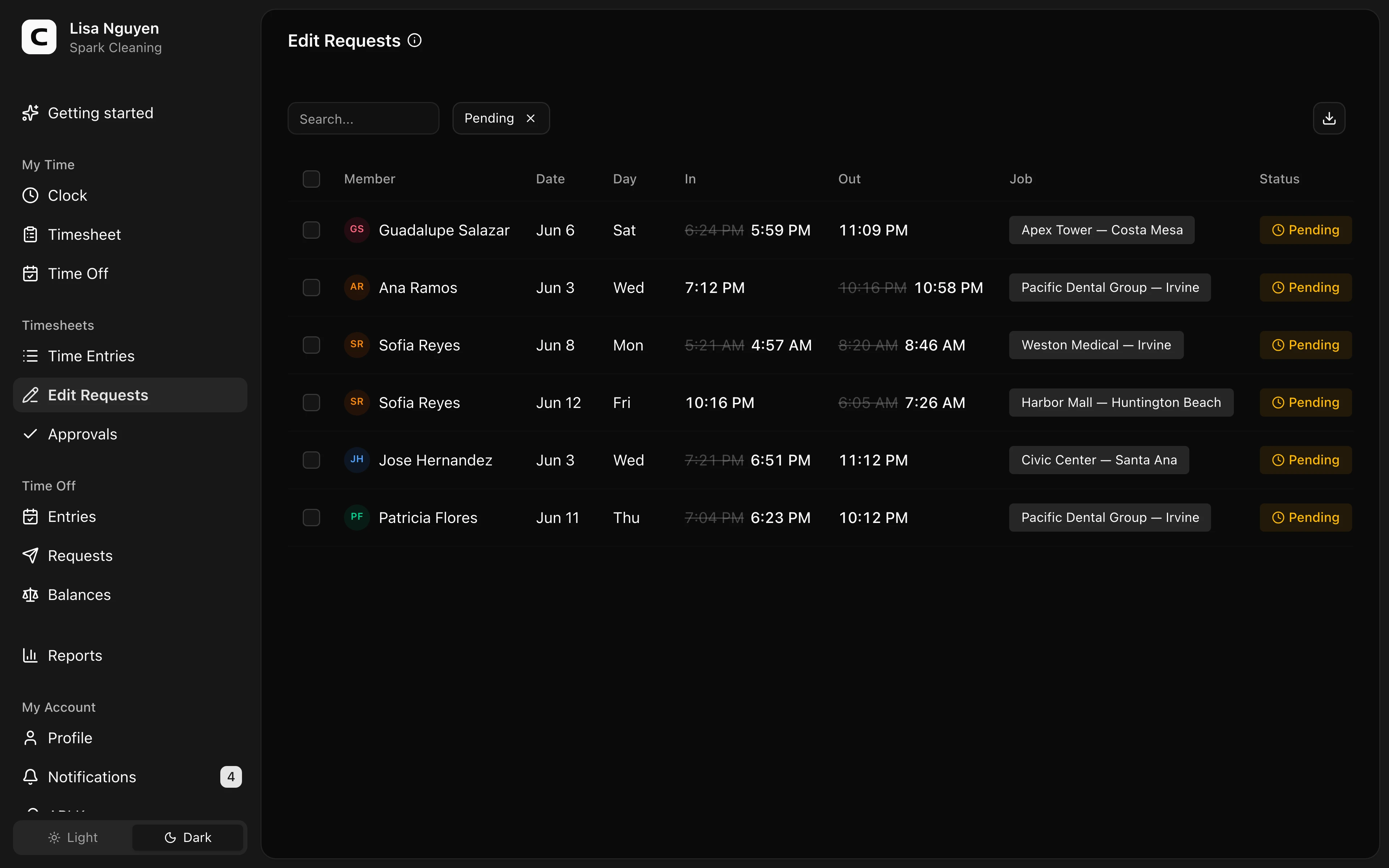
What this page shows
Review Pending requests by comparing the recorded value with the employee's requested value. Each request shows the employee, date, job when one is assigned, every requested change, and the employee's reason.
Clock-in, clock-out, duration, job, entry-note, and break changes appear directly in each request.
Press Search to narrow the list. Press History to see approved and rejected requests, including any reviewer note.
Reviewing a request
Press View timesheet to inspect the employee's full period without leaving the review queue. Select an entry for its complete details, then return to the request to make the decision.
Press Approve change, optionally add a Reviewer note, then press Confirm approval. Approval applies every requested change to the original time entry.
To reject the request, press Reject request, optionally add a Comment to employee, then press Confirm rejection. The original entry stays unchanged, and the comment is included with the employee's notification.
To act on many requests, press Select, choose individual requests or Select all, then press Approve selected or Reject selected. Bulk decisions do not include a note; decide a request individually when the decision needs context.
What happens after a decision
- Approved — all changes in the request are applied to the original time entry and its breaks, even if the timesheet is already approved. The employee is notified.
- Rejected — the entry stays as it was. The employee is notified and can submit a new request.
Common questions
- The requested change isn't quite right but I don't want to outright reject.
You can only approve or reject — there's no "approve with edits". Either reject with a note explaining what you'd accept so the employee can resubmit, or reject and fix the entry yourself from Time Entries.
- I decided on a request by mistake.
Once decided, a request can't be changed. Let the employee know — they can submit a new request.
Clockspot keeps clock-ins, corrections, approvals, and payroll-ready hours connected so owners and managers can review the workweek before payroll.
Want to simplify how your team tracks time? See how Clockspot works.