Timesheet
Review the time entries in your current period, spot missing or incorrect details, and submit the complete timesheet to your manager for approval.
No login required. Opens in one click.
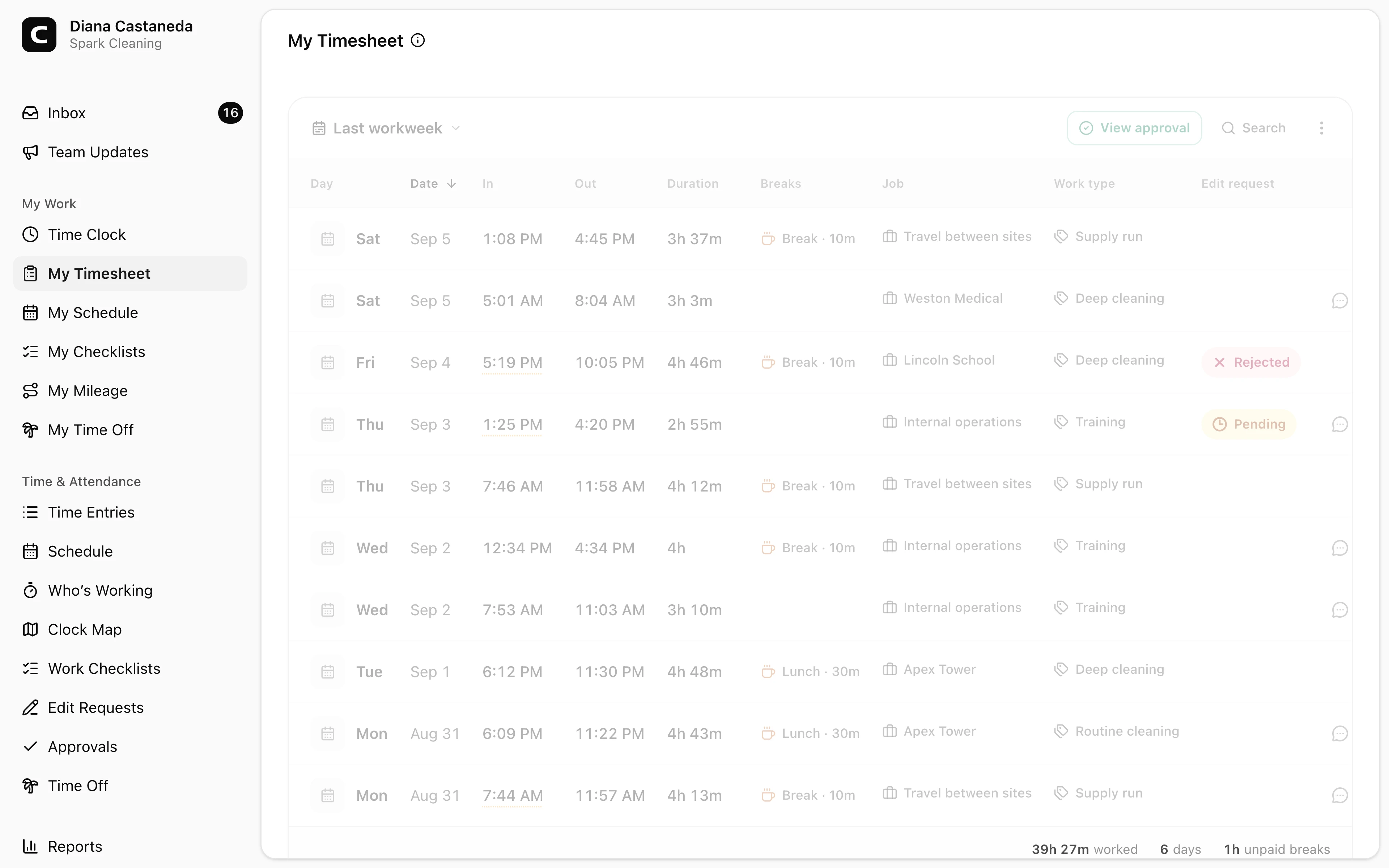
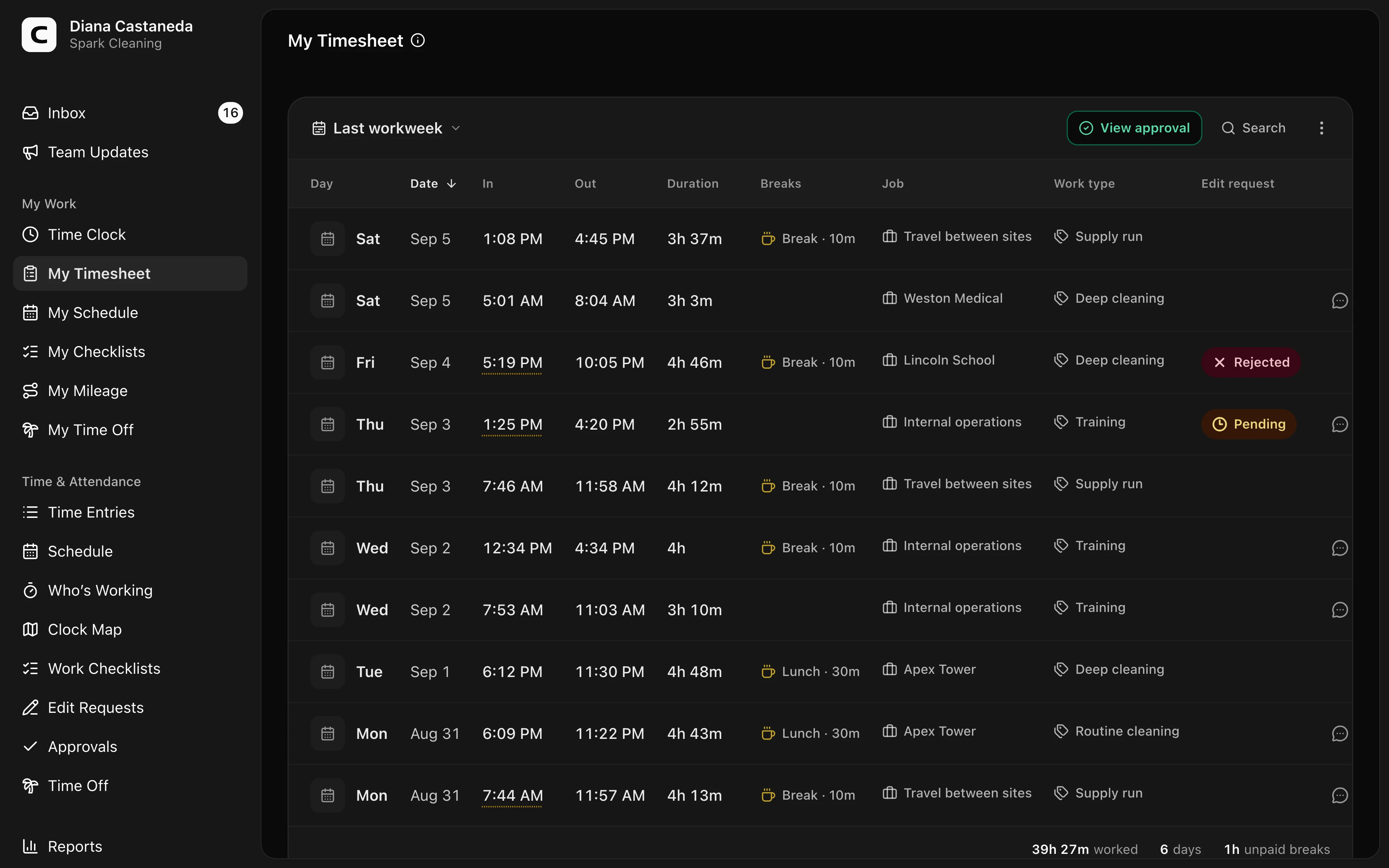
Review a period
Start with the period card. It shows the selected dates, time worked, entry count, days worked, and unpaid break time when your workspace uses unpaid breaks. Press Change period to choose This workweek, Last workweek, or a custom range.
Your shifts are grouped by day beneath the summary. Each entry shows its in and out times, paid duration, recorded breaks, job and other recorded details, notes, and edit-request status when present.
Entries are created when you clock in and out from the Time Clock page, a kiosk, or by phone. You can't add or edit entries here directly — see below for requesting a correction.
Paid breaks remain in time worked. Clockspot subtracts the exact time of active unpaid breaks that overlap the entry.
Submitting your timesheet
Check each shift, then press Submit timesheet in the summary. The Submit timesheet dialog confirms the period and takes an optional note for your manager; press Submit for approval.
An active shift changes the summary to Clock out to submit and disables Submit timesheet. Clock out before submitting so the period includes the completed shift.
While the submission is pending, press View submission to see its status, timing, and notes. Use Cancel submission if you need to make further changes, then submit again. After approval, View approval shows who reviewed it, when, and any notes. After rejection, Review rejection shows the manager's note and offers Resubmit timesheet after you finish the requested corrections.
A submission covers the entries that existed when you submitted it. You can still clock in afterwards, and a shift you record later is not part of that submission or its approval. View submission or View approval shows how many entries were recorded since. While the submission is pending, cancel and submit again to include them; after approval, your manager approves them separately.
Entries covered by an approval are locked — to change one, request an edit.
Requesting an edit
If an entry is wrong, press Request edit beneath that entry. One request can combine corrected times or job with several added, corrected, or removed breaks. Explain the change, then submit it for manager review. Requesting a time entry edit walks through the full flow.
A pending request appears on the entry and in the period summary. Press its status to review or cancel the request. After your manager approves or rejects it, the reviewed status remains available and Request edit returns for another correction if needed.
If a shift is missing entirely — you never clocked in — ask your manager to add the entry; edit requests only change entries that exist.
Approved entries stay locked while a request is pending. If the manager approves the request, Clockspot applies the requested entry and break changes without requiring the timesheet to be unlocked first.
Common questions
- I see a wrong or duplicate entry.
You can't edit or delete an entry directly — press Request edit beneath the entry, and your manager will review the fix.
- A break is missing or has the wrong time.
Press Request edit beneath the entry. Under Breaks, add, edit, or remove each break that needs attention, then submit the complete set for manager review.
- My timesheet was rejected.
Press Review rejection to read your manager's note, request edits on the entries that need fixing, then press Resubmit timesheet. If an entire shift is missing, ask your manager to reopen the timesheet and add it.
- Why can't I submit this period?
Clock out of every active shift first. A pending submission must be cancelled before you can submit again. An approved timesheet stays locked; a rejected timesheet can be resubmitted after its corrections are complete.
Clockspot keeps clock-ins, corrections, approvals, and payroll-ready hours connected so owners and managers can review the workweek before payroll.
Want to simplify how your employees track time? See how Clockspot works.