Who’s Working
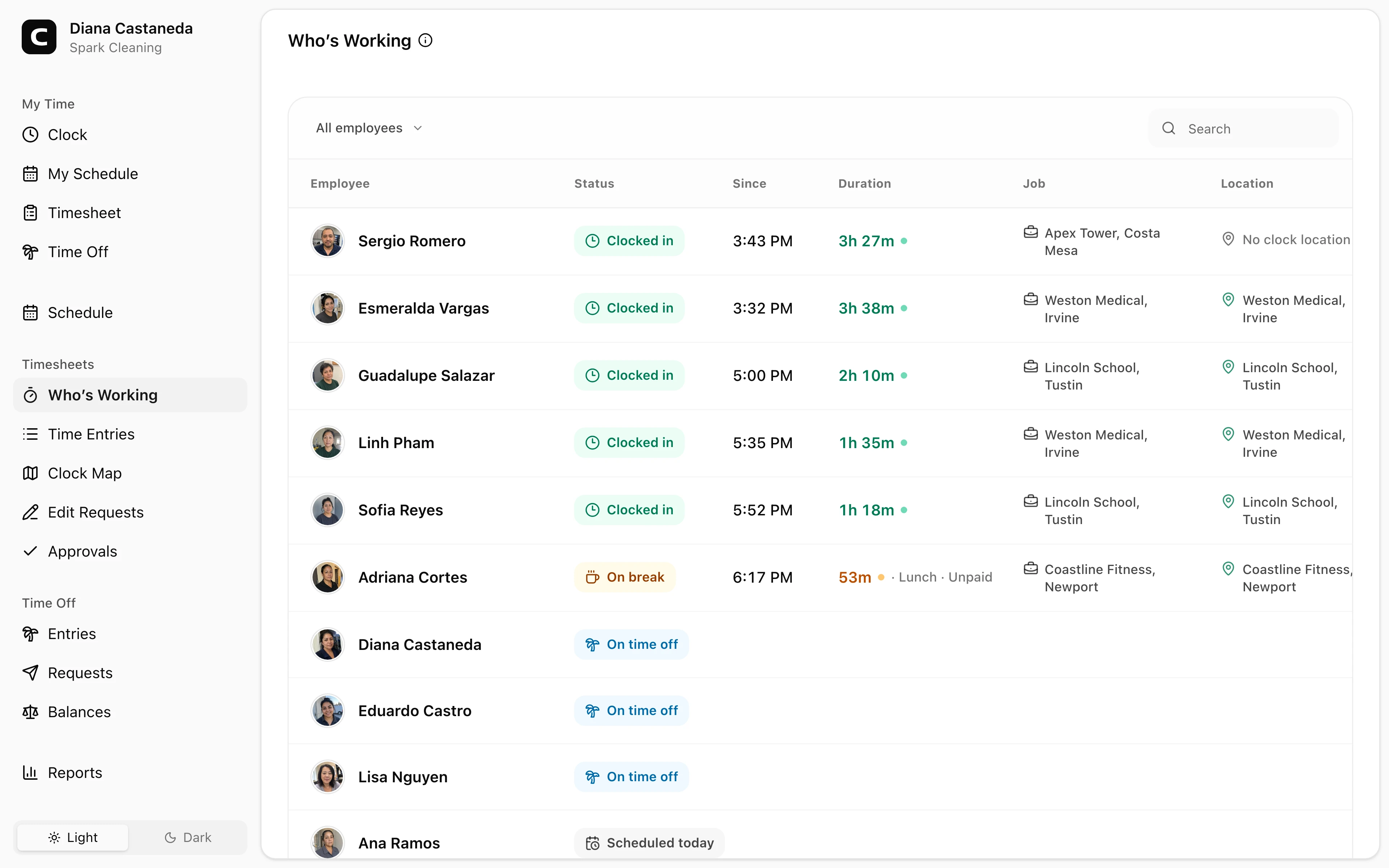
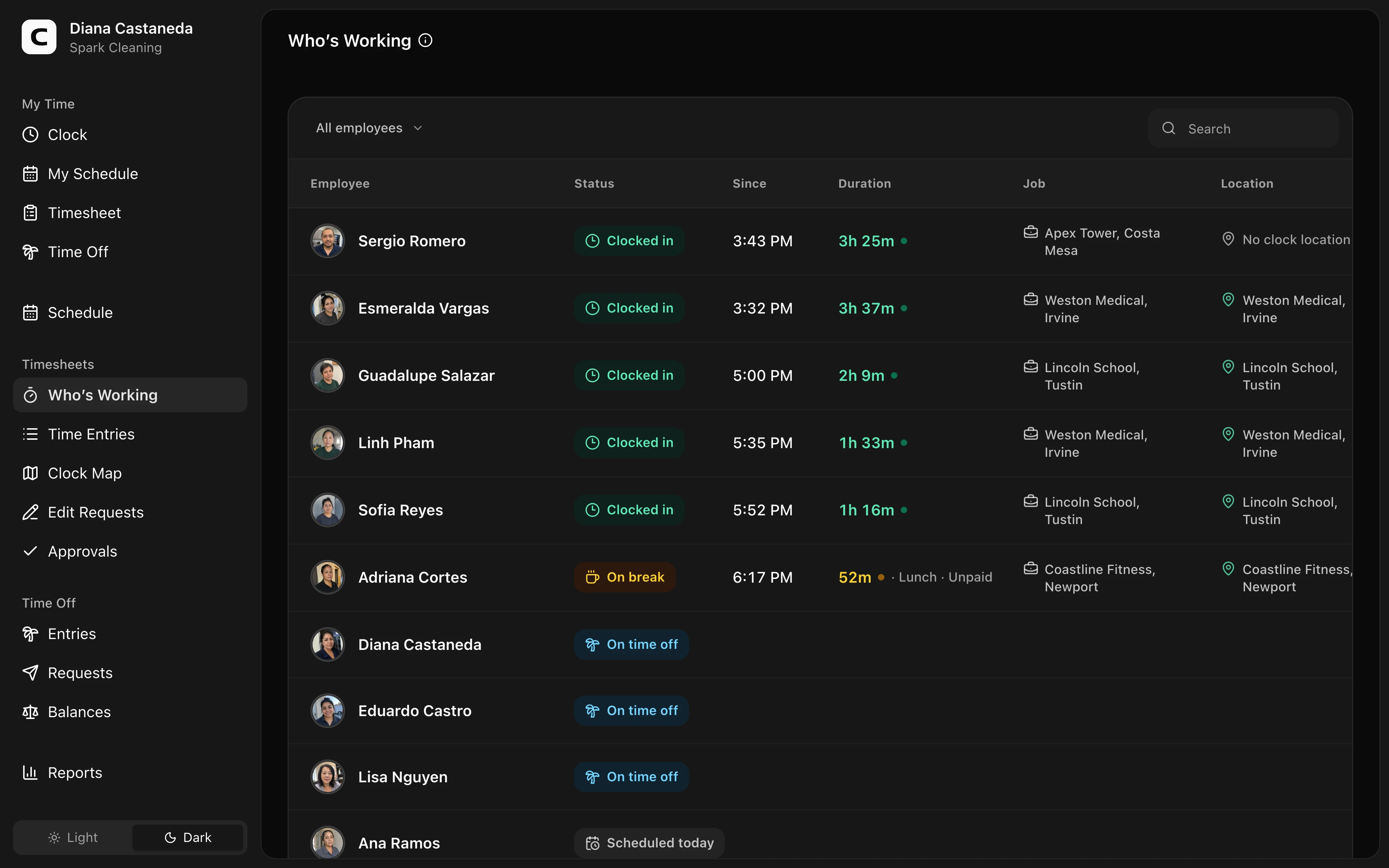
See each employee's current work status at a glance, including who is clocked in, on break, scheduled, on time off, or off duty.
No login required. Opens in one click.
What this page shows
Who’s Working gives Administrators a live view of the Employees they can manage. The page opens to All employees, meaning everyone within that Administrator's Employee access. The status menu shows a count for each choice and can narrow the roster to employees who Need attention, are Working now, are Scheduled, are on Time off, or are Off duty. Working now includes employees who are Clocked in or On break. Needs attention includes Late and Unscheduled shift exceptions.
Each employee row shows the status, when it began, its current duration, Job, Work Site, and relevant schedule or time off for today. The Schedule column also calls out a Late or Unscheduled shift exception when one applies. For a late, underway, or upcoming published shift, it shows the shift's start and its assigned Job or Work Site when present.
Select an employee’s name to open Time Entries with that employee selected. Select a column heading to sort the roster by that field. Before you choose a sort, employees who are clocked in appear first, followed by employees on break, on time off, scheduled, and off duty. Exceptions appear first within the same status.
Schedule exceptions
Late means a published shift is underway, its missed-shift grace period has passed, and the employee has not recorded work during that shift. An employee on time off is not marked late.
Unscheduled shift means the employee is currently working without a published shift today or an overnight published shift that is still underway. A published shift later today prevents this warning, so an early clock-in is not mislabeled as a wholly unscheduled day.
Finding an employee
Use All work sites or All jobs to narrow the roster by the Work Site or Job on an employee's open time entry. No Work Site and No Job find working employees whose current entry is missing that detail. These filters describe the current punch, not the employee's scheduled assignment.
Use Search to find an employee by name or email. Search also matches the current or scheduled Job and Work Site, status, and time off type shown in the roster. Filters combine. Clear a selected filter from its own control.
The Work Site is the physical place attributed to the employee’s clock-in. It may come from the selected Job, the employee's explicit choice, or a matching clocking approval such as a GPS area, internet connection, registered browser, kiosk, or approved phone number. A Work Site identifies where the clock-in was attributed; it does not by itself mean the clock-in was verified. It is not continuous location tracking.
Choosing the right page
Use Who’s Working for present-tense coverage questions, such as who is working or on break right now. Use Time Entries to review or correct individual punches, and use Reports for historical hours, attendance, and payroll-period totals.
Common questions
- Why is an employee shown as Scheduled instead of Working now?
Scheduled means the employee has a published shift today but is not currently clocked in or on break.
- Why is an employee marked Late?
Late appears after a published shift’s missed-shift grace period has passed when the employee has no work recorded for that shift and is not on time off.
- What does Unscheduled shift mean?
The employee is working without a published shift today or an overnight published shift that is still underway.
- Does the Work Site update while an employee is working?
No. Who’s Working shows the Work Site attributed to the employee’s clock-in, not continuous movement.
- Where do I correct an employee’s time?
Open Time Entries to edit a punch, manage breaks, or review the entry’s details.
Clockspot keeps clock-ins, corrections, approvals, and payroll-ready hours connected so owners and managers can review the workweek before payroll.
Want to simplify how your employees track time? See how Clockspot works.