Notification Preferences
Choose which Clockspot events should notify you, whether each supported alert arrives by email, SMS, or WhatsApp, and which channels you want to leave quiet.
No login required. Opens in one click.
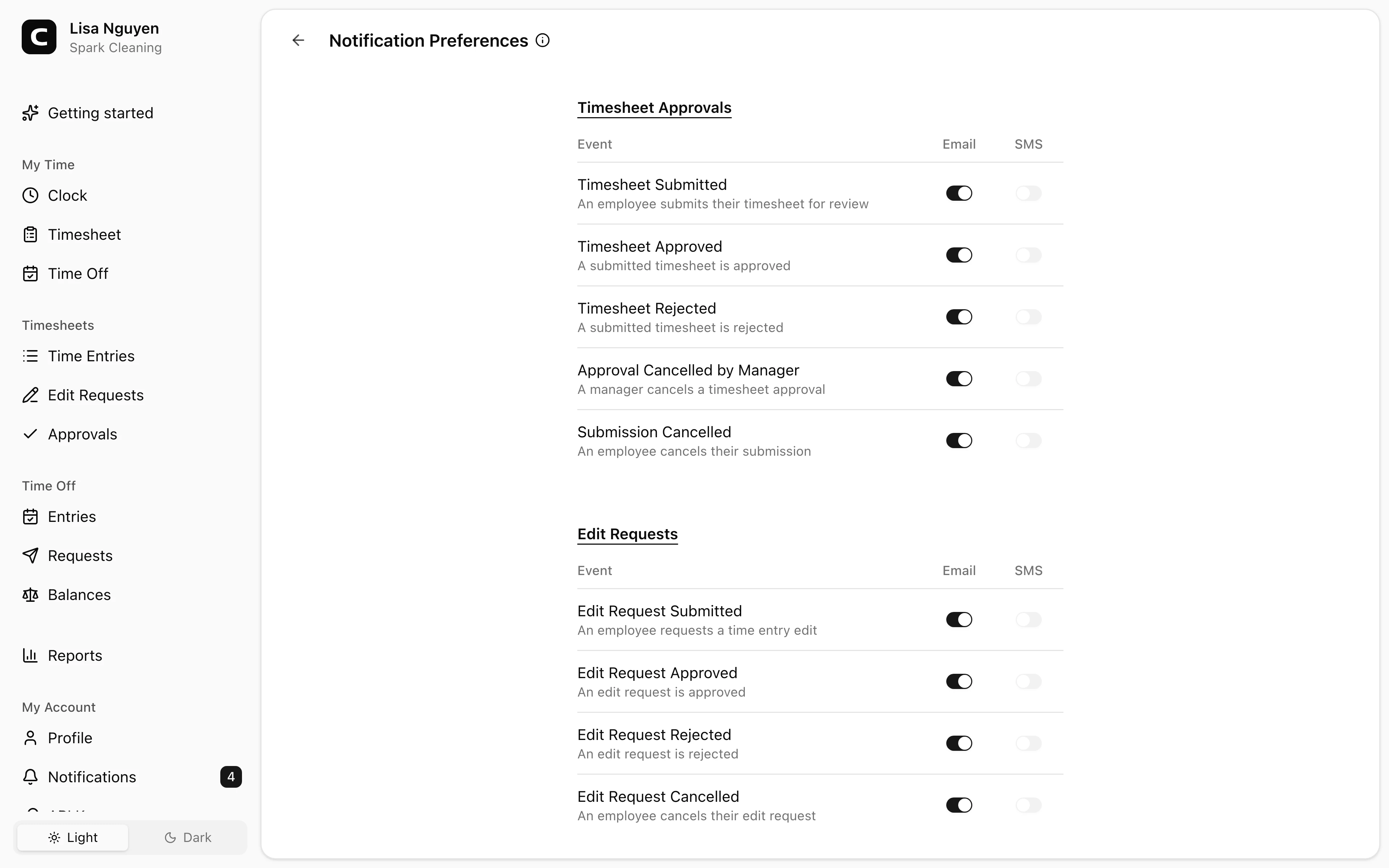
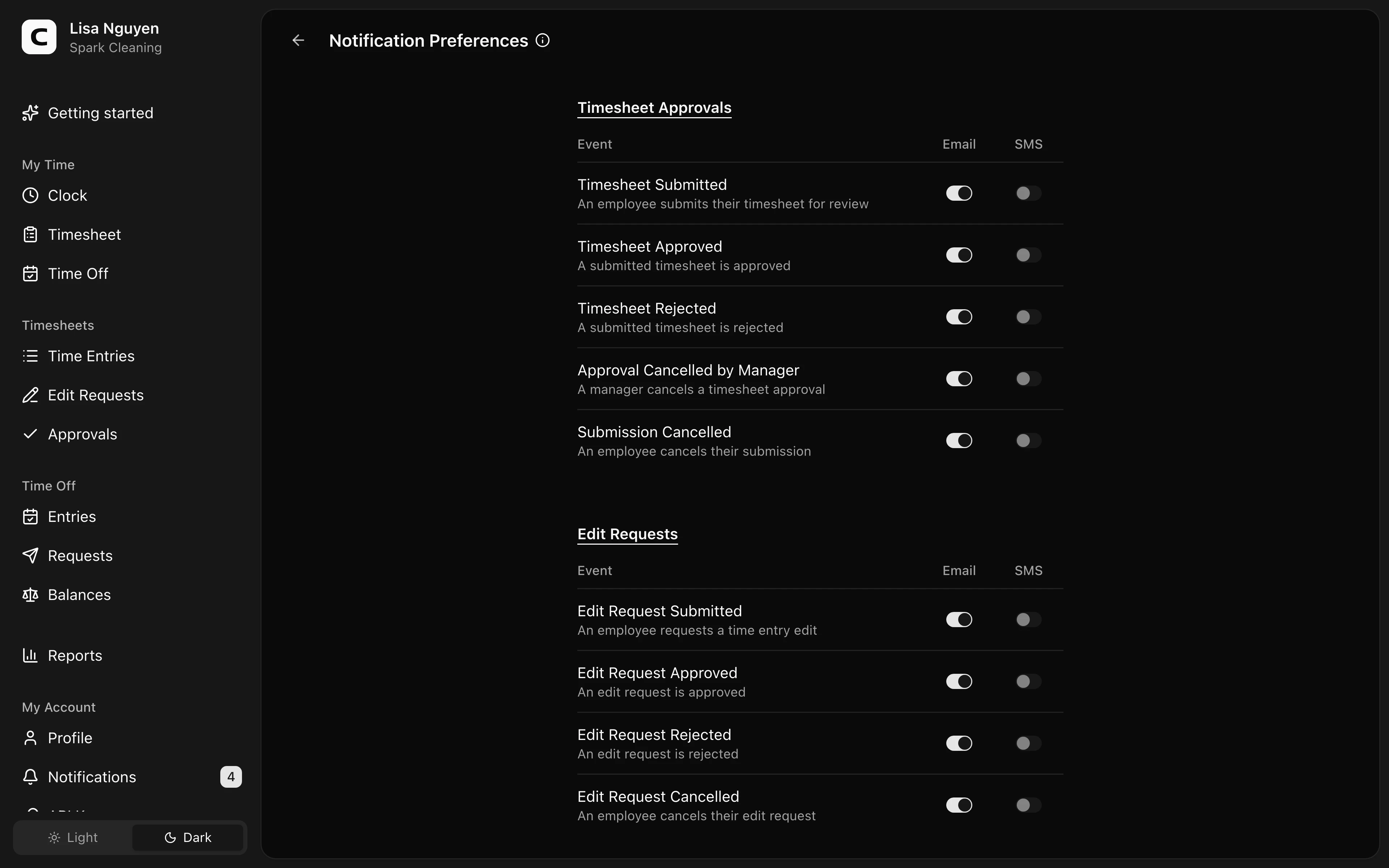
Notification Preferences controls additional Email, SMS, and WhatsApp delivery for your account. Click your name at the top of the menu on the left, then choose Notification Preferences. On a phone, tap the menu button at the top left first.
Owners and Administrators choose when automatic workspace notifications are created in Alerts & Reminders. Each person then chooses how the available events reach their own account here.
What you can configure
For your account, choose whether each available notification event should be delivered by Email, SMS, or WhatsApp. You can use more than one channel or leave every additional channel off.
The rows you see depend on what can be sent to your account. Owners and Administrators see administrative events such as submitted timesheets, unverified clock events, and employee administration changes. Employees see the events that can be sent directly to them, such as approved or rejected requests.
When available, events are grouped into these sections.
- Timesheet Approvals. Submissions, decisions, cancellations, and submission or review reminders.
- Edit Requests. Submissions, decisions, and cancellations.
- Time Off Requests. Submissions, decisions, and cancellations.
- Team Updates. New updates published to you.
- Schedule. Published schedules, shift changes and cancellations, confirmation and callout updates, open-shift requests, upcoming-shift reminders, clock-in and clock-out reminders, and manager-facing missed-shift alerts.
- Clocking. Work Site opening coverage and daily labor alerts, break start and return reminders, plus reminders about long open time entries.
- Clock Verification. Recorded clock-in or clock-out events that did not match a configured approval.
- Checklists. Submitted checklists with one or more items marked as a problem.
- Overtime. Projected, approaching, and entered-overtime alerts.
- Workspace Administration. Accepted invitations, access-level changes, Owner-access changes, and removed employees.
In-app notifications in the Notifications view of Inbox are always on. These toggles control the additional Email, SMS, and WhatsApp channels only. A Team Update also remains available on the Team Updates page even when its additional alerts are off.
WhatsApp supports the same events as SMS. When WhatsApp delivery is available, every row shown to your account can use it. Until then, the WhatsApp column shows a dash.
Use the Preview column to open a sample email for an event before you turn it on.
Text message setup links
Your employer can copy the setup link or email it to selected employees. The setup link opens Text message setup for the business named on the page. Sign in and press Continue if asked. Verify your phone number here if needed, then review the number and SMS consent. Choose Turn on text messages if you want these alerts. Verification alone does not turn them on, and your other notification settings won’t change. Use the back button to return to Notification Preferences, where you can see all your settings or turn texts off.
Saving
Toggle the channels you want and press Save. Changes apply to your account only. Each employee has their own notification preferences.
SMS requires a verified phone number on My Profile. Until you have one, the SMS switches stay disabled. Enabling SMS opts you in to recurring transactional texts at that number. Reply STOP to cancel or HELP for help.
WhatsApp requires a linked account with notifications allowed on My Profile. Every employee can link an account for notifications. After linking, return here to choose the supported events you want. Turning off the notification permission or disconnecting WhatsApp clears your WhatsApp event choices. Assistant replies are a separate permission and are shown only to people who can use the Assistant.
Common questions
- In-app notifications keep appearing even after I turn off every delivery channel.
In-app is always on. Email, SMS, and WhatsApp are controlled here. Use the Notifications view in Inbox to mark updates as read.
- I'm not getting SMS even though it's enabled.
Verify your phone number on My Profile. SMS only delivers to verified numbers.
- Why can't I turn on a WhatsApp switch?
Open My Profile, link your WhatsApp account, and allow notifications. Then return to Notification Preferences. If you see dashes instead of switches, WhatsApp delivery is not yet available.
Clockspot keeps clock-ins, corrections, approvals, and payroll-ready hours connected so owners and managers can review the workweek before payroll.
Want to simplify how your employees track time? See how Clockspot works.