Team Updates
Read workplace updates, confirm the ones that require acknowledgment, or publish an update to the right employees at the right time.
No login required. Opens in one click.
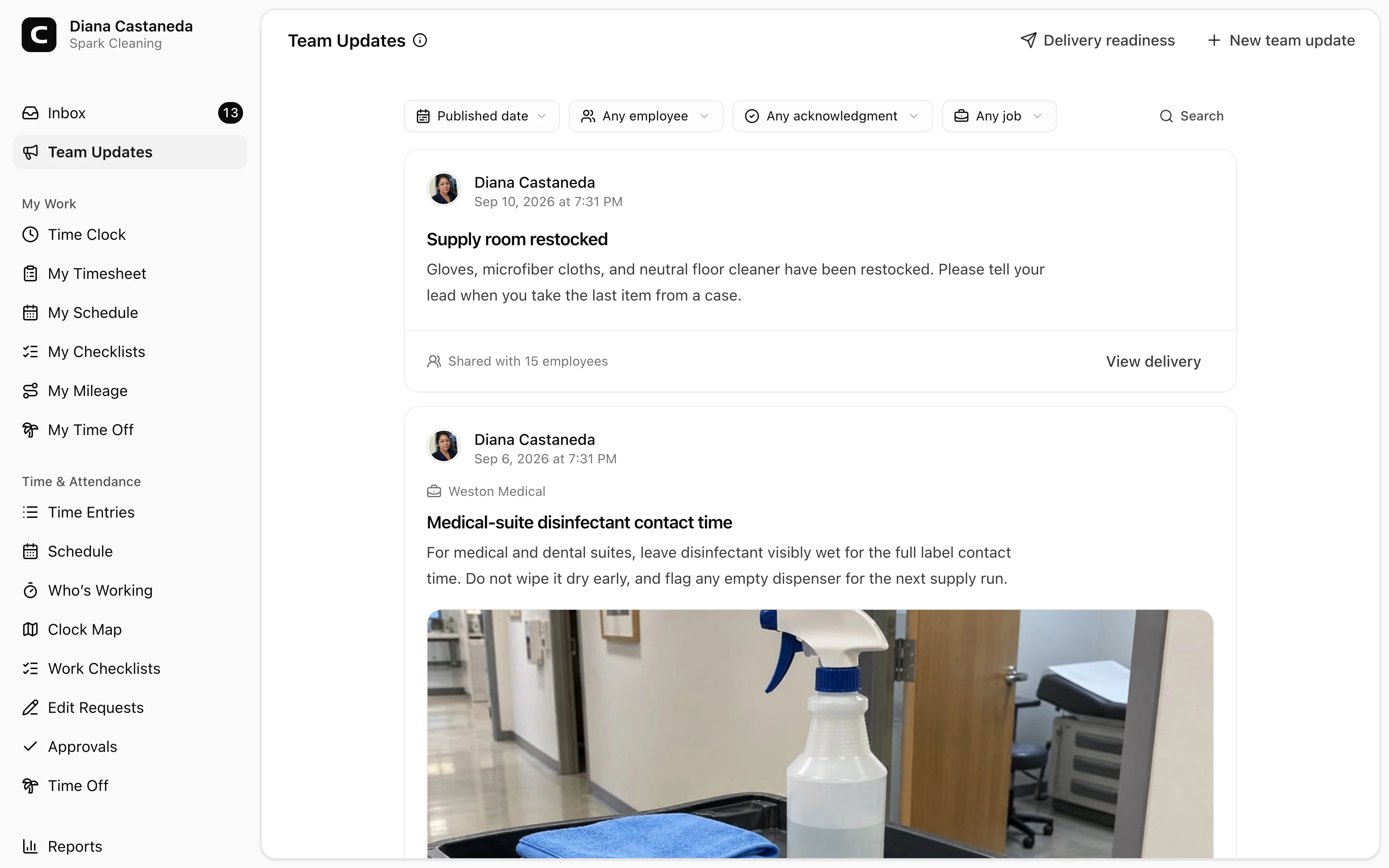
Team Updates keeps workplace news, instructions, and changes in one shared feed. Employees can read updates sent to them, while people with workspace Team Update access can also publish and review delivery.
Read an update
Each update shows who published it, when it was published, its message and attachments, and any related Job or Work Site.
Use Search team updates or Filters to narrow the feed by Published date, Acknowledgment, Job, or Work Site. Publishers can also filter by Employee. Press Load more to continue into older updates.
If an update says Please confirm you’ve read this update, read it and press Confirm I’ve read this. Clockspot records the confirmation; opening the update alone does not count, and confirming does not mean you agree with the message.
Publish an update
If you can publish, press New team update:
- Enter the Title and Message.
- Optionally press Add photos or PDFs. One update can include up to four JPG, PNG, WebP, or PDF files.
- Under Delivery, choose when employees should receive it.
- Choose the related work and audience the delivery option asks for.
- Turn on Require employees to confirm they’ve read this when you need an explicit acknowledgment.
- Read What will happen, then press Publish update.
Review the summary carefully before publishing. A published update does not have an edit or delete action.
Choose when it appears
- Send now sends an in-app notification to the employees you choose. Employees who enabled Team Update email or SMS alerts receive those alerts too, and everyone in the audience can open the update on Team Updates.
- Show at clock-in waits for a matching clock-in. Choose Any clock-in, A Job clock-in, or A Work Site clock-in, then choose Show at clock-in until. The employees who clock in and match those choices become the audience; Clockspot does not send an email or SMS alert first.
- Send now + clock-in reminder sends to the employees you choose immediately, then shows the update again after the matching clock-in through the date you set.
For an immediate delivery, choose All employees or Selected employees. For a clock-in-only delivery, the matching clock-in decides who receives it.
A matching web Time Clock or kiosk clock-in can open the update immediately. The clock-in is already recorded before the update appears. Choosing Finish later leaves a required confirmation in Inbox under My to-dos. A phone clock-in can qualify an employee for the update, but the call does not read the update aloud; the employee can open Team Updates or Inbox afterward.
Review delivery and acknowledgments
On an update you published, press View delivery or View delivery and acknowledgments. The dialog shows who can open the update on the Team Updates page, plus the available Email, SMS, and acknowledgment status for each employee.
Email delivered means the employee's email provider accepted the message. SMS sent means the text messaging provider accepted the message. Neither status proves the employee read it; only Acknowledged records an explicit confirmation.
Before publishing, use Team Update delivery readiness to see which employees have Email, SMS, or WhatsApp alerts ready. Employees manage those extra channels in Notification Preferences.
Common questions
- Why didn't an employee get an email or SMS alert?
The employee may have that channel turned off or may need to finish its setup. Check Delivery readiness before publishing or View delivery afterward; the update still remains available on Team Updates.
- Does "Acknowledged" mean the employee agrees with the update?
No. It records only that the employee pressed the confirmation action after the update was delivered.
- Can I change an update after publishing it?
No edit or delete action is available after publishing. Review What will happen, the audience, attachments, and message before you press Publish update.
Clockspot keeps clock-ins, corrections, approvals, and payroll-ready hours connected so owners and managers can review the workweek before payroll.
Want to simplify how your employees track time? See how Clockspot works.