Approvals
Review submitted timesheets by employee and pay period, then approve accurate records, reject work that needs correction, or reopen a previous decision.
No login required. Opens in one click.
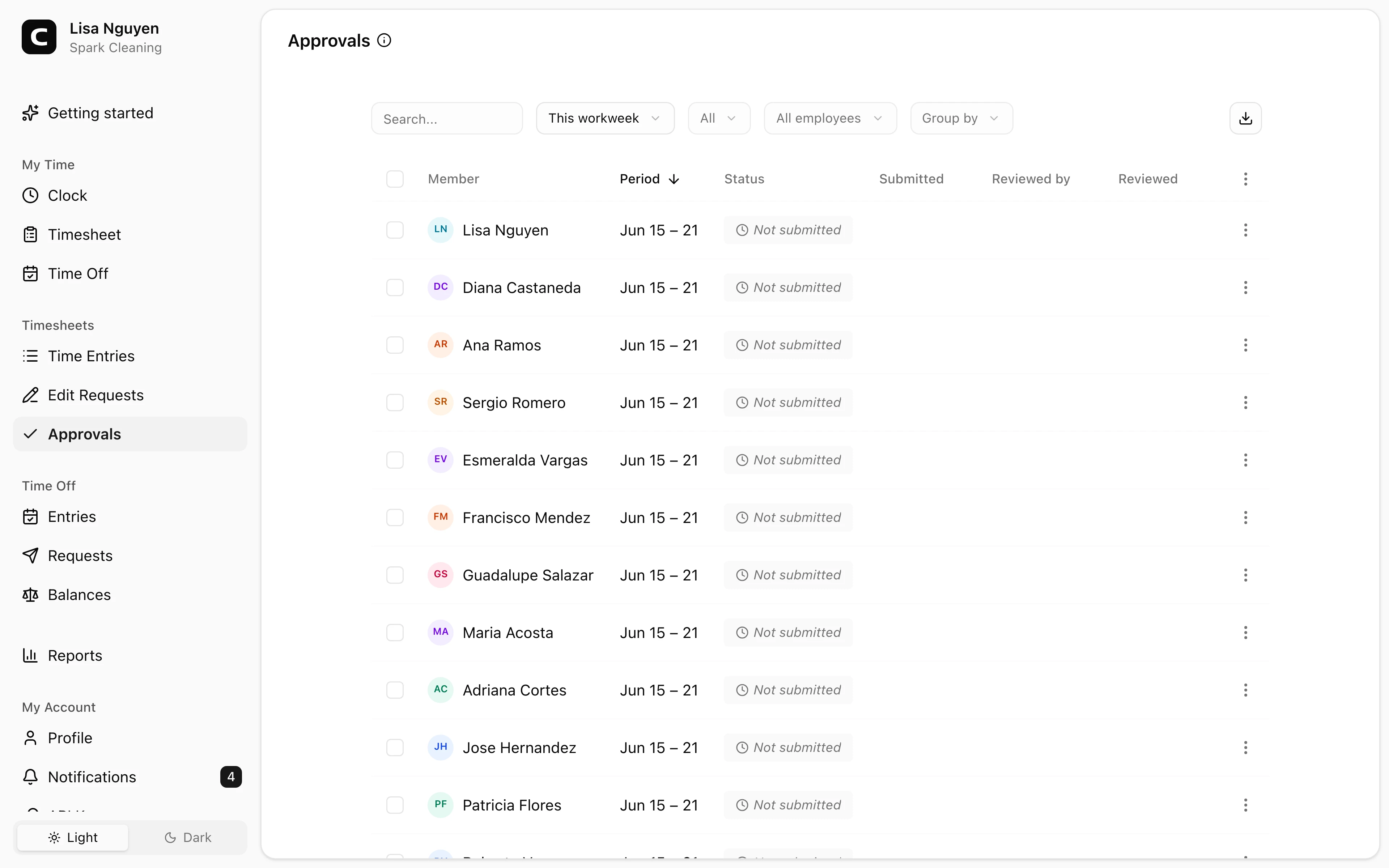
What this page shows
The page opens to one timesheet period, shown above the cards. Use the period picker to choose This workweek, Last workweek, or a custom range.
Each card summarizes the employee's pay period, entry count, time worked, and break totals when your workspace uses breaks. An alert identifies time entries that are still open. Employee and reviewer notes appear directly on the card.
Use the three views to separate the work:
- Needs review — submitted timesheets waiting for a decision.
- Not submitted — employees who have not submitted the selected period.
- History — approved, rejected, and cancelled timesheets.
Press Search to find a timesheet by employee, period, note, reviewer, or status.
Reviewing a timesheet
On a card in Needs review, press Review timesheet to open the employee's submitted entries without leaving Approvals. Select an entry to inspect its full record, including breaks and clock verification. Use Reject timesheet or Approve timesheet on the card or in the review dialog; you can add an optional reviewer note or comment before confirming.
In Not submitted, press Review time entries to inspect and correct entries before approving recorded work without an employee submission. If an entry is still open, the primary action is Fix open time entries because the timesheet cannot be approved until every shift has a clock-out.
A submitted timesheet's menu also offers Cancel submission. In History, press View timesheet for the in-page details, or open the menu and choose Reopen timesheet when the underlying entries need to become editable again. Use Time Entries when you need the full employee ledger rather than one approval period.
Bulk decisions
Press Select in Needs review or Not submitted, choose the timesheets, then press Approve selected or Reject selected when available. Bulk decisions require confirmation and do not include a per-timesheet note.
After a decision
- Approved — the timesheet is locked. To change an entry, reopen the timesheet or have the employee submit an edit request.
- Rejected — the employee sees the manager's note in My to-dos, can request corrections, and can resubmit the period. Reopen it only when a manager must change the entries directly.
- Cancelled — the prior review was reopened or superseded by a resubmission and remains in history.
Common questions
- An employee hasn't submitted but I know their timesheet is correct.
Open Not submitted and press Approve timesheet on the employee's card. Use Select when you need to approve several unsubmitted timesheets.
- An entry on an approved timesheet was wrong. What's the cleanest fix?
Use Reopen timesheet in History, fix the entry from the Time Entries page, then approve it again. Alternatively, the employee can submit an edit request without unlocking the timesheet.
- What happens to the entries inside a rejected timesheet?
The entries stay locked against direct edits. The employee can request corrections, see the rejection in My to-dos, and resubmit after the corrections are complete.
Clockspot keeps clock-ins, corrections, approvals, and payroll-ready hours connected so owners and managers can review the workweek before payroll.
Want to simplify how your team tracks time? See how Clockspot works.