HelpWorkspace setup
Company Profile
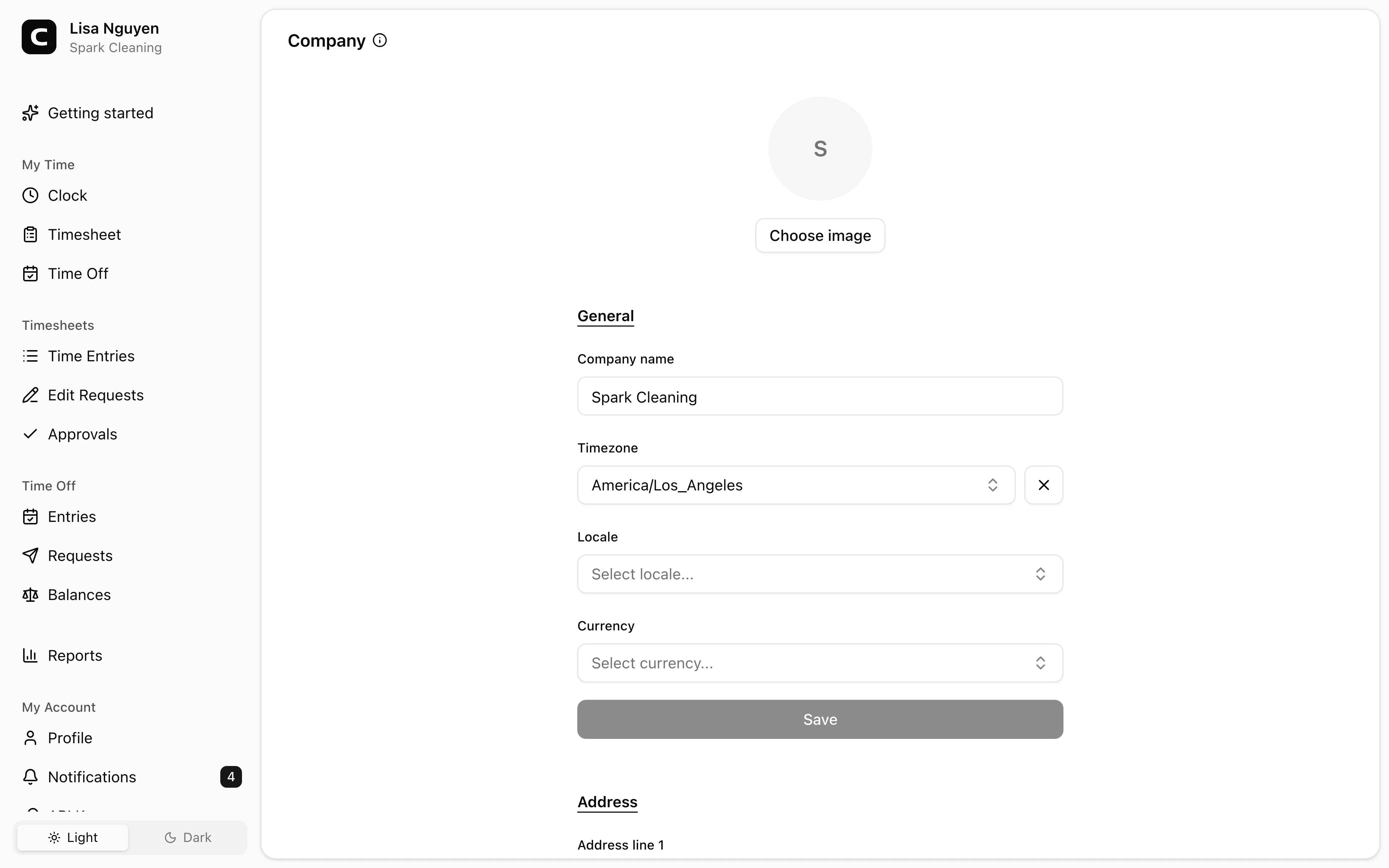
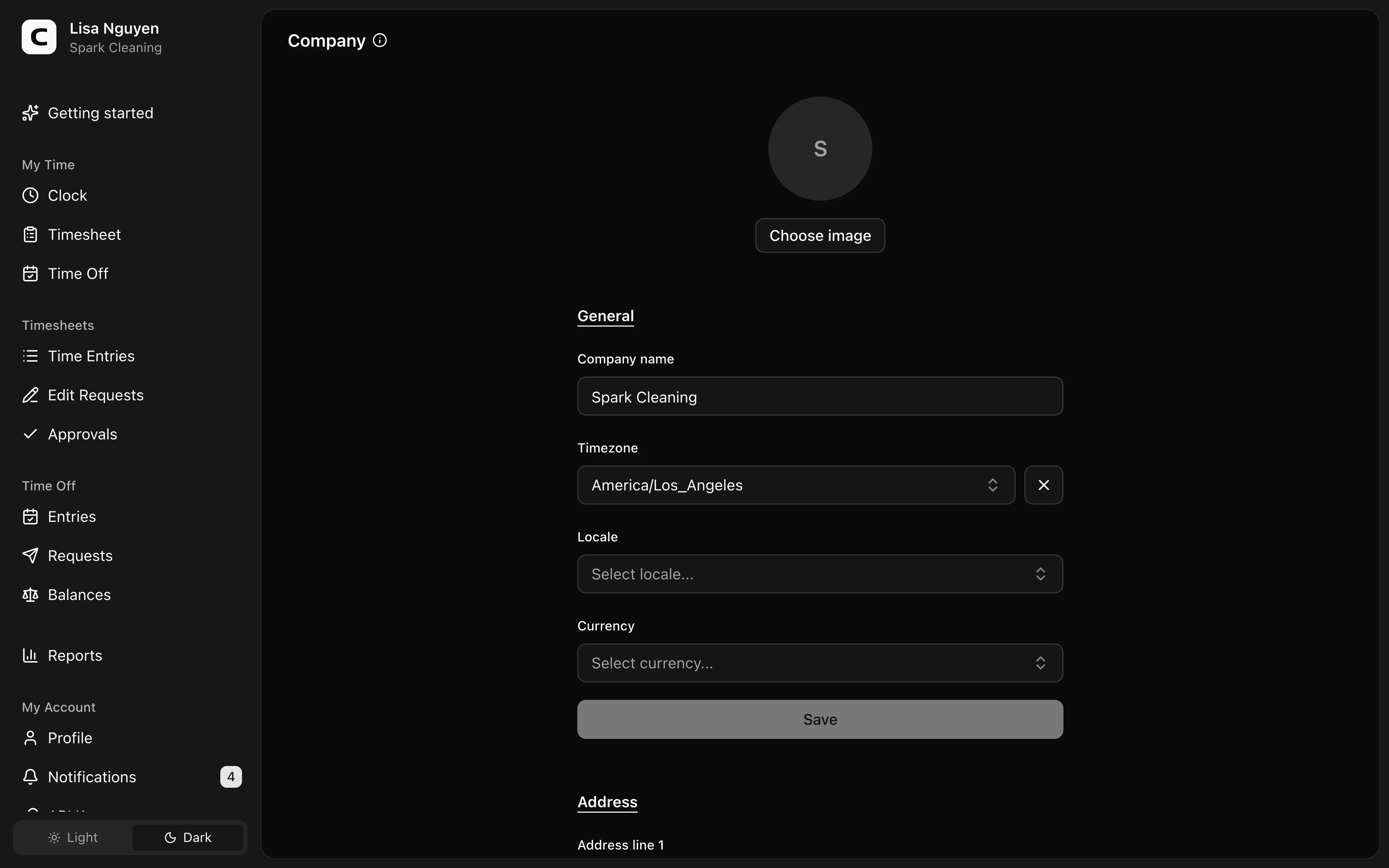
Update the company image, name, time zone, locale, currency, and address so the workspace uses the right business and display defaults.
No login required. Opens in one click.
What you can set
- Company image — set it with Choose image or clear it with Remove.
- Company name — shown in the workspace switcher.
- Timezone — the workspace's stored default timezone; each person sees times in their own My Profile timezone. New shifts start in this timezone. Changing it does not move shifts already on the Schedule.
- Locale — your workspace's default locale.
- Currency — your workspace's default currency.
- Address — your company address.
Common questions
- Can I run multiple companies from one workspace?
One workspace = one company. To track multiple legal entities, create a separate workspace per entity.
- What's the difference between Company timezone and My Profile timezone?
Company Timezone is the workspace's stored default. Times throughout the app — including reports — display in your own My Profile timezone (or your device's, if you haven't set one).
Clockspot keeps clock-ins, corrections, approvals, and payroll-ready hours connected so owners and managers can review the workweek before payroll.
Want to simplify how your employees track time? See how Clockspot works.