Breaks & Lunches
Create meal and rest break types, choose whether each one is paid, and configure minimum durations, automatic deductions, or break reminders when your policy calls for them.
No login required. Opens in one click.
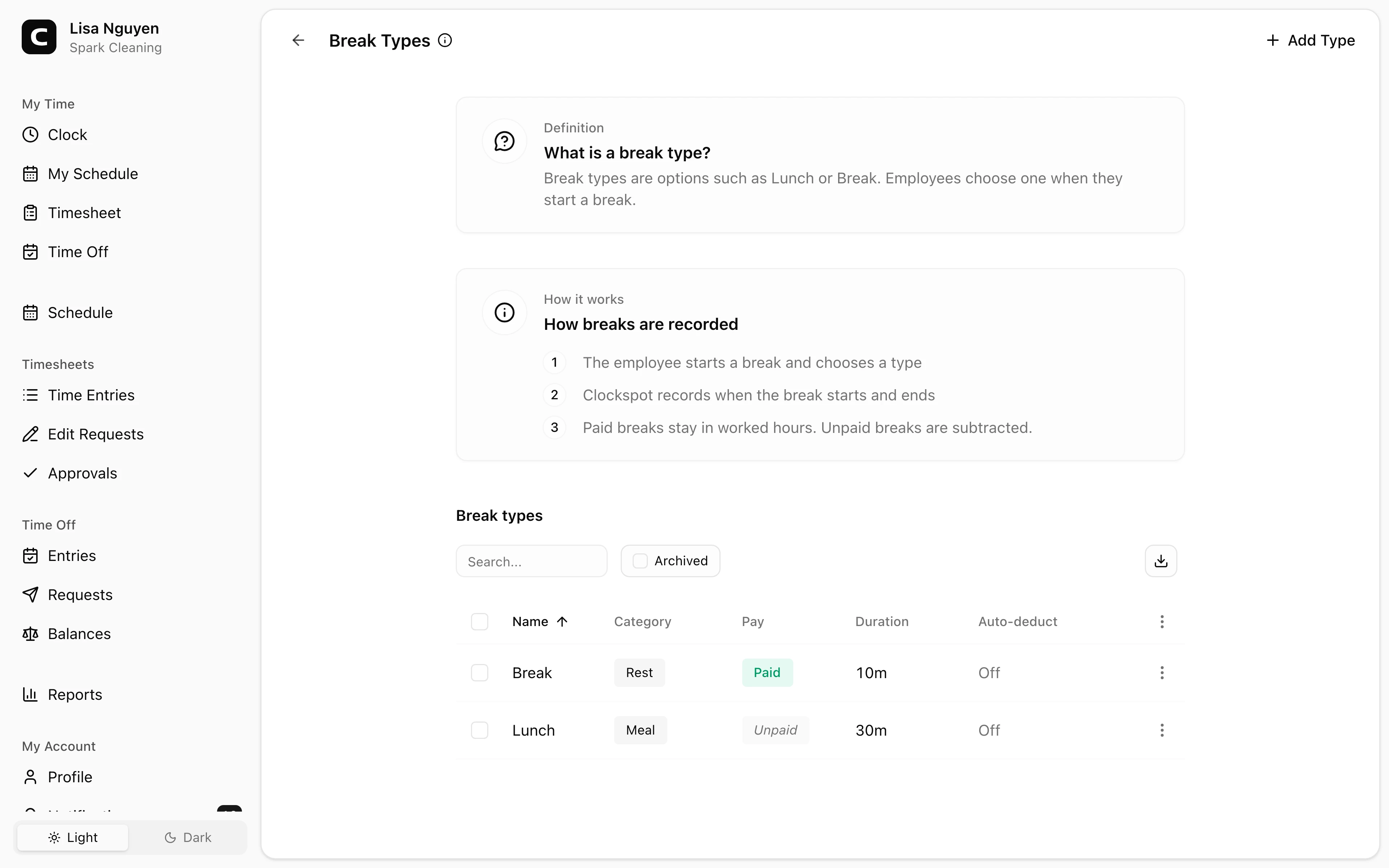
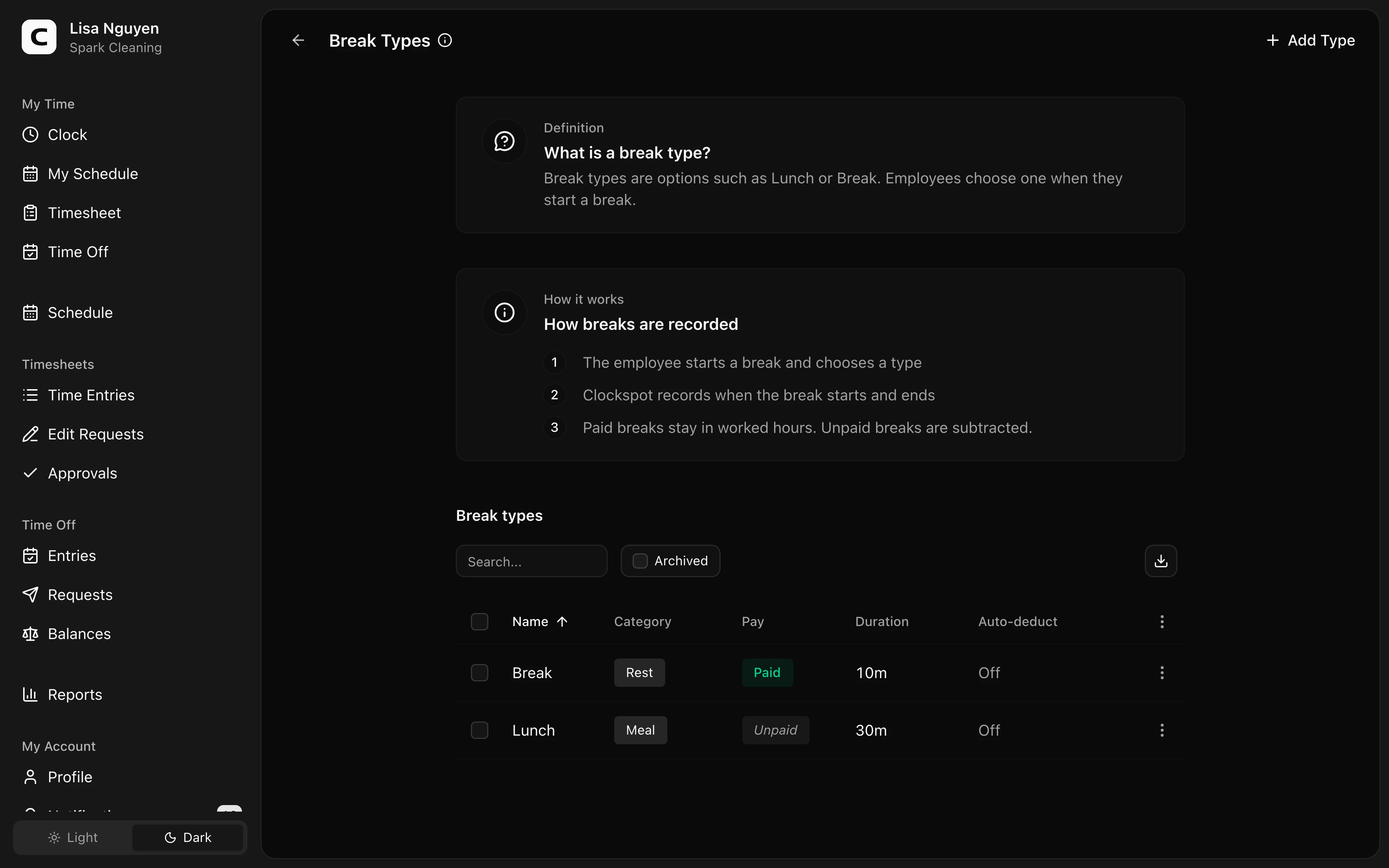
Add a break type
Open Settings, choose Breaks & Lunches, then press Add break type.
Set the name and code, choose Meal or Rest, and decide whether the break is paid. Duration (minutes) supplies the length for automatic deductions and return reminders. Turn on Prevent employees from ending this break early when employees must wait that full duration before ending a punched break or clocking out. Leave Auto-deduct after blank when employees should record every break themselves.
Use Start reminder after to remind an employee once they have worked the chosen number of minutes without recording this break. Clockspot does not send the reminder while another break is in progress. Use Return reminder before end to remind an employee before the break's saved duration ends; enter 0 to remind at the end. Leave either field blank to turn that reminder off.
You cannot change the code, category, or whether the break is paid after adding the type. You can still edit its name, duration, minimum-duration rule, auto-deduct threshold, and reminders. To change a fixed field, archive the old type and create a replacement.
Manual break punches
An employee who is clocked in from their own account sees Start Break on Clock. They choose a type, then press End Break when they return. Clockspot records the break times separately from the shift's in and out times.
When the type prevents early ending, Clockspot refuses End Break and clock-out until the saved duration has elapsed. An Administrator can still correct the recorded break from Time Entries.
At a registered kiosk, the employee selects their name, chooses Start break or End break, and confirms with their kiosk PIN. Phone clocking does not support break punches.
The employee's Timesheet shows each recorded break. Paid breaks remain in Duration; unpaid breaks are subtracted.
Automatic deductions
When Auto-deduct after has a value, Clockspot checks each clocked time entry when the employee clocks out:
- The time entry must meet that length.
- A break of the same type must not already exist on the entry.
- The added break uses the type's current Duration (minutes) and appears as Auto-deducted.
Changing the threshold affects future clock-outs. It does not add breaks to older entries, and manually added time entries do not receive an automatic deduction.
Review and correct breaks
Open Time Entries, use a row's menu, and choose Manage breaks. You can:
- Press Add break to record a completed break.
- Edit the type, start time, or end time.
- Archive a break that should no longer affect paid time.
The Breaks column shows the type and duration. Its details identify paid or unpaid time and mark automatic deductions. Break corrections are also included in the entry's View history timeline.
Archive a type
Use Archive when employees should stop selecting a type. Existing break records keep their original type. Their paid hours do not change. Turn on Archived to review or restore archived types.
Common questions
- I chose the wrong paid or unpaid setting.
Archive the type and create a replacement with the correct paid or unpaid setting. Existing break records keep the archived type so their paid-hours history does not change.
- Why wasn't lunch deducted from a long time entry?
Clockspot skips the deduction when that entry is below the threshold or already has a break of the same type. Automatic deductions run at employee clock-out, not when an Administrator manually adds or completes an entry.
- An employee worked through an automatically deducted break.
Open Time Entries, choose Manage breaks for the entry, then edit or archive the auto-deducted break before approving the period.
Clockspot keeps clock-ins, corrections, approvals, and payroll-ready hours connected so owners and managers can review the workweek before payroll.
Want to simplify how your employees track time? See how Clockspot works.