Scheduled Reports
Schedule recurring report exports by email, review the saved files Clockspot generates, and keep routine payroll or operations reporting on time.
No login required. Opens in one click.
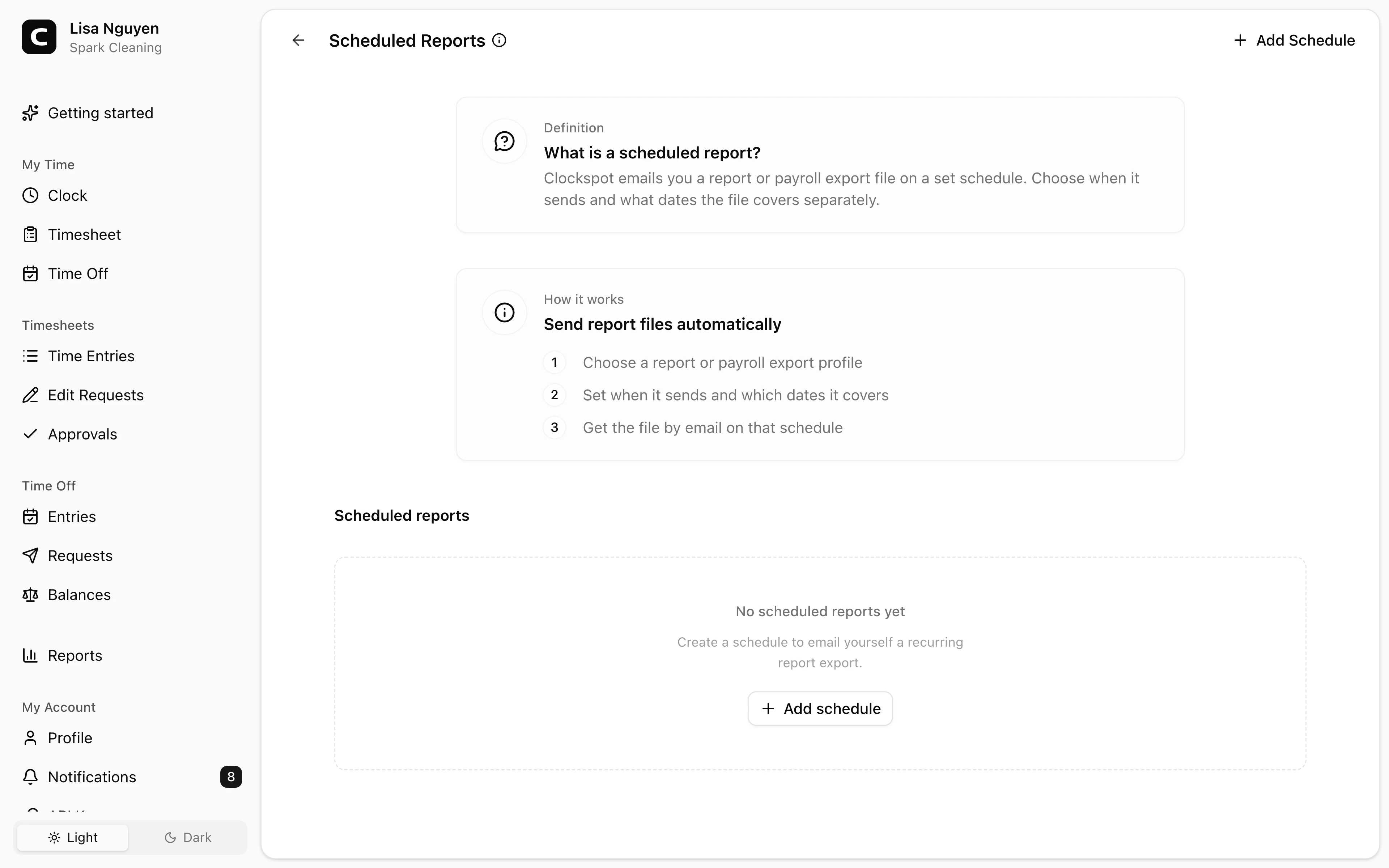
Scheduled Reports is where Administrators set up recurring emails for Clockspot report exports, saved payroll export profiles, or the Daily Summary email.
How schedules work
A schedule has two separate choices:
- Send schedule - when Clockspot sends the email, such as daily at 8:00 AM or weekly on Friday.
- Coverage - what dates the delivery contains, such as Previous workweek, Previous two workweeks, Previous calendar month, or Previous day.
Keeping those choices separate lets you send a report on one rhythm while covering a different period when the report needs it.
Creating a scheduled report
- Open Reports, then press Scheduled.
- Press Add Schedule.
- Choose Report or Payroll export under Type.
- Choose the report, file Format, or saved Payroll profile.
- Choose the Recipients. The schedule can go to you and to any owner or Administrator, up to 25 people. Each person receives their own copy.
- Set Repeats, any repeat-specific fields, Send time, and Send timezone.
- Set the Coverage Period and Coverage timezone.
- To check the delivery email first, press Preview email. When it looks right, press Add schedule.
The Daily Summary email
The Daily Summary report offers an extra format, Email. Instead of attaching a file, Clockspot writes the day into the email itself: what needs attention first, then every shift worked that day grouped by work site or job with the employee's own shift note and photos, the result of any work checklist, and any handoff they left. Team updates still waiting on acknowledgment, time off, tomorrow's schedule with open and unconfirmed shifts, and a day review with actual time against scheduled time close the email.
Photos open from links that work for seven days without signing in, so the email can be forwarded to a site lead. A day with nothing worked, nothing scheduled, and nothing pending sends no email, and delivery history records it as skipped.
The quickest way to set it up is Settings, then Alerts & reminders, then Daily Summary email. Press Set up to see the send time, 6:00 PM in the workspace timezone, and the recipients, every owner and Administrator. Change either, then press Start sending; nothing is sent until you do. The send time and the recipients stay editable on that card, and Stop sending archives the schedule after a confirmation. The days it sends, the coverage, test sends and delivery history are managed here like any other schedule.
Daily send days
Daily schedules include a Days choice:
- Every day sends seven days a week.
- Mon-Fri sends Monday through Friday.
- Selected days sends only the days you choose.
Coverage choices
The Period list changes based on the selected target:
- Single-day reports use Current day or Previous day.
- Reports that require whole workweeks use Previous workweek or Previous two workweeks.
- Payroll export profiles use Previous workweek or Previous two workweeks.
- Range reports that do not require whole workweeks can also use Previous 7 days or Previous calendar month.
Managing schedules
The table shows Name, Target, Coverage, Send schedule, Next send, and Updated. Use the row menu to choose Edit schedule, Preview email, Send test, Delivery history, or Archive.
Delivery history shows each run, status, covered period, and what was sent: the attachment, the number of Daily Summary emails, or a skipped day. It also shows each recipient's email status. A delivery can show warnings when Clockspot created the file but some payroll-export rows need setup attention before you rely on the file.
Use Archive to stop future sends while keeping the schedule's delivery history. Archived schedules move to the Archived tab, where Restore brings one back as it was, with its next send computed from that moment.
Common questions
- Can I send every Friday but cover last month?
Yes. Set the send schedule to weekly on Friday, then choose Previous calendar month as the coverage period for targets that allow monthly coverage.
- Who receives the email?
Everyone chosen under Recipients: the person who created the schedule and any owner or Administrator they add. Each recipient gets their own copy at the email address on their account.
- Why did the Daily Summary email not arrive today?
When nobody worked, nothing was scheduled, and nothing needed attention, Clockspot skips the day rather than sending an empty email. Delivery history shows the skipped run.
- Where do payroll export profiles come from?
Open Settings, choose Payroll Files, and create or maintain the profile there. Scheduled Reports can then email a saved profile on a recurring schedule.
Clockspot keeps clock-ins, corrections, approvals, and payroll-ready hours connected so owners and managers can review the workweek before payroll.
Want to simplify how your employees track time? See how Clockspot works.