Clocking & time entries
Clock
Clock in at the start of your shift and out at the end, with a job and notes when your workspace uses them.
No login required. Opens in one click.
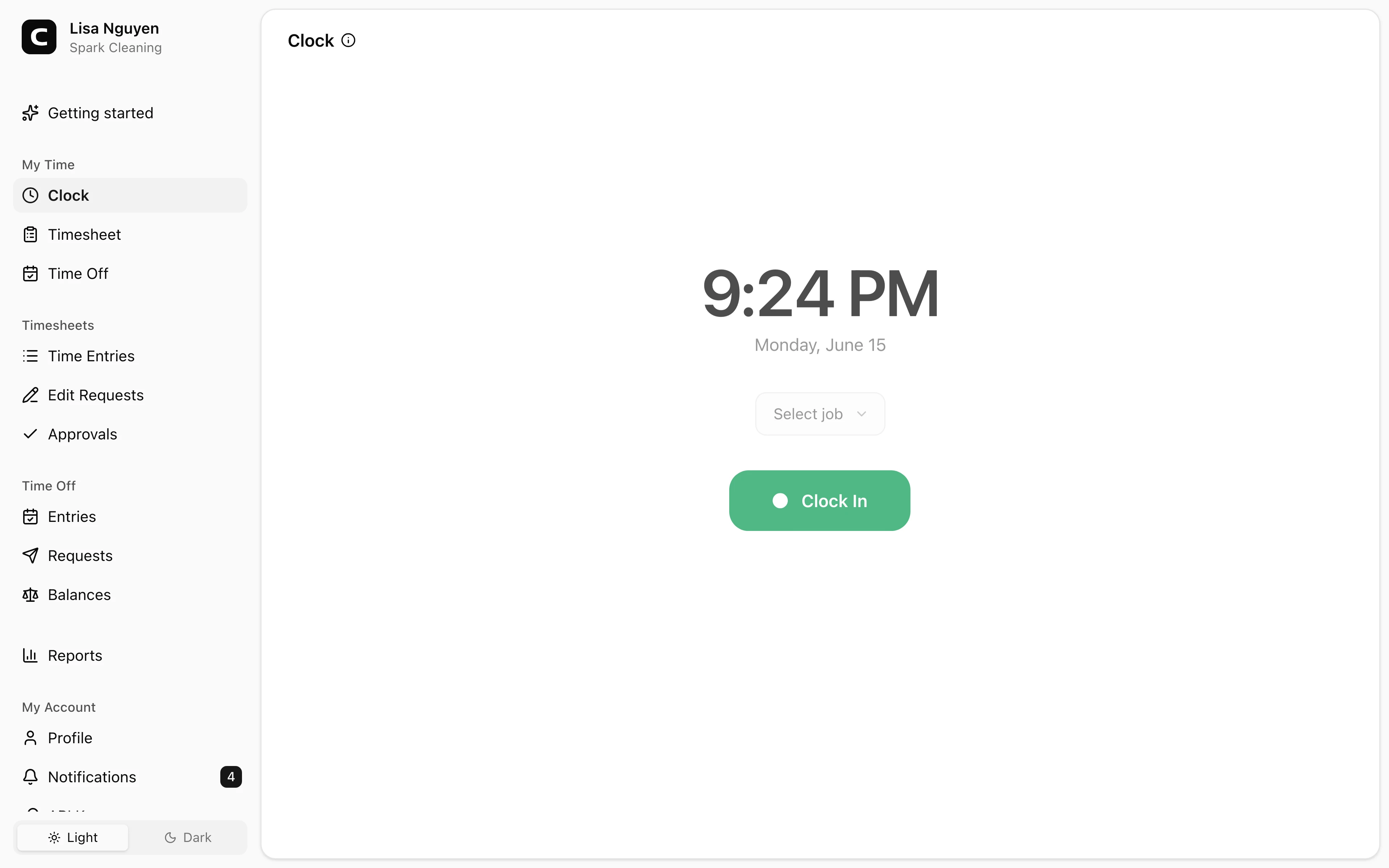
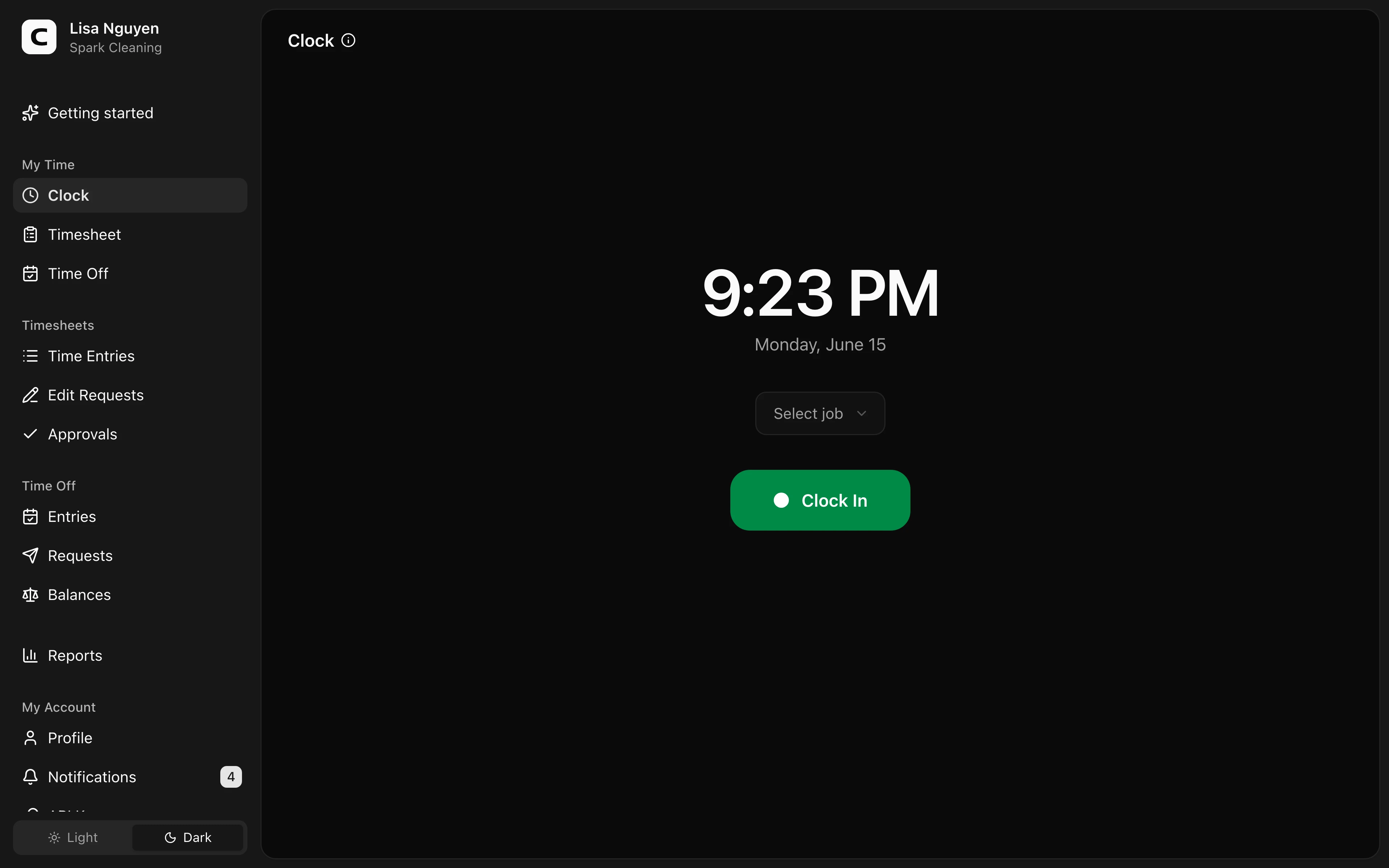
Clocking in and out
Press Clock In at the start of your shift and Clock Out at the end. Each press shows a confirmation with the recorded time — and the hours worked, when clocking out — and Done returns you to the clock.
Your workspace may also require you to pick a job, add a shift note, or fill in custom fields. If anything required is missing when you press the button, a message tells you what's needed.
Jobs, notes, and custom fields
If your workspace uses jobs, pick one before you clock in. You can still change it while clocked in — the change saves to your shift right away.
Add note and Custom fields appear while you're clocked in. Each opens a dialog, and Done saves what you entered to your shift immediately — nothing is lost if you close the page before clocking out.
Taking a break
While you're clocked in, press Start Break and choose the meal or rest break you're taking. Clockspot shows the active break and when it started; press End Break when you return. If you clock out while a break is still open, Clockspot ends the break at the same time.
Your recorded breaks appear with the entry on Timesheet. Paid breaks remain in the entry's duration; unpaid breaks are subtracted.
Clocking in by phone
If your manager has enabled phone clocking for you, they will give you a dial-in number, a phone clock ID, and a PIN.
Call the dial-in number and follow the phone prompts. Clockspot asks for your phone clock ID, then your PIN. If active jobs have phone codes, Clockspot also asks for the job code for the shift; press pound to skip when job selection is optional, or enter the matching code when your workspace requires a job.
After the clock-in or clock-out is recorded, Clockspot may ask you to say your name after the tone. That recording is attached to the time entry for manager review.
Where your entries go
Each clock-in and clock-out pair becomes a time entry on your Timesheet page. That's where you review your recorded hours, submit them for approval, and request a correction if an entry is wrong.
If your location isn't recognized
If you regularly work from a spot that isn't recognized, ask an admin to add it as a clock location.
Common questions
- Can I clock in for a time in the past?
No. Clock-in and clock-out record the current moment. If an existing entry needs a different time, request an edit from your Timesheet page. If you forgot to clock in entirely and there is no entry to edit, ask your manager to add the missing entry.
- I forgot to clock out at the end of yesterday's shift.
Clock out as soon as you notice — the recorded time will be wrong by hours. Then request an edit from your Timesheet page with the actual end time.
- My phone clock ID or PIN is not recognized.
Ask your manager to confirm your phone clock ID and reset your PIN if needed.
Related
Timesheet
Review your recorded time entries and submit them to your manager for approval.
Requesting a time entry edit
Ask your manager to correct a recorded time entry, including its breaks.
Time entries
Review, add, edit, and approve your employees' time entries.
Edit Requests
Approve or reject employee-requested changes to time entries and breaks.
Approvals
Approve, reject, or cancel submitted timesheets by employee and period.
Breaks & Lunches
Define meal and rest breaks, whether they are paid, and optional automatic deductions.