Breaks
Audit recorded meal and rest breaks by employee, including their duration, paid status, and whether each break was entered or deducted automatically.
Questions this report answers
- What breaks did employees record?
- How long were breaks, were they paid, and how were they added?
- Which employees recorded each type of break?
No login required. Opens in one click.
What this report shows
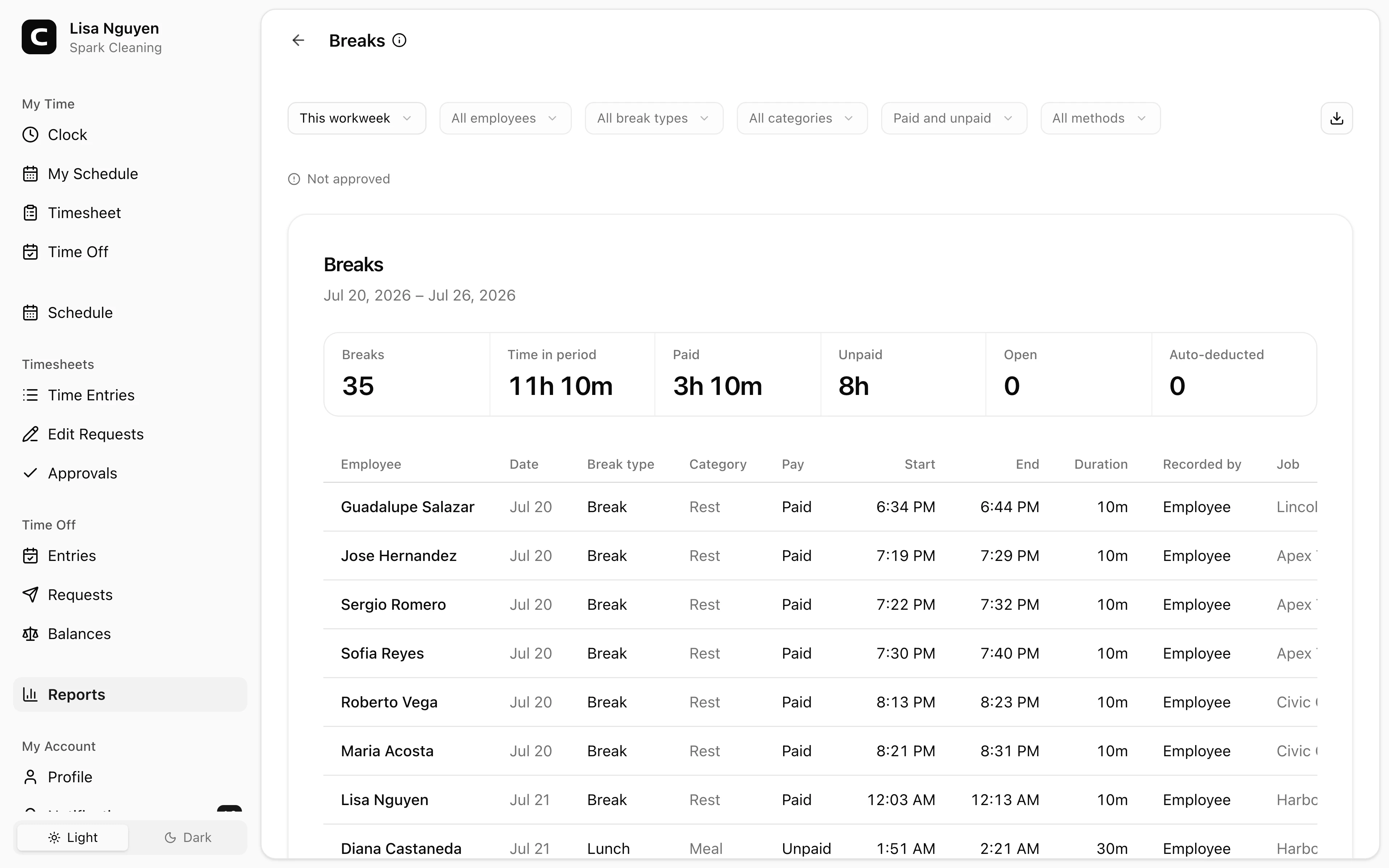
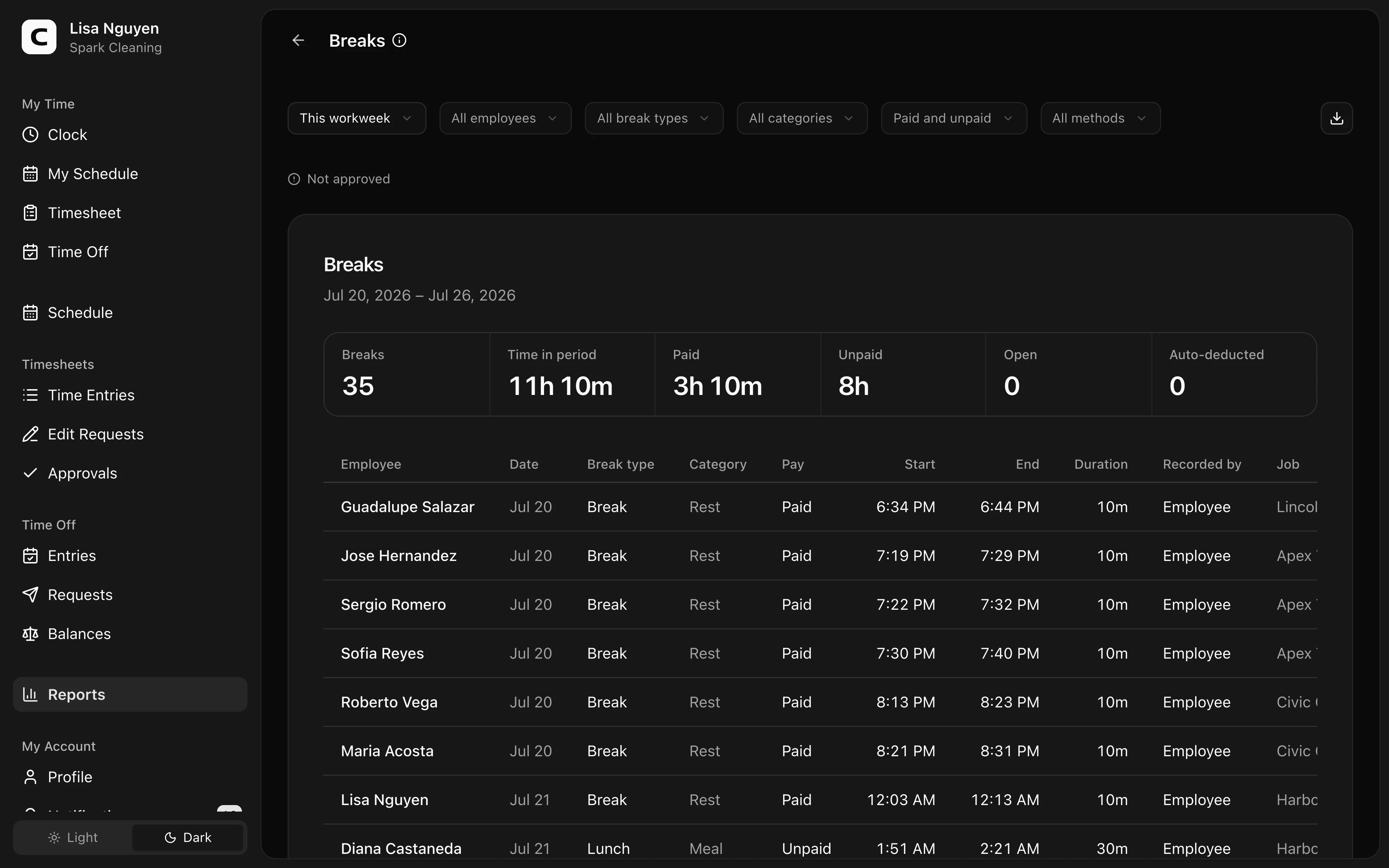
Breaks lists the meal and rest breaks recorded during the selected dates. Each row shows the employee, break type, category, pay, start and end times, duration, job, and who recorded it.
The Recorded by column shows:
- Employee — the employee started the break in Clockspot or at a kiosk.
- Manager — an Administrator added the break to a time entry.
- Auto-deduct — Clockspot added the break when the time entry met that break type's automatic deduction rule.
An open break has no end time. Its duration continues through the time the report is loaded, and open breaks appear first so they are easy to find. Break rows keep their recorded start, end, and full duration. Summary time counts only the portion inside the selected dates.
Filters
Use the date range, employee, break type, category, pay, and recording method filters to narrow the rows. Archived break types remain visible on the breaks that already used them.
Summary
The summary shows the number of breaks, total time inside the selected period, paid time, unpaid time, open breaks, and automatic deductions. Open breaks are highlighted because their durations are still changing.
Exporting
Open the export menu and choose Download CSV, Download Excel, or Download PDF. Exports use the same filters and totals as the report.
What this report does not decide
This report shows what Clockspot recorded. It does not decide whether a break was required, missed, late, or compliant with a law or workplace policy.
Common questions
- Where can I correct a break?
Open the employee's time entry on Time entries, then edit, add, or archive the break there.
- Why was a break added automatically?
The break type has auto-deduct turned on, and the time entry reached its configured threshold without that break being recorded manually.
- Does an unpaid break reduce worked hours?
Yes. Paid breaks stay in worked hours. Unpaid breaks are subtracted from worked hours.
Clockspot keeps clock-ins, corrections, approvals, and payroll-ready hours connected so owners and managers can review the workweek before payroll.
Want to simplify how your employees track time? See how Clockspot works.