Phone clocking
Set up employee phone clock IDs and PINs, share the dial-in number, and optionally restrict calls to approved workplace numbers.
No login required. Opens in one click.
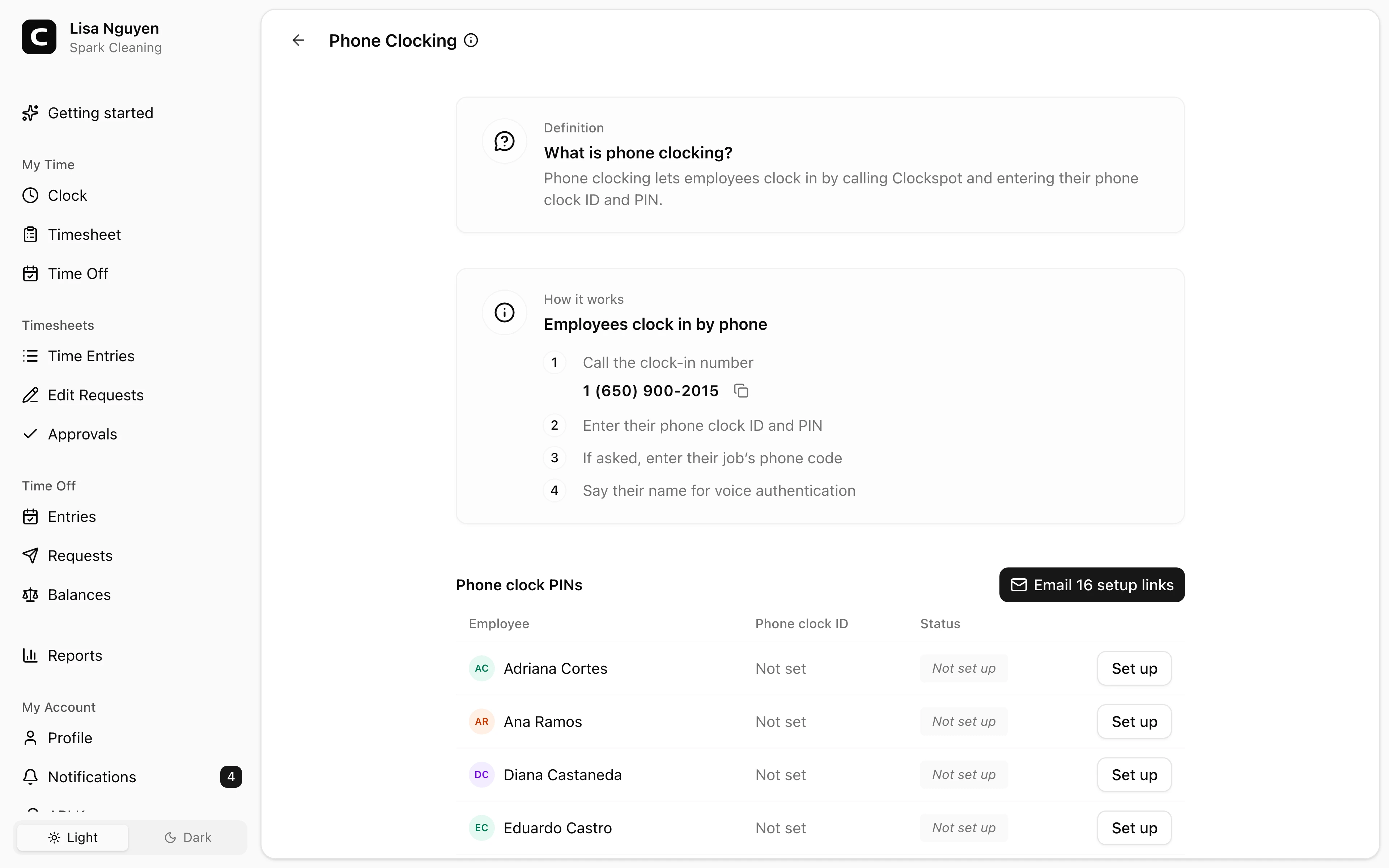
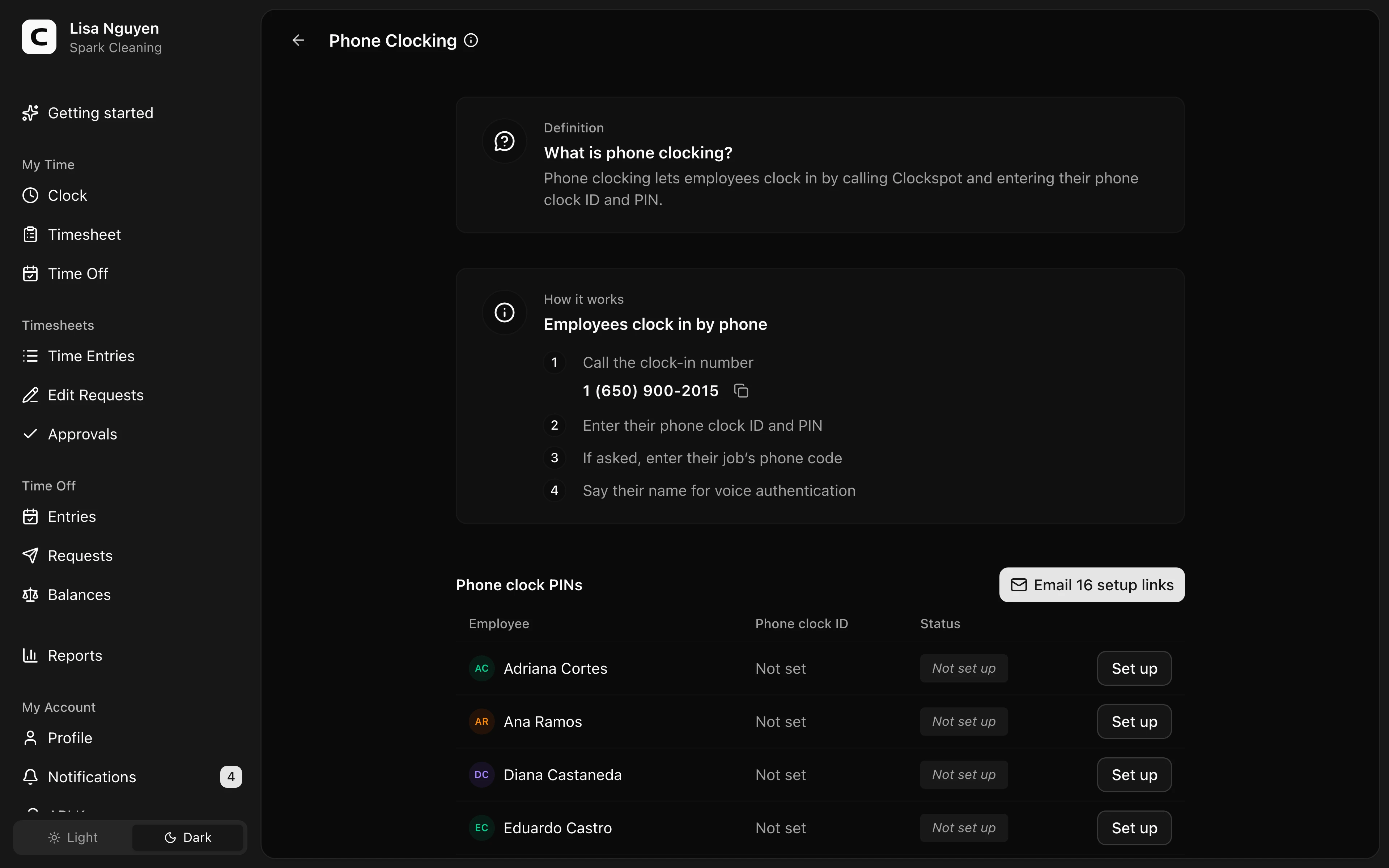
What phone clocking is
Phone clocking lets an employee clock in and out by calling a shared phone number and entering a personal phone clock ID and PIN — no app, kiosk, or smartphone needed. It's a good fit for field crews, drivers, and remote sites; each call records a normal time entry. Every call also captures a short voice recording — the employee says their name after clocking — so each entry carries a voice check.
The dial-in number is provided by Clockspot and is the same number for everyone — the phone clock ID is what identifies each employee. It's shown at the top of the Phone Clocking page, with a Copy number button next to it for pasting into a message or a printed notice.
Setting up employees
Open Settings, then choose Phone Clocking. The Phone clock PINs list shows each Employee you can manage with their phone clock ID and a status — Ready (they can clock in now), Link sent, Link expired, or Not set up — so you can run your rollout from one place.
The fastest way to start is the Email setup links button above the list — its label counts the emails it will send (for example, Email 6 setup links). Clockspot emails a link to everyone marked Not set up or Link expired, and each person chooses their own PIN, so you never see or handle it. Anyone with an active link is skipped, so pressing it again won't re-email or cut off someone mid-setup. Each link expires in 7 days, and no one's current PIN changes until they use it.
To set up one person, press Set up on their row. From there, press Email setup link to send them a link, or Set PIN manually to enter a 4-12 digit PIN yourself. Either way, Clockspot assigns the phone clock ID automatically — you don't choose it. Once they're ready, the row's Manage button opens the same screen to email a reset link, change the PIN, or remove it.
Approving caller numbers
Use Approved phone numbers when employees should call from known workplace phones or landlines. Press Add approved number, enter the Phone number, and optionally associate it with an existing Work Site. The number can verify phone clock events without a Work Site. When it is associated with a Work Site, Clockspot records that Work Site with each clock action from the number.
Turn on Restrict phone clocking to approved numbers to allow phone clock-in and clock-out only when caller ID matches a number in this list. A call from any other number is refused and tells the employee to contact their manager. Add at least one number before turning the restriction on. While it is on, add another number or turn it off before removing the last one.
This phone restriction is separate from Unrecognized clock-ins in Clock-in Verification. The Clock-in Verification block option applies to clock-ins from an employee's own account. It does not replace caller-ID rules or change the phone restriction's clock-in and clock-out behavior.
How employees clock in
At the phone-clock number, the employee enters their phone clock ID, then their PIN, each followed by pound. If active jobs have phone codes, they also hear a job prompt: enter the job's phone code, or press pound to skip when job selection is optional. If your workspace requires a job on each entry, that prompt requires a matching phone code; when no active jobs have phone codes, the call skips job selection. The call clocks them in or out, reads back the time, and records the voice check. The phone clock ID is per employee, not per call — they enter the same ID every time. See Clocking in by phone for the full steps to share with employees.
Removing access
Press Manage on that employee's row and choose Remove PIN to revoke their phone clocking. Their phone clock ID stops working along with the PIN, and they can't clock in by phone until you set them up again. If you do set them up again later, Clockspot assigns a fresh phone clock ID — the old one isn't reused.
Common questions
- Can the employee choose their own PIN?
Yes. Press Set up on their row, then Email setup link — they pick their PIN from a private link you never see. Use Set PIN manually only if you'd rather enter it yourself.
- An employee's phone clock setup link expired.
Setup links expire after 7 days — their row shows Link expired. Press Set up on their row, then Email setup link to send a fresh one.
- Where do I set the dial-in number?
It's configured for your workspace by Clockspot, not on this page. The number is the same for everyone; the phone clock ID identifies the employee.
- How is this different from a kiosk?
Phone clocking uses a phone call; a kiosk is a shared on-site device employees tap. They're independent — an employee can have either, both, or neither. If caller numbers are restricted, employees need to use an approved phone for phone clocking.
- Can I allow phone clocking only from workplace phones?
Yes. Add each caller ID under Approved phone numbers, then turn on Restrict phone clocking to approved numbers. The restriction applies to both clock-in and clock-out.
Clockspot keeps clock-ins, corrections, approvals, and payroll-ready hours connected so owners and managers can review the workweek before payroll.
Want to simplify how your team tracks time? See how Clockspot works.