Clocking in at a kiosk
Use a shared kiosk to select your name, enter your PIN, choose any required job, and record a clock-in or clock-out.
No login required. Opens in one click.
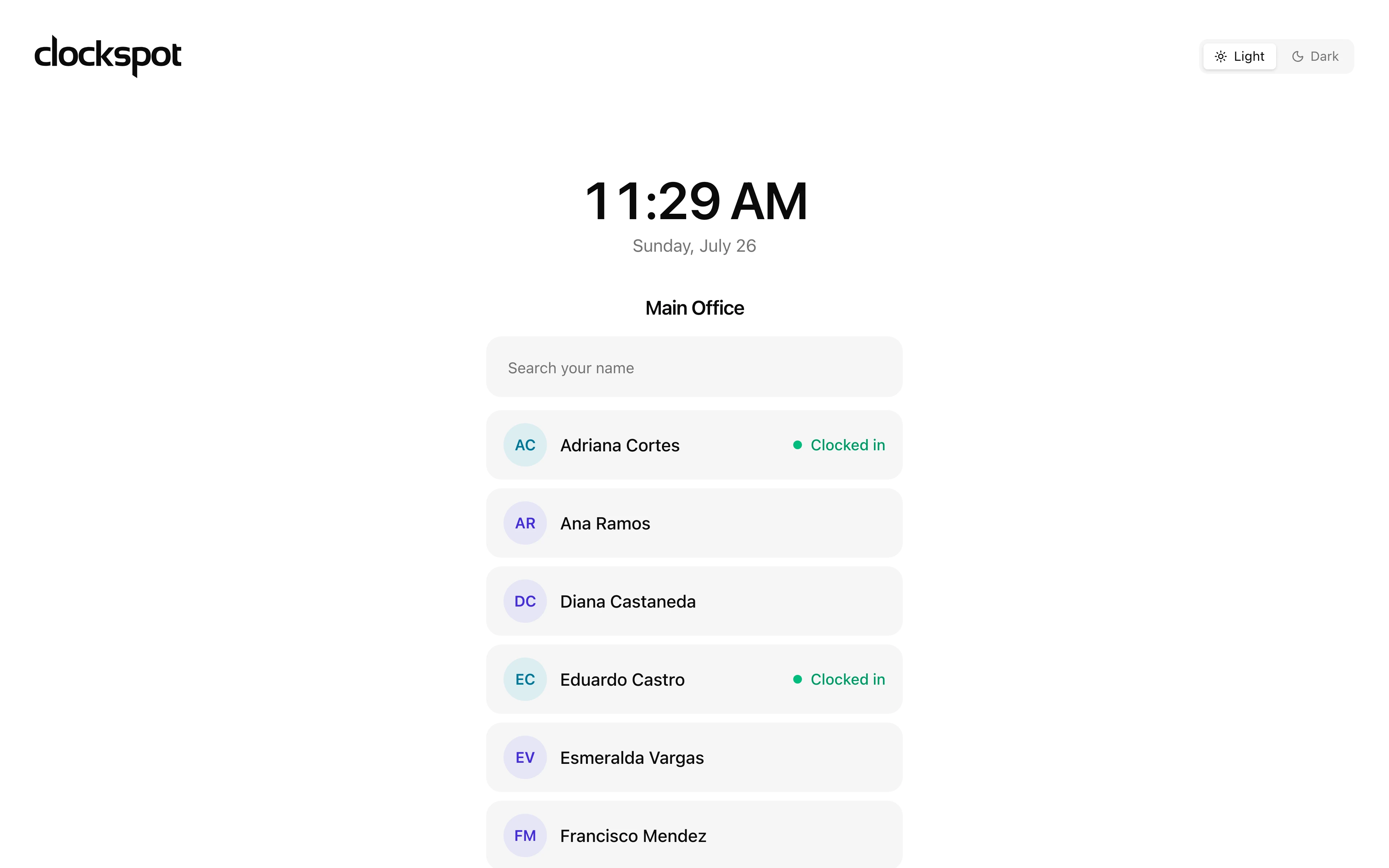
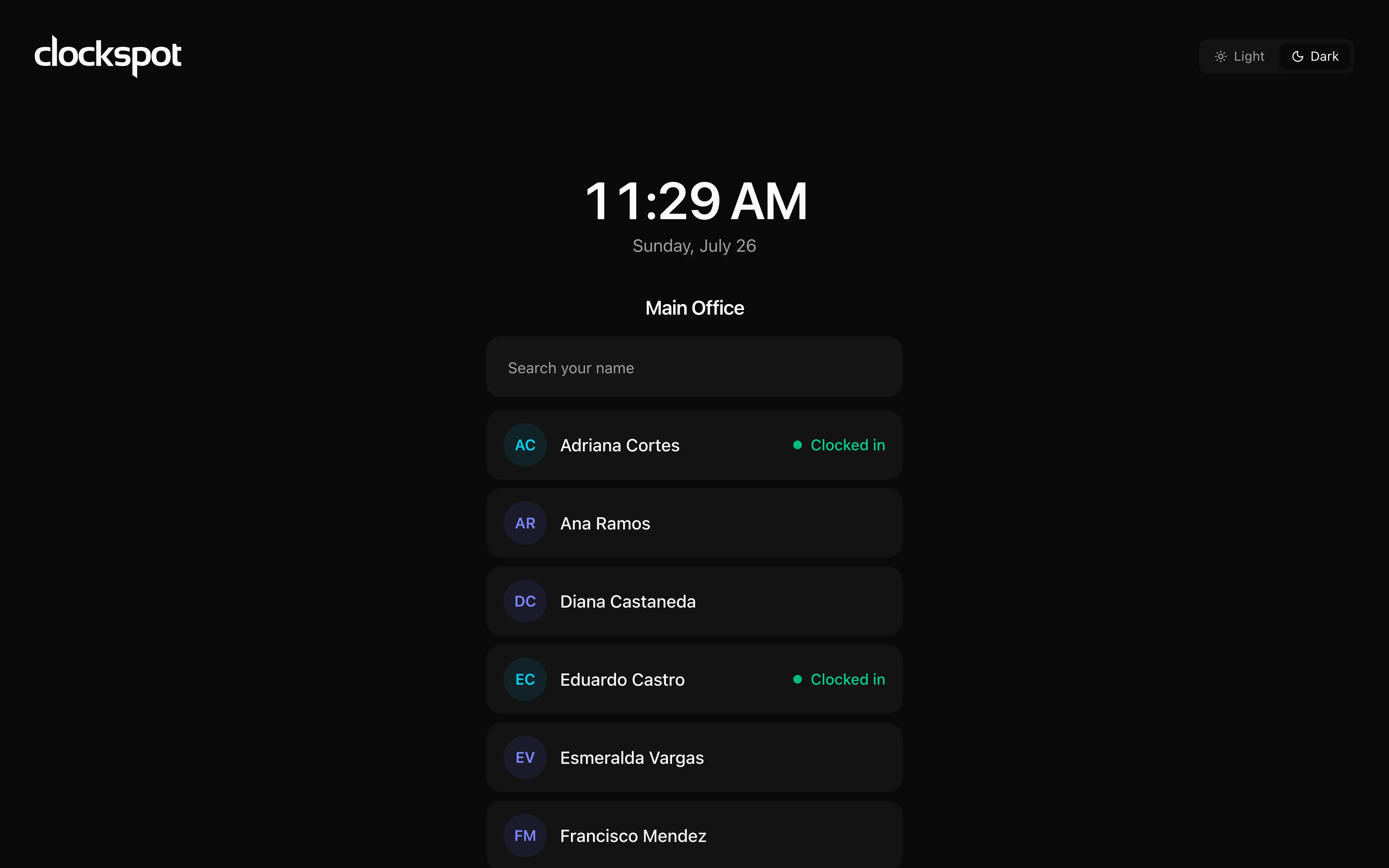
Clocking in at a shared device
A kiosk is a shared tablet or computer at your worksite that everyone clocks in and out from — useful when employees don't each carry their own device. Your administrator sets up the kiosks and gives each person a PIN.
At the kiosk:
- Find your name on the screen and select it. If the employee list is long, type into Search your name first.
- If Choose a job appears, select the job for your shift. You can choose No job when job selection is optional.
- If the selected job offers work types, choose the optional service or task category that applies. Choose No work type when the job alone is enough.
- Press Clock in or Clock out — the kiosk shows whichever one applies to you.
- Enter your 6-digit PIN.
The kiosk confirms the recorded time. After clocking in, it may show a Team Update that matches the work you selected. The clock-in is already recorded before the update appears. Press Confirm I read this when confirmation is required, or Finish later to continue; any update attachments are available from Inbox in your own account.
After clocking out, the confirmation can also show the job, work type, total shift time, break total, and attached GPS details.
Taking a break
While you're clocked in, select your name and press Start break. Choose the meal or rest break on the next screen, then enter your 6-digit PIN. When you return, select your name, press End break, and enter the PIN again.
The kiosk shows which break is in progress and when it started. If you clock out without ending it first, Clockspot ends the break at the clock-out time.
Tips
- Your PIN is personal — don't share it.
- Only people who have been given a PIN appear on the kiosk.
Common questions
- I forgot my PIN.
Ask your administrator to reset it for you.
- The kiosk doesn't list my name.
Ask your administrator to set you up with a kiosk PIN — only people with a PIN appear on the kiosk.
Clockspot keeps clock-ins, corrections, approvals, and payroll-ready hours connected so owners and managers can review the workweek before payroll.
Want to simplify how your employees track time? See how Clockspot works.