Reports
GPS Clock Event Map
See GPS-tagged clock events plotted on a map.
No login required. Opens in one click.
What the map shows
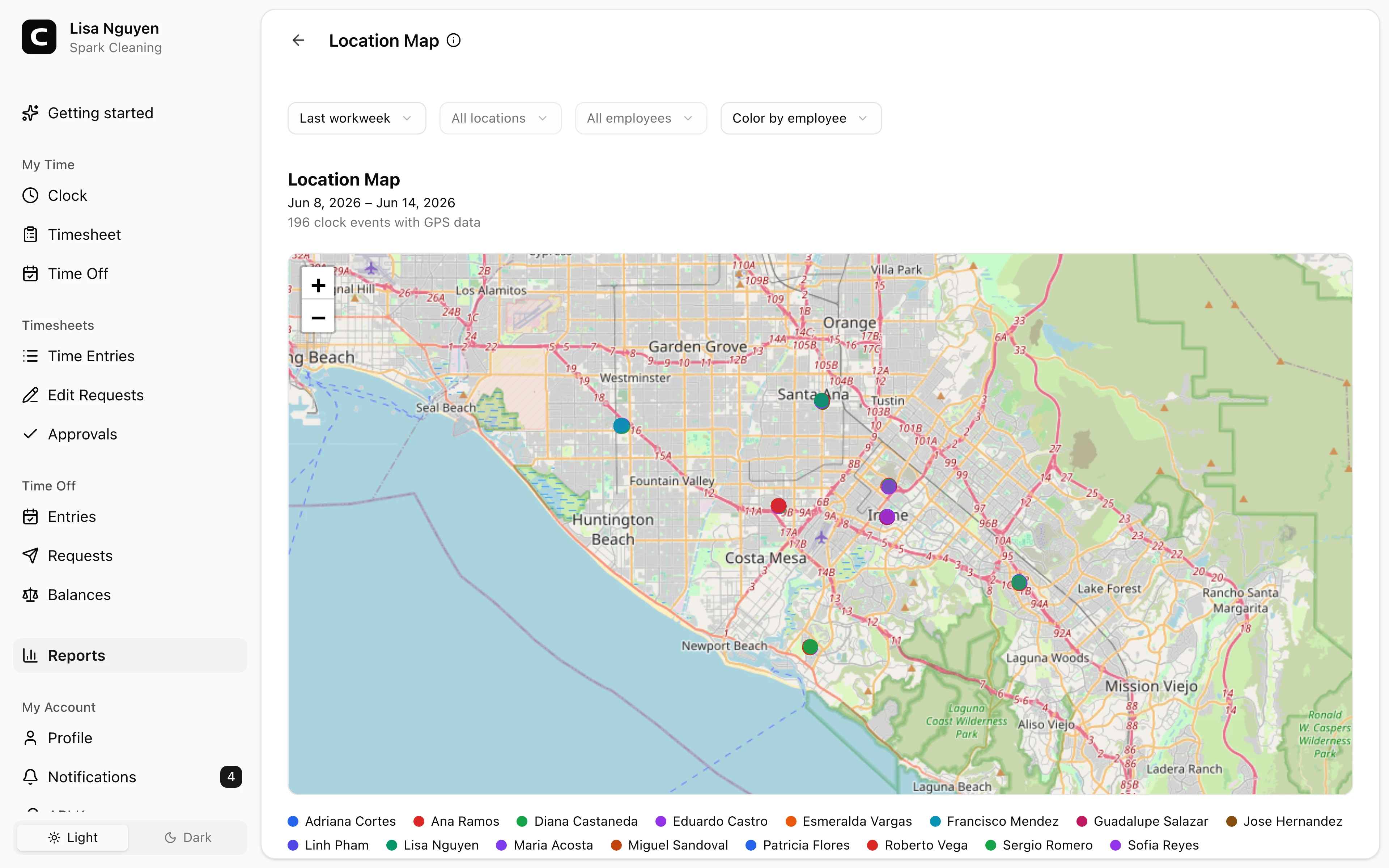
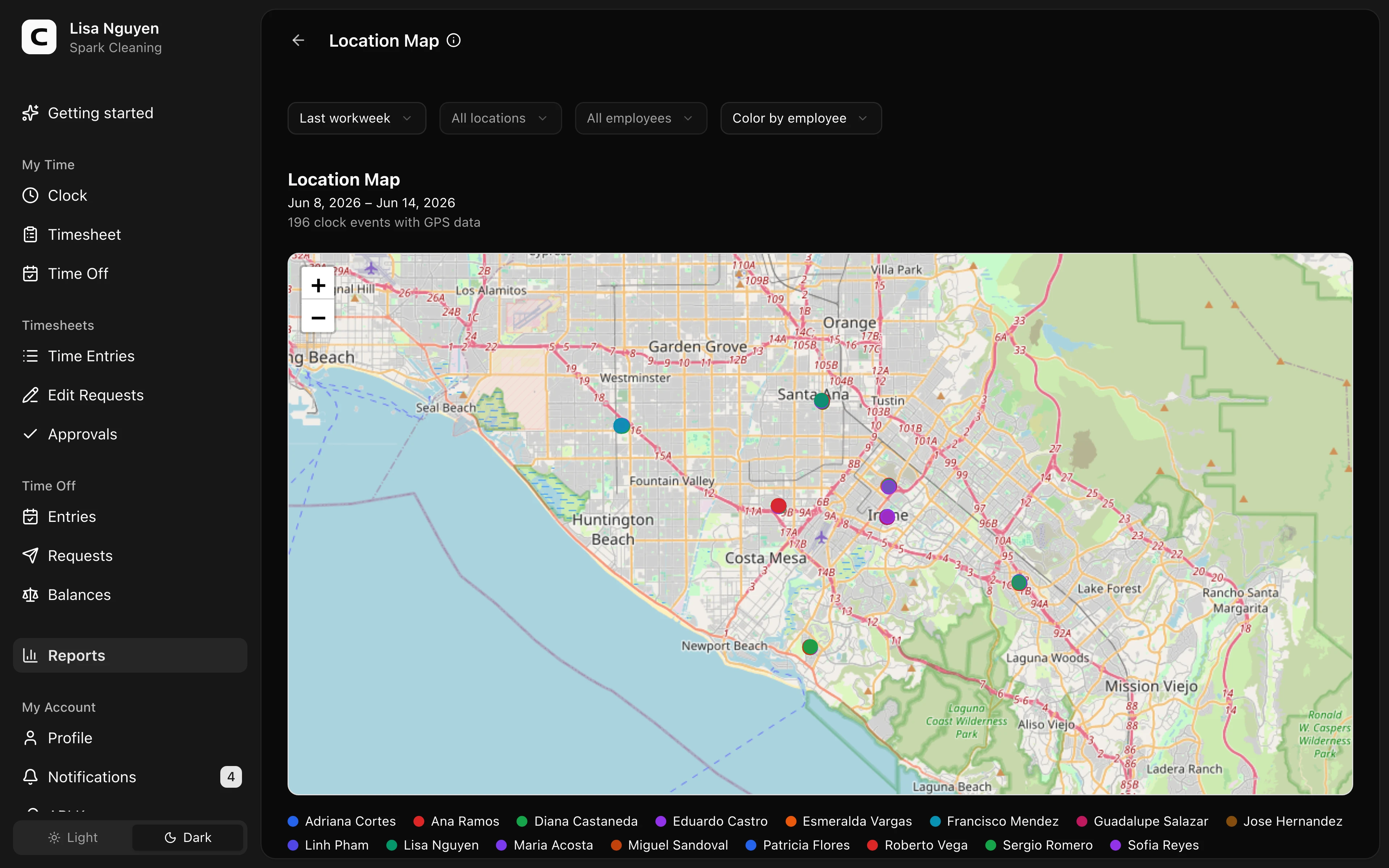
The map shows GPS-tagged clock-in and clock-out events inside the selected date range. When multiple clock events happened at the same spot, the marker shows a count. Open the marker to see each employee, time, clock-in or clock-out direction, and associated clock location.
Use All clock events to see every GPS event in the range. Use Latest per employee when you only want each employee's latest GPS clock event in the range.
A legend below the map maps colors to employees or locations and shows how many displayed events belong to each color. Use Color by employee or Color by location in the toolbar to switch the coloring.
Filters
Date range, location, employee, map mode, and color mode in the toolbar.
When the map is empty
The map only shows clock events with GPS coordinates. If your workspace doesn't capture geolocation, or employees clock in from devices that don't share GPS, those events won't appear here. The Location Activity report shows every entry regardless of GPS.
When to use a different report
- Hours rolled up per location → Location Summary
- Every clock-in/out as a list → Location Activity
- Missing or mismatched location data → Location Compliance
Common questions
- A pin appears far from where I expected.
GPS readings can drift, especially indoors. Open the pin to confirm the time and employee, then compare it with the surrounding entries before deciding whether the record needs follow-up.
- Can I see the route between two clock-ins?
No — the map shows discrete clock events only, not travel between them.
Related
How overtime works
How Clockspot classifies overtime hours into report tiers.
Running payroll
The path from a closed pay period to numbers you can hand to your payroll provider.
Reports
Open the report that matches the hours, payroll, job, or clock-location question you need to review.
Scheduled Reports
Email yourself recurring Clockspot report exports and saved payroll export files.
Current Status
See who is clocked in, on time off, scheduled today, or off duty right now.
Daily Summary
Review one day's clock activity, open punches, time off, pending edits, and cleanup items.
Attendance
See who worked each day, with hours, absences, and in/out times.
Breaks
Review recorded meal and rest breaks, including duration, pay, and how each break was added.
Schedule vs Actual
Compare published shifts with worked time, including differences, missed shifts, and unscheduled work.
Hours Summary
See each employee's regular, overtime, and time off hours for the period.
Overtime
See who hit overtime each week, with the rule behind each tier.
Payroll Readiness
Check payroll blockers, warnings, and cleanup actions before using payroll totals.
Payroll Summary
See payroll-ready hours and pay per employee, ready to process.
Timesheet Audit
Review direct edits and edit requests with who changed what, when, and why.
Job Hours
See how employee hours break down by job and project.
Labor Cost by Job
See hours, straight-time pay, overtime premium, and labor cost by job.
Time Off Usage & Balances
Compare time off used, pending requests, current balances, and balances after pending.
Verification Exceptions
Review clock events missing expected location, kiosk-photo, or phone voice evidence.
Location Summary
See how hours and headcount break down across clock locations.
Location Activity
See the clock-in and clock-out location for every shift.
Location Compliance
Find time entries with missing or mismatched clock locations.
Location Coverage
Compare where each employee worked, by location and by day.
Site Overview
Scan hours, entries, and employees at each clock location.