Time Entry Rules
Choose required clock details, clock-time rounding, and schedule-based clock-in restrictions.
No login required. Opens in one click.
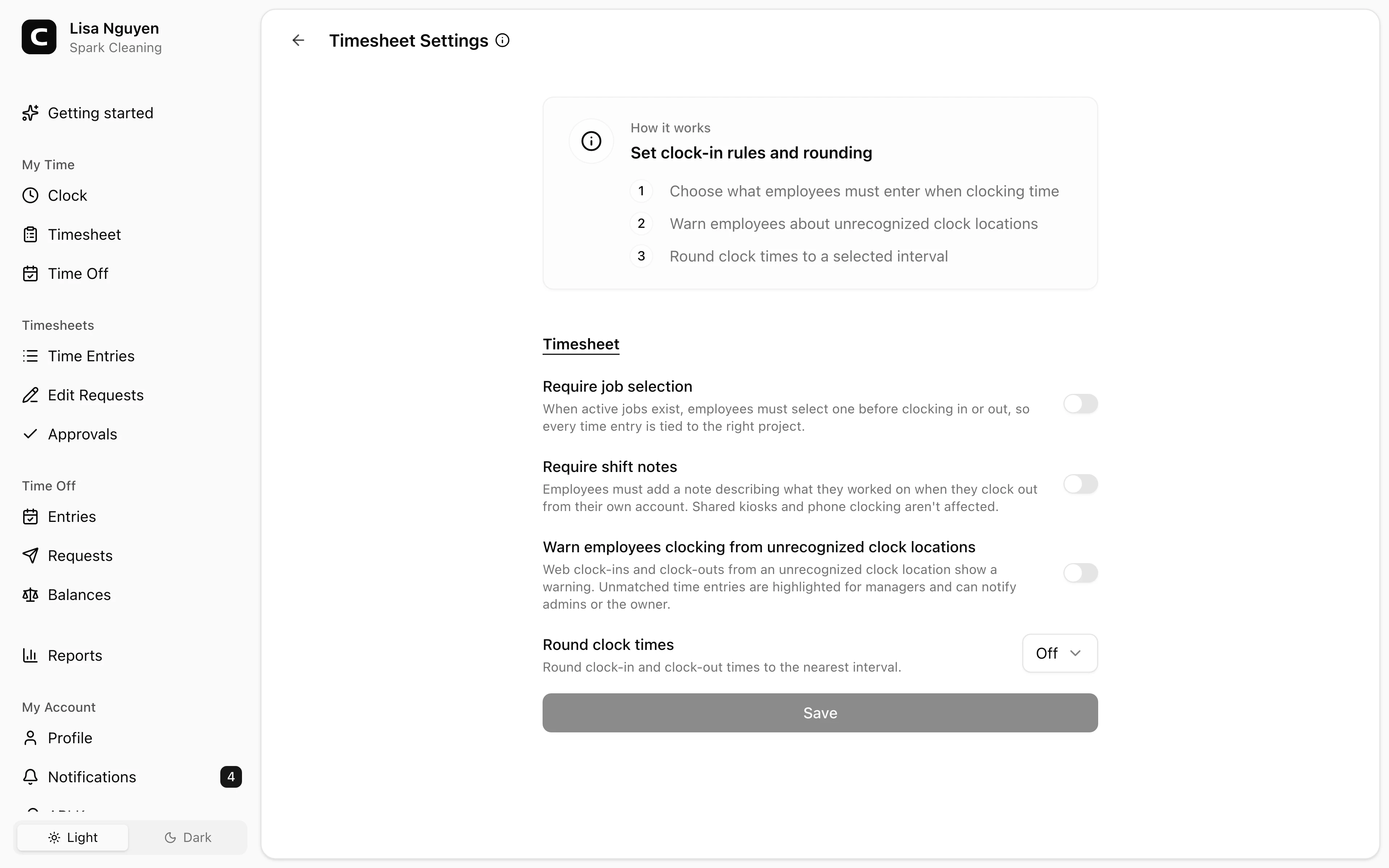
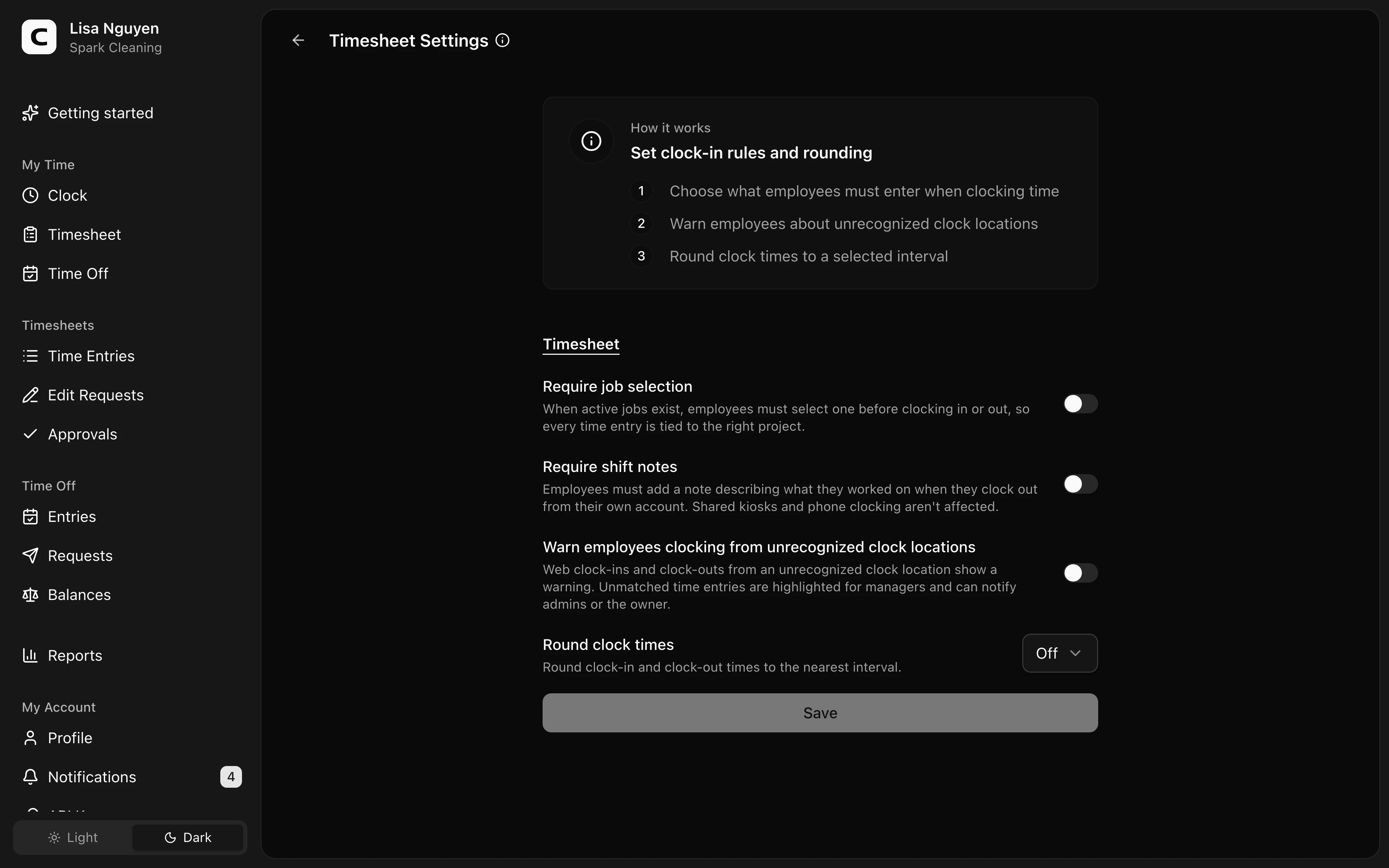
Required clock details
Use Require job selection when employees should choose an active job before clocking in or out. Clocking from an employee's own account and kiosk clocking enforce it only when at least one active job exists. Phone clocking can enforce job selection only when active jobs have phone codes. The selected job stays on the time entry and appears in job-based reports.
Use Require shift notes when employees should add a note when clocking out from their own account. Kiosk and phone clocking do not require typed shift notes.
Clock-time rounding
Use Round clock times to choose whether clock-in and clock-out times are rounded to Off, 5 min, 6 min, or 15 min.
Restrict clock-in to scheduled shifts
Turn on Restrict clock-in to scheduled shifts to use shifts you published on Schedule to control when employees can clock in. When it is off, employees can clock in without a matching shift.
With it on, an employee can clock in while a shift is underway, or up to the window set by Allow early clock-in before the shift starts. An earlier attempt is refused, and Clockspot tells the employee the earliest time they can clock in. Clocking in late while the shift is underway is never blocked.
Allow early clock-in sets how far ahead of a shift the window opens: At shift start, or 5, 10, 15, 30, or 60 minutes early.
Block clock-in without a shift decides what happens when a clock-in does not match a published shift. Leave it on to refuse the clock-in. Turn it off to allow unscheduled clock-ins.
The restriction applies to everyone who clocks in, managers included. It only affects clocking in. Clock-out is never restricted, and a manager who needs an off-schedule entry can add or edit the time entry directly.
Clock-in location and device recognition are configured separately in Clock-in Verification. Automatic notifications are configured in Alerts & Reminders.
Common questions
- Where do I create the jobs employees can select?
Use Jobs to define what employees can record their time against. Use Work Sites separately for physical places. If no active Jobs exist, Clockspot does not block clocking from an employee's own account or a kiosk for missing Job selection. Phone clocking also skips Job selection unless active Jobs have phone codes.
- An employee cannot clock in and I restricted clock-in to scheduled shifts.
They may have no matching published shift, or they may be trying to clock in earlier than the Allow early clock-in window. Publish a shift on Schedule, widen the early-clock-in window, or turn off Block clock-in without a shift to allow unscheduled clock-ins.
Clockspot keeps clock-ins, corrections, approvals, and payroll-ready hours connected so owners and managers can review the workweek before payroll.
Want to simplify how your employees track time? See how Clockspot works.