Jobs
Define what employees can record time against, assign Jobs where needed, and use Job-coded time to understand hours and labor costs.
No login required. Opens in one click.
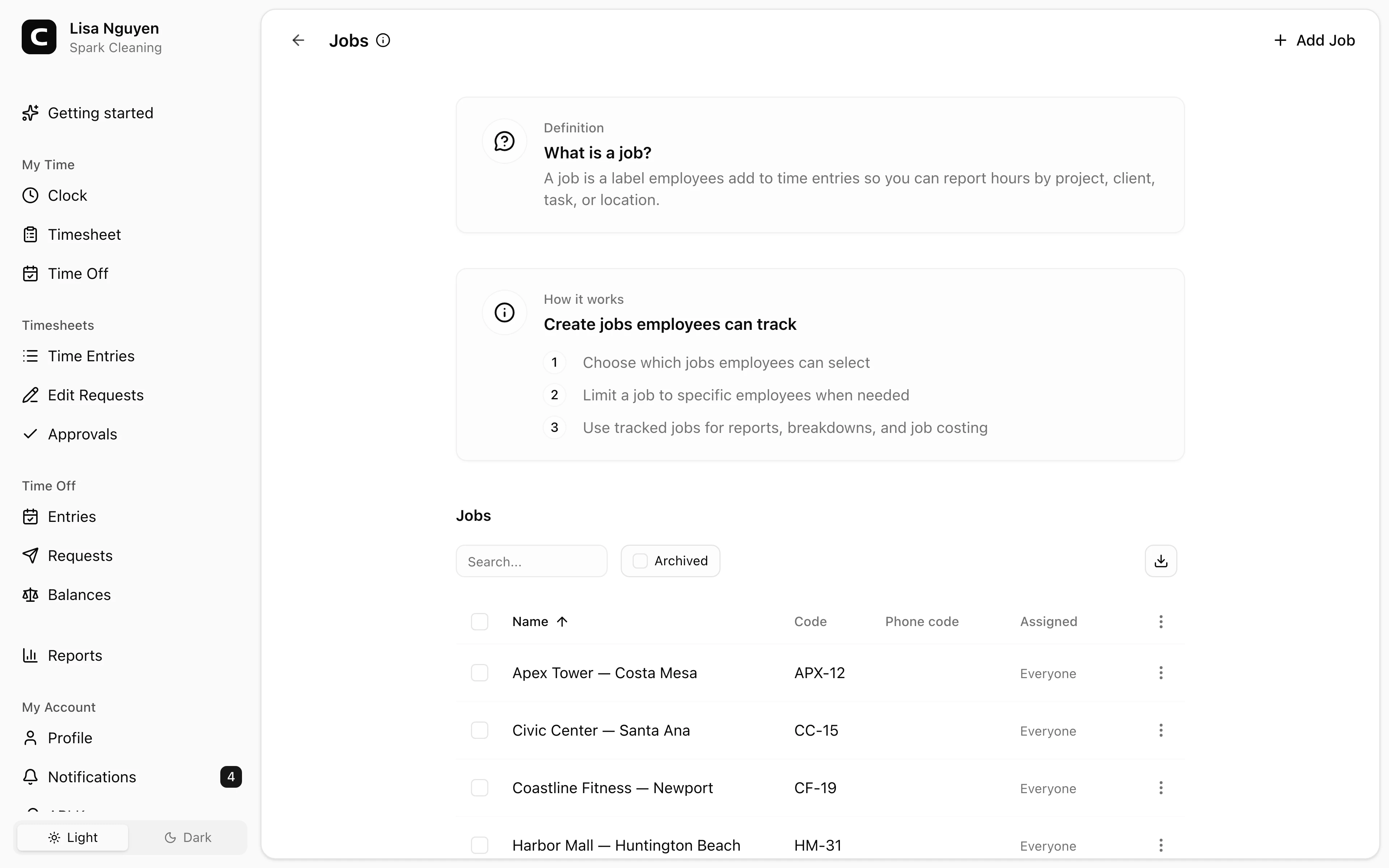
Press Add Job to create one. Each job becomes an option employees can attach to a time entry when they clock in.
What you can set per job
- Name — what employees see in the clock-in picker.
- Code — optional, for matching against your accounting or job-costing system.
- Phone code — optional digits an employee keys to pick this job when clocking by phone.
- Client — optional customer or account that receives the job's time in client reporting.
- Work types — optional reusable services, tasks, or accounting categories employees can choose within this job.
- Work sites — optional physical places where employees can perform the job.
- Edit pay — add a dated pay change that says whether the job is paid, whether it is overtime eligible, and whether it has its own hourly rate.
- Pay history — review past pay changes and void a wrong one with a reason.
- Assigned to — Everyone, or Choose to pick specific employees. Only assigned employees see the job in their clock-in picker.
Jobs identify what an employee's time was for. A client identifies who that work was for, and Clockspot derives client reporting from the selected job. Work types add optional service or task detail within a job. Work sites identify physical places. A matching clocking approval can identify a work site independently of the selected job. If no approval identifies a place and the selected job has one work site, Clockspot can use that site automatically. If the job has multiple work sites and no approval identifies one, the employee's Time Clock asks which place applies. A work site attributed from the job does not verify the clock event.
New jobs start as paid, overtime eligible, and using each employee's rate. Use Edit pay from the row menu when a job needs a different pay rule. Use Pay history to review older changes or void a mistake. A paid job with no job-specific hourly rate uses the employee's rate. An unpaid job contributes time to Unpaid Work lines, not payroll dollars.
Archiving
Use Archive (row menu or bulk action) to remove a job from the clock-in picker while keeping its history in reports. Toggle the Archived view and use Restore to bring it back.
Jobs can't be deleted — archiving is the way to retire one without losing past data.
Common questions
- A job isn't appearing in an employee's clock-in picker.
Either it's archived, or its Assigned to is limited and that employee isn't on the list. Open the job to check.
- Can two jobs have the same name?
Yes, but it's confusing — use codes to disambiguate, or rename one.
- An employee clocked in against the wrong job.
Open Time Entries and use Edit time entry in the row menu. If the timesheet is already approved, click the row's approval pill to cancel the approval first, or have the employee submit an edit request.
- A job rate was entered wrong.
Open Pay history, void the wrong pay change with a reason, then open Edit pay and add the corrected one for the same effective date.
Clockspot keeps clock-ins, corrections, approvals, and payroll-ready hours connected so owners and managers can review the workweek before payroll.
Want to simplify how your team tracks time? See how Clockspot works.