Hours Summary
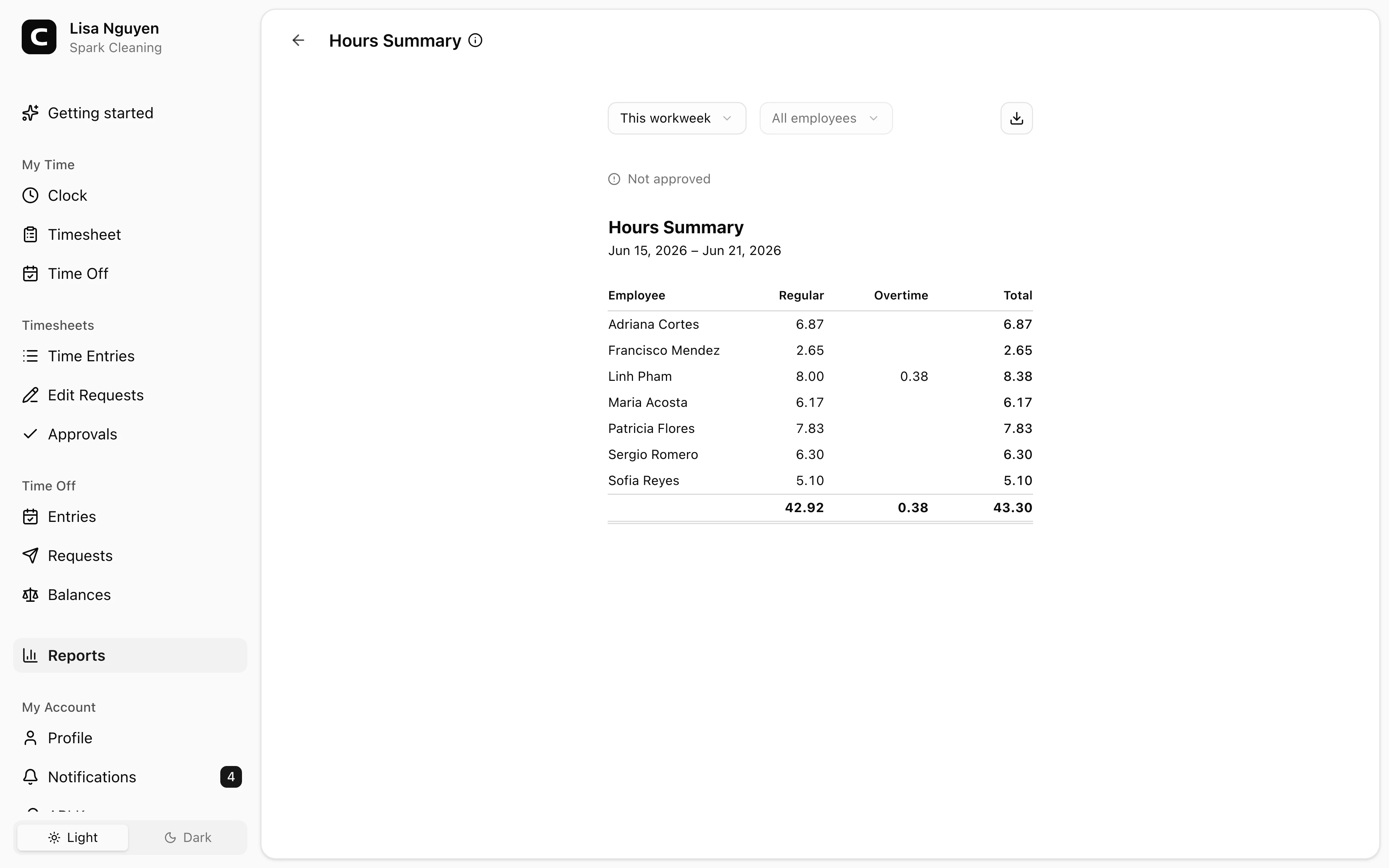
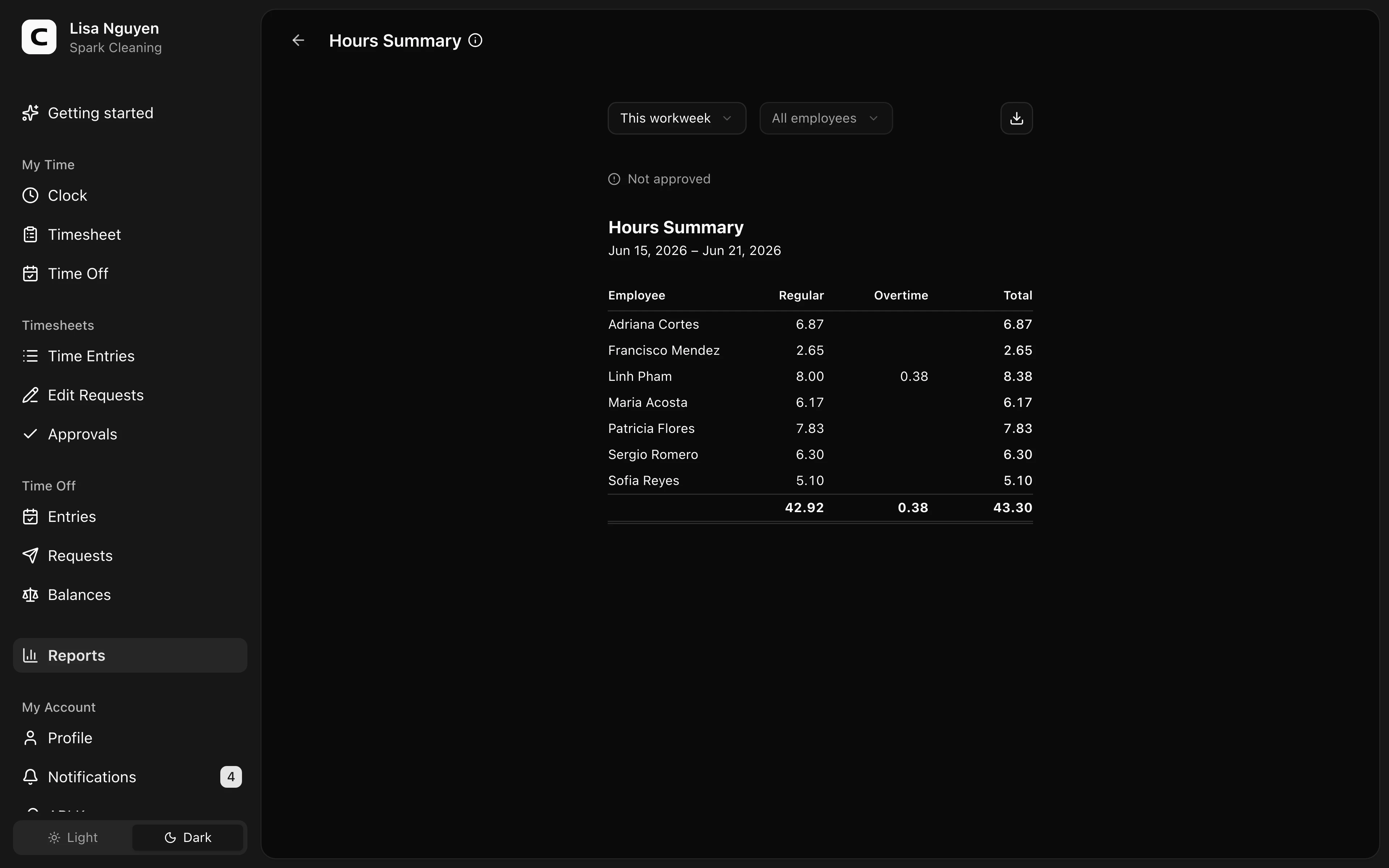
Compare worked, regular, overtime, and time off hours by employee while keeping paid or unpaid time off separate from worked totals.
Questions this report answers
- How many hours did each employee work?
- How do regular, overtime, and time off hours compare?
- Who had the most regular or overtime hours?
- What are each employee’s payroll hours and pay?
- How much regular time, overtime, and time off should I review for payroll?
No login required. Opens in one click.
What this report shows
One row per employee with their hours for the selected date range, broken into:
- Regular — hours worked, excluding overtime
- Overtime — hours beyond the rules in Overtime Rules, which you can open from Settings
- Paid Time Off — recorded time off on time off types marked Paid
- Unpaid Time Off — recorded time off on time off types not marked Paid
- Worked — regular plus overtime worked time; time off is not included
The summary keeps worked time separate from paid and unpaid time off, so Worked is not an all-in total. Durations use hours and minutes rather than decimal hours.
Filters
Date range and employee select in the toolbar. A status line above the table shows how many of the period's timesheets are approved — useful to check before sharing the report with payroll.
Exporting
The Export menu in the toolbar offers Download CSV, Download Excel, and Download PDF. The export includes the summary rows and weekly breakdown from the report.
Common questions
- The total is lower than I expected.
Open Time Entries filtered to that employee and date range to see every entry. Remember that Worked excludes paid and unpaid time off. The status line above the report also shows how many timesheets are not yet approved.
- How do I send this to payroll?
Open the Export menu in the toolbar and choose Download CSV, Download Excel, or Download PDF. For calculated pay rather than hours, use the Payroll Summary report.
- Where is Paid Time Off vs Unpaid Time Off set?
Each time off type has a Paid setting on the Time Off Types page. Types with Paid on roll up into the Paid Time Off column; the rest roll up into Unpaid Time Off.
Clockspot keeps clock-ins, corrections, approvals, and payroll-ready hours connected so owners and managers can review the workweek before payroll.
Want to simplify how your team tracks time? See how Clockspot works.