Payroll Summary
Review each employee's worked hours, regular and overtime pay, time off, and incomplete payroll facts before sending totals to your provider.
Questions this report answers
- How many hours did each employee work?
- How do regular, overtime, and time off hours compare?
- What are each employee’s payroll hours and pay?
- How much regular time, overtime, and time off should I review for payroll?
- Who worked overtime, and how much?
No login required. Opens in one click.
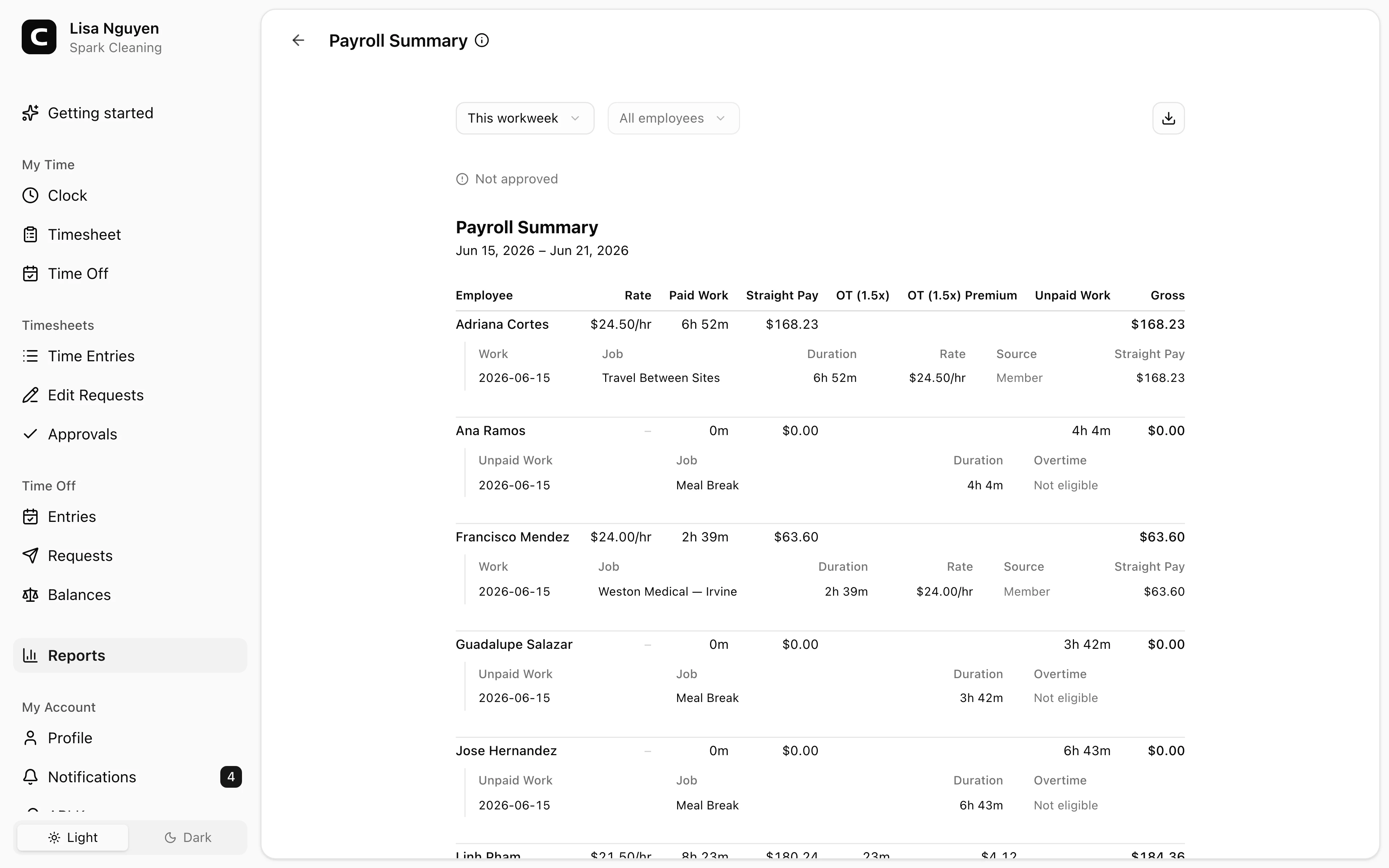
What this report shows
A row per employee in the date range, with pay totals and the line details that explain them. The report summary puts Gross pay, Paid work, Overtime premium, and the employee count first.
- Paid work — paid worked duration; its detail shows the represented rate or Multiple and calls out unpaid work
- Straight pay — paid work at the base rate before overtime premiums
- Overtime premium — the extra premium above straight-time pay, with the applicable duration and tier
- Time off — pay for paid time off, with paid and unpaid time-off durations in the detail
- Gross pay — straight pay plus overtime premium and paid-time-off pay
Each employee row expands into work, unpaid work, overtime premium, and time off lines when those lines exist. Work lines show their attributed Work Site when available. Line details also show the date, job or time off type, exact duration, rate, rate source, multiplier, and pay amount needed to audit the total.
A totals row at the bottom sums each column across everyone shown. On smaller screens, the same information is presented as employee cards with pay details available on demand.
Filters
Pick a date range and, optionally, a single employee from All employees. Above the table, a status line shows how many timesheets in the selected period are approved — All timesheets approved, Not approved, or a count of how many aren't yet. Review it before sending numbers to payroll.
If a row says Needs review, some pay facts are missing or not supported yet. Open the row details to see whether to fix the employee's pay or the job's pay.
Exporting
Open the Export menu and choose Download CSV, Download Excel, or Download PDF. The export includes employee totals plus line-level work, attributed Work Sites, overtime premium, time off, unpaid-time, and pay-issue details.
Common questions
- An employee's gross pay looks wrong.
Open the employee row details first. If the wrong rate was used, correct the employee's pay on Employee Pay or the job's pay on Jobs. If the overtime duration looks wrong, compare it with the Overtime report and your overtime settings.
- Why is export missing?
Export is available for every result. Rows marked Needs review export with blank money fields where Clockspot does not have enough pay facts to calculate a final amount.
- Where do I configure overtime multipliers and thresholds?
Open Settings, then choose Overtime Rules.
- How do I send this to my payroll provider?
Export CSV, Excel, or PDF, then use the format your payroll process expects.
Clockspot keeps clock-ins, corrections, approvals, and payroll-ready hours connected so owners and managers can review the workweek before payroll.
Want to simplify how your team tracks time? See how Clockspot works.