Overtime
Find employees approaching overtime before it happens, then review recorded overtime hours and the rule that placed time in each tier.
Questions this report answers
- Who had the most regular or overtime hours?
- Who worked overtime, and how much?
- Who is likely to work overtime this workweek?
- Which overtime rule created each overtime tier?
No login required. Opens in one click.
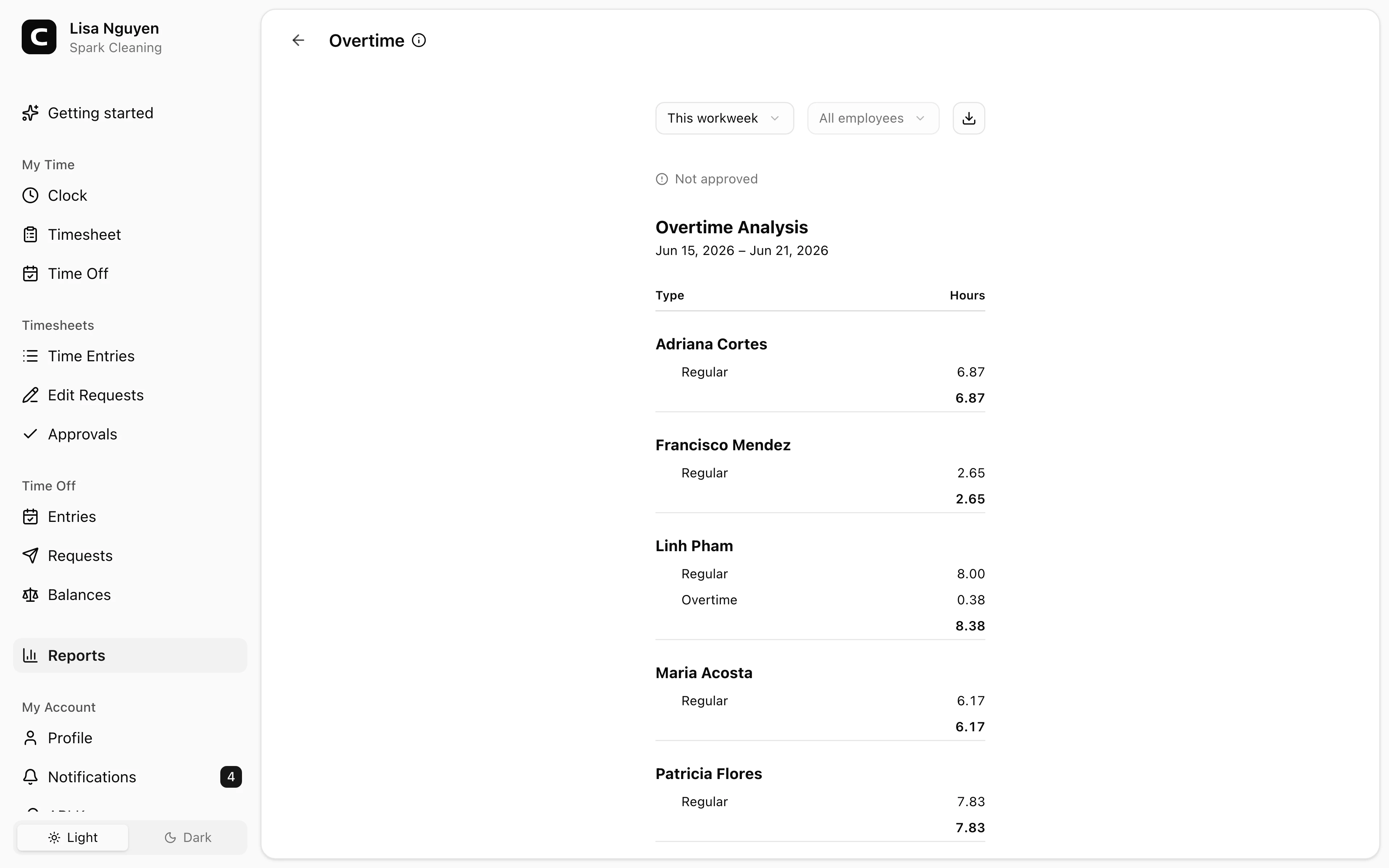
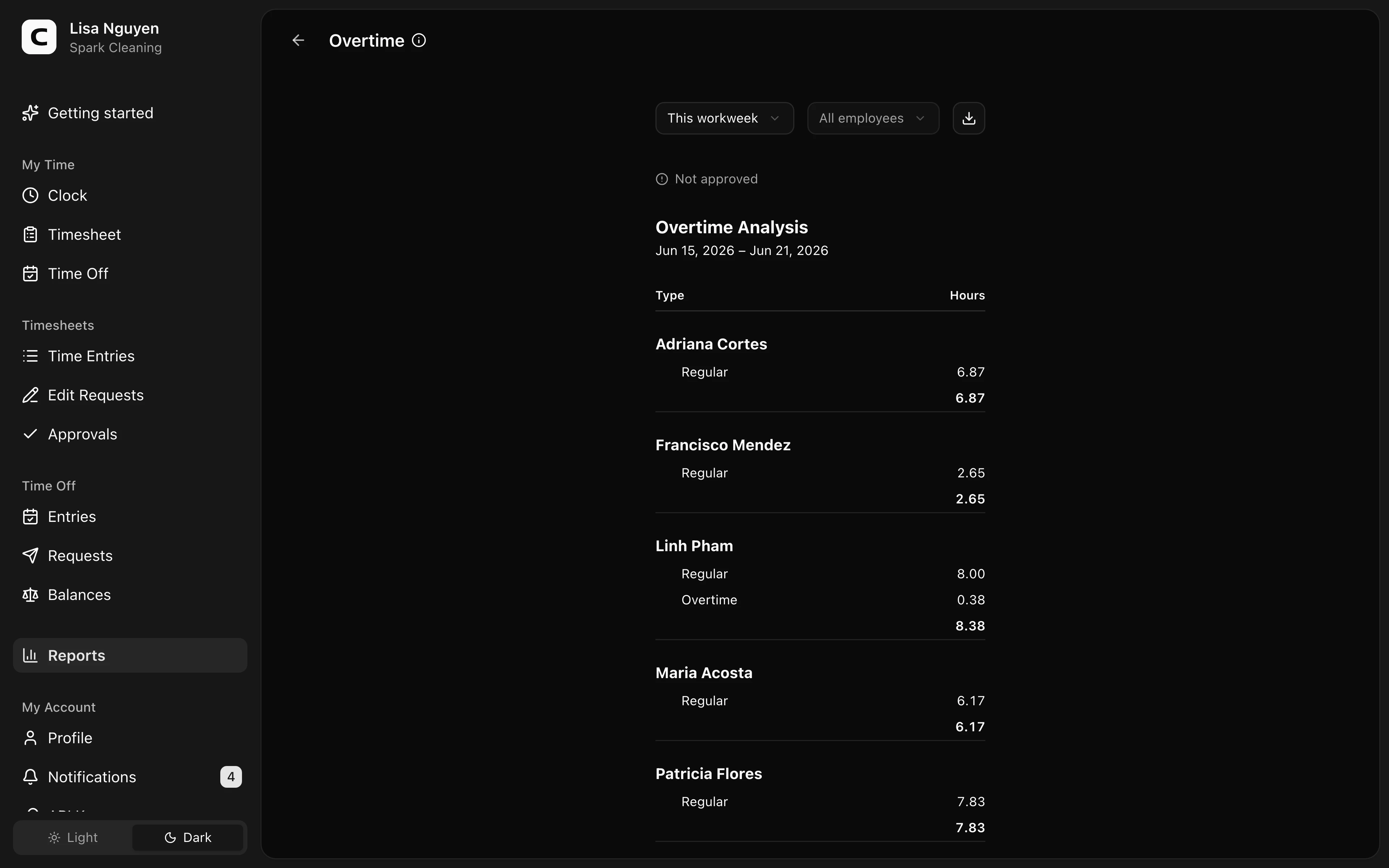
What this report shows
The Overtime outlook leads with employees whose worked hours plus published shifts are expected to result in overtime during the current workweek. It combines overtime-eligible worked time with the remaining portions of published shifts and keeps time off excluded. Projected overtime lists the employee, rule, date, multiplier, expected overtime, and scheduled hours still contributing to it.
The Employee outlook then shows the full roster, ordered so employees marked Scheduled for OT and In weekly OT come first.
The Recorded overtime section summarizes completed time for the selected date range. For each employee it shows:
- Regular hours
- Overtime tiers (1.5×, 2×, or any custom multiplier your workspace uses)
- For each tier, the sources that contributed — e.g. Over 8 hours / day, Over 40 hours / week, 7th consecutive day over 8 hours
- Worked hours and the number of workweeks represented
The breakdown helps you see which schedules need attention, then why recorded overtime was assigned.
Filters
Date range and employee select in the toolbar. Above the report, a status line shows how much of the period's timesheets are approved — All timesheets approved when everyone is signed off, otherwise a count of how many are not yet approved that links to Approvals.
Where the rules come from
Overtime rules live in Overtime Rules, which you can open from Settings. The thresholds and multipliers configured there determine which sources fire on this report.
Exporting
The export menu offers Download CSV, Download Excel, and Download PDF. The export includes employee overtime totals and the workweek overtime buckets behind them.
Common questions
- An employee worked 41 hours but I see no overtime.
Overtime is calculated per workweek, not per pay period. If their hours are split by the workweek boundary, neither week may exceed the weekly rule. Check the Workweek start day on Workweek.
- Why does someone have daily overtime but not weekly?
Daily and weekly overtime are separate rules. If your workspace has both configured, each applies after its own configured number of hours.
- Are paid time off hours counted toward overtime thresholds?
No. Overtime is computed from worked hours only; paid time off is listed separately and never counts toward an overtime rule.
Clockspot keeps clock-ins, corrections, approvals, and payroll-ready hours connected so owners and managers can review the workweek before payroll.
Want to simplify how your team tracks time? See how Clockspot works.