Workweek
Choose the day your workweek begins and understand how that seven-day boundary groups schedules, timesheets, reports, and overtime calculations.
No login required. Opens in one click.
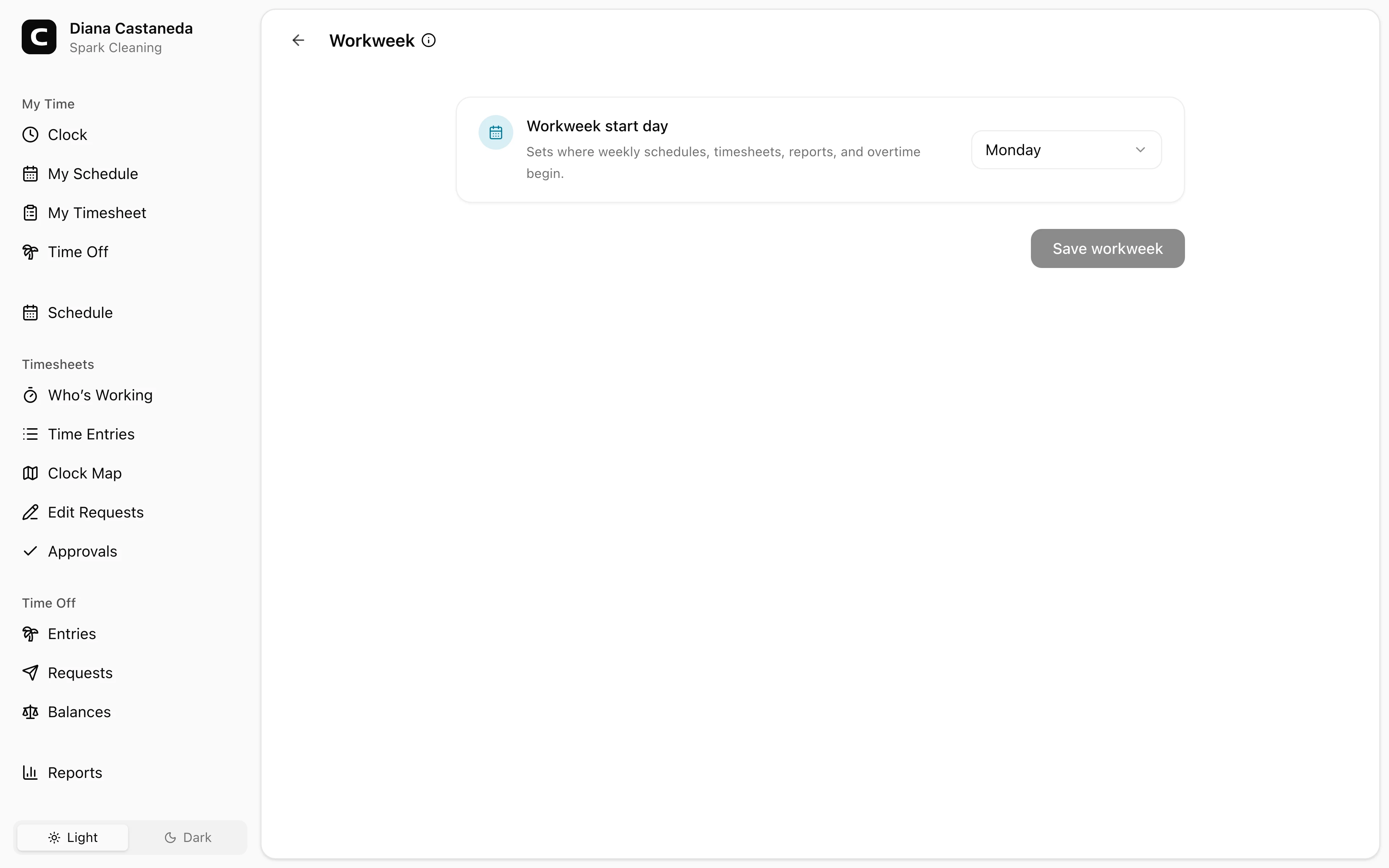
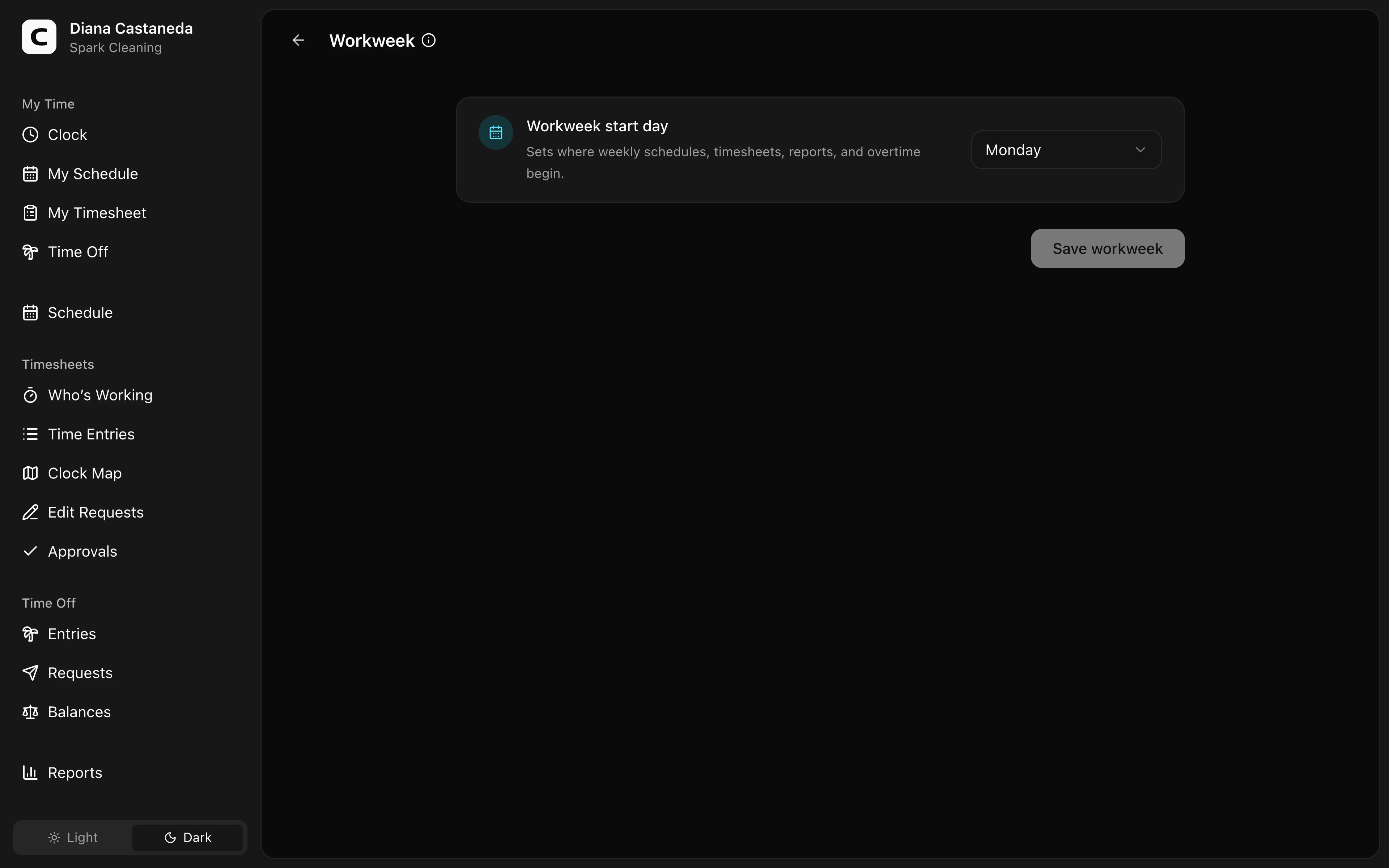
What this page controls
The Workweek start day defines the recurring seven-day boundary Clockspot uses for weekly schedules, timesheets, reports, and overtime.
Change the workweek
Choose the first day, then press Save workweek. Review the new seven-day range in the confirmation and press Change workweek to save it.
Common questions
- Does changing the workweek edit existing time entries?
No. Entry dates and clock times stay the same. Clockspot groups them into the new weekly boundaries when it shows schedules, timesheets, reports, and overtime.
- Is the workweek the same as an employee's pay schedule?
No. The workspace workweek controls weekly boundaries. Each employee's pay schedule is managed separately on Employee Pay.
Clockspot keeps clock-ins, corrections, approvals, and payroll-ready hours connected so owners and managers can review the workweek before payroll.
Want to simplify how your employees track time? See how Clockspot works.