Payroll rules
Set the payroll calendar, add rules with effective workweeks, and review corrections and voids in retained history.
No login required. Opens in one click.
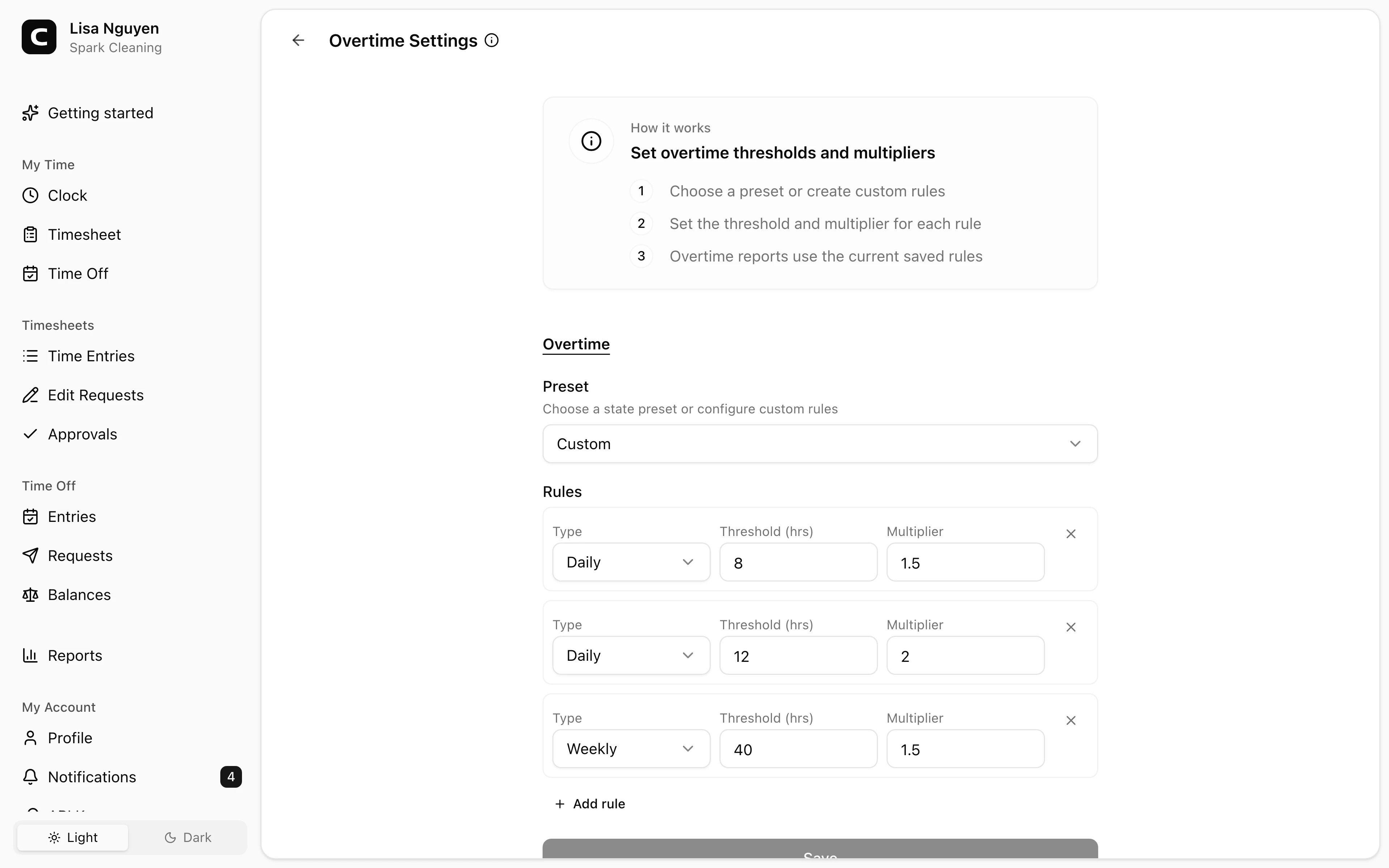
Open Payroll rules in Settings to set your payroll calendar and the overtime rules that apply from each workweek. Overtime notifications are configured separately in Alerts & Reminders.
Set up payroll
Press Set up payroll. Choose the Payroll timezone, Workweek start day, and Effective week starts. Choose No overtime rules or Configure overtime rules, then press Save version.
Suggested values are a starting point for your review. They do not establish historical coverage. If a value is unknown, enter it explicitly; choosing no overtime is also an explicit decision.
Add dated rules
Press Add dated rules and choose the first complete workweek the new rules cover. The established calendar remains the same. New rules apply from their effective week until another active version begins; earlier versions remain in Rules history.
Choose Configure overtime rules and use Add rule to enter each rule type, hours threshold, and pay multiplier:
- Weekly applies after the weekly threshold.
- Daily applies after the daily threshold.
- Seventh day applies on the seventh consecutive worked day in a workweek.
Use the remove button beside a rule to remove it from the version you are preparing. Thresholds must resolve to whole minutes, and multipliers must be at least 1. Reports support overtime at 1×, but QuickBooks currently cannot export that classification.
Rules for one employee
These are the company default rules. Use Employee overtime on Employee Pay for a dated employee version. Custom employee rules replace the company rules for that employee; they do not add to them. Company rules returns the employee to the company rules effective for each week. An explicit No overtime employee version keeps eligible work as regular hours. The employee’s dated Overtime eligibility choice still applies, and the company calendar remains shared.
Correct or void a version
Use Correct version for an incorrectly recorded version. Enter a Reason, compare the original and replacement, then press Save version. The original is voided and retained with its replacement.
Use Void version to stop a version from applying without creating a replacement. Enter a reason and confirm. An earlier active version may apply instead, or a coverage gap may remain.
History shows who recorded and voided each version, when it happened, and the reason. Corrections and voids can change calculations for affected weeks; adding a later version preserves the earlier rules for earlier weeks.
Common questions
- Can different employees use different overtime rules?
Yes. Open Employee overtime on Employee Pay to record dated rules for that employee. Their rules replace the company default for each covered week. An employee whose Overtime eligibility is Not eligible still has no overtime.
- Will adding a new version change earlier reports?
A later effective week keeps the earlier rules for earlier weeks. Correcting or voiding an earlier version can change calculations for weeks that version covered.
- What if no rules cover the week I need?
Check whether the employee follows company rules or has custom rules for that week. Record the missing company or employee rules before calculating payroll. A company payroll calendar is always required; an explicit no-overtime version is different from missing coverage. Use the actual rules for that period rather than assuming today’s rules applied.
Clockspot keeps clock-ins, corrections, approvals, and payroll-ready hours connected so owners and managers can review the workweek before payroll.
Want to simplify how your employees track time? See how Clockspot works.