Attendance
Review daily attendance by employee, including worked, absent, scheduled, time-off, and off days alongside the recorded in and out times.
Questions this report answers
- Who worked, was absent, or had time off?
- Who missed scheduled work or worked without a scheduled shift?
- How did scheduled time compare with worked time?
- Who worked more or less time than scheduled?
- How much time off has each employee taken?
No login required. Opens in one click.
What this report shows
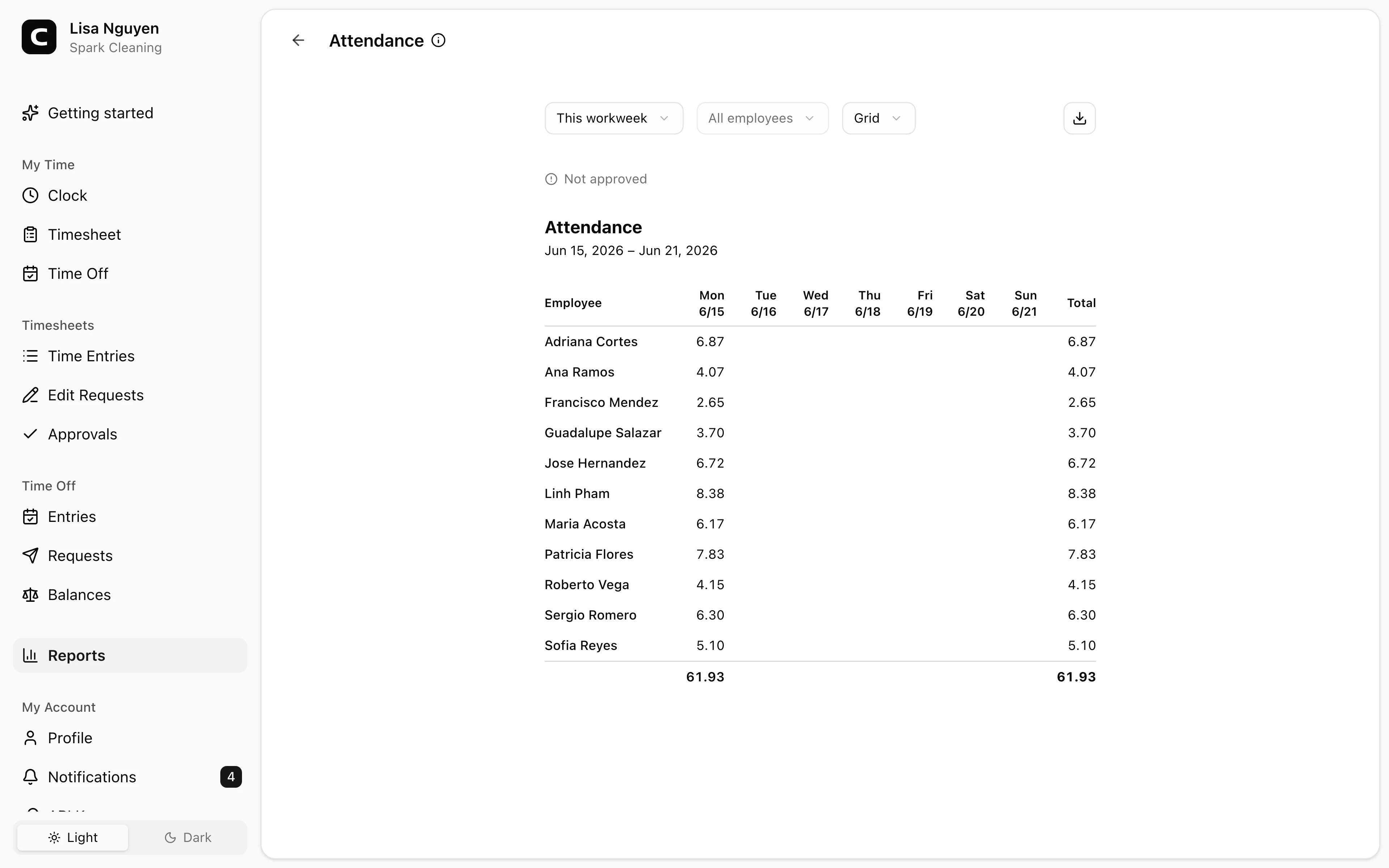
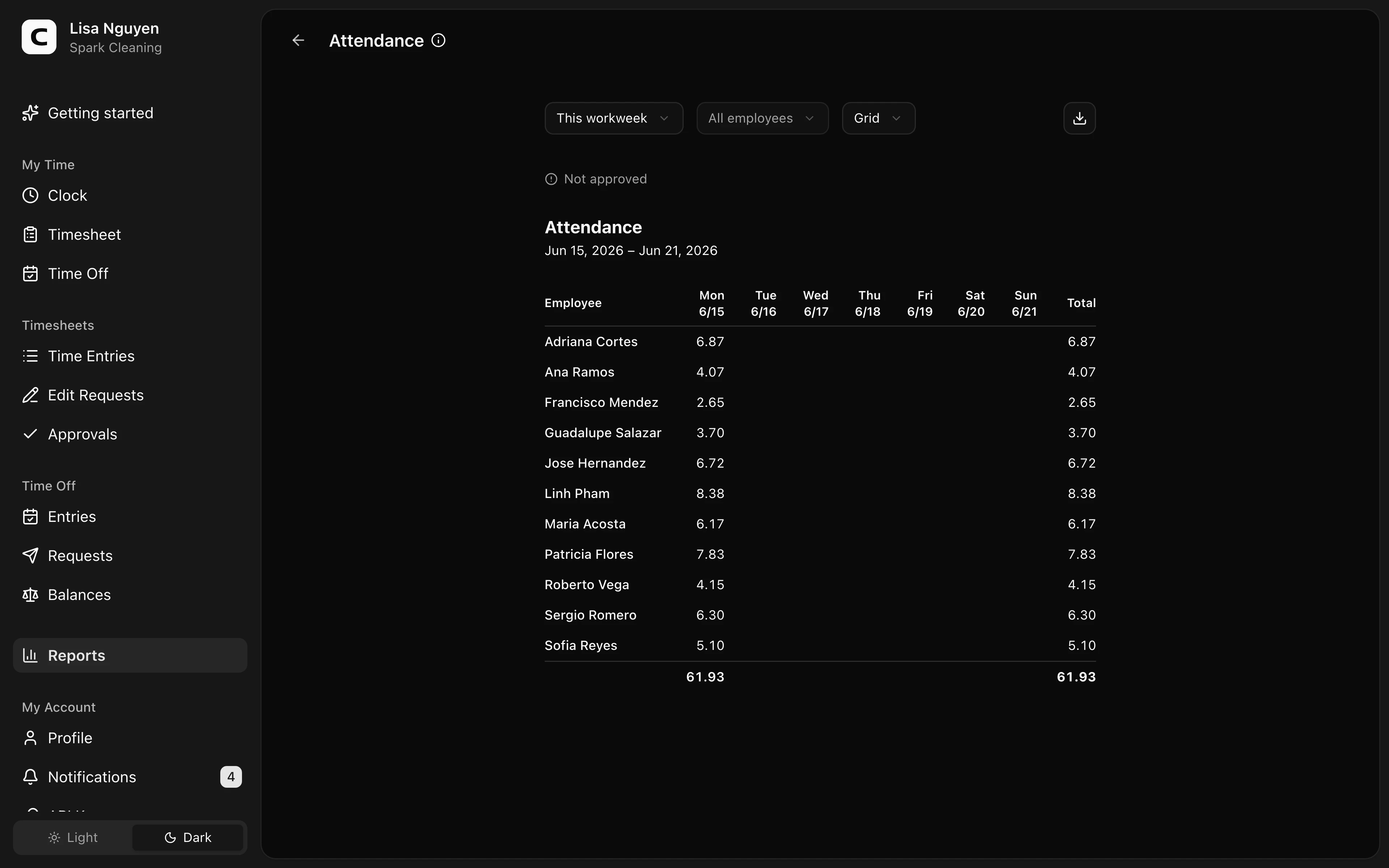
For each employee in the selected date range, this report shows worked time and the state of each day: worked, absent, scheduled ahead, time off, or off.
View modes
- Grid (default) — rows are employees and columns are days. Worked cells show a duration; other cells explicitly show Absent, Scheduled, or Time off. A dash marks an off day.
- By employee — each employee's relevant days, with the day's state, first clock-in, last clock-out, off-clock gap, and worked time.
- By date — each relevant date, the employees represented, their attendance state, and worked times.
Filters
Date range and employee select in the toolbar. An inline status line above the report shows how many of the period's timesheets are approved, with a link to Approvals.
What counts as "absent"
A workday is a day with a published shift on the Schedule page. A scheduled day with no completed work is marked Absent only after every published shift for that employee and date has ended. Until then it remains Scheduled. Recorded time off is Time off, not an absence, and a day without a published shift is Off.
Exporting
The export menu offers Download CSV, Download Excel, and Download PDF. The export includes both the employee summary and the day-by-day attendance detail.
Common questions
- Someone is showing as absent on a day they were on approved time off.
Recorded time off prevents a published shift from being marked absent. Check that the time off entry covers the same date; use Time Off Entries to review or correct it.
- Why are some employees missing on certain days?
Grid view only shows employees who either worked or were scheduled to work. Employees without a schedule have no "absent" markers — they appear only on days they actually worked.
- Can I see overtime or break detail here?
No. This report is for daily hours and attendance states. Use the Overtime report for overtime breakdowns, and the By employee view here for per-day in/out times and off-clock gaps.
Clockspot keeps clock-ins, corrections, approvals, and payroll-ready hours connected so owners and managers can review the workweek before payroll.
Want to simplify how your team tracks time? See how Clockspot works.