Time Off Entries
Review recorded time off across employees, add or correct entries when needed, and archive records that should no longer remain active.
No login required. Opens in one click.
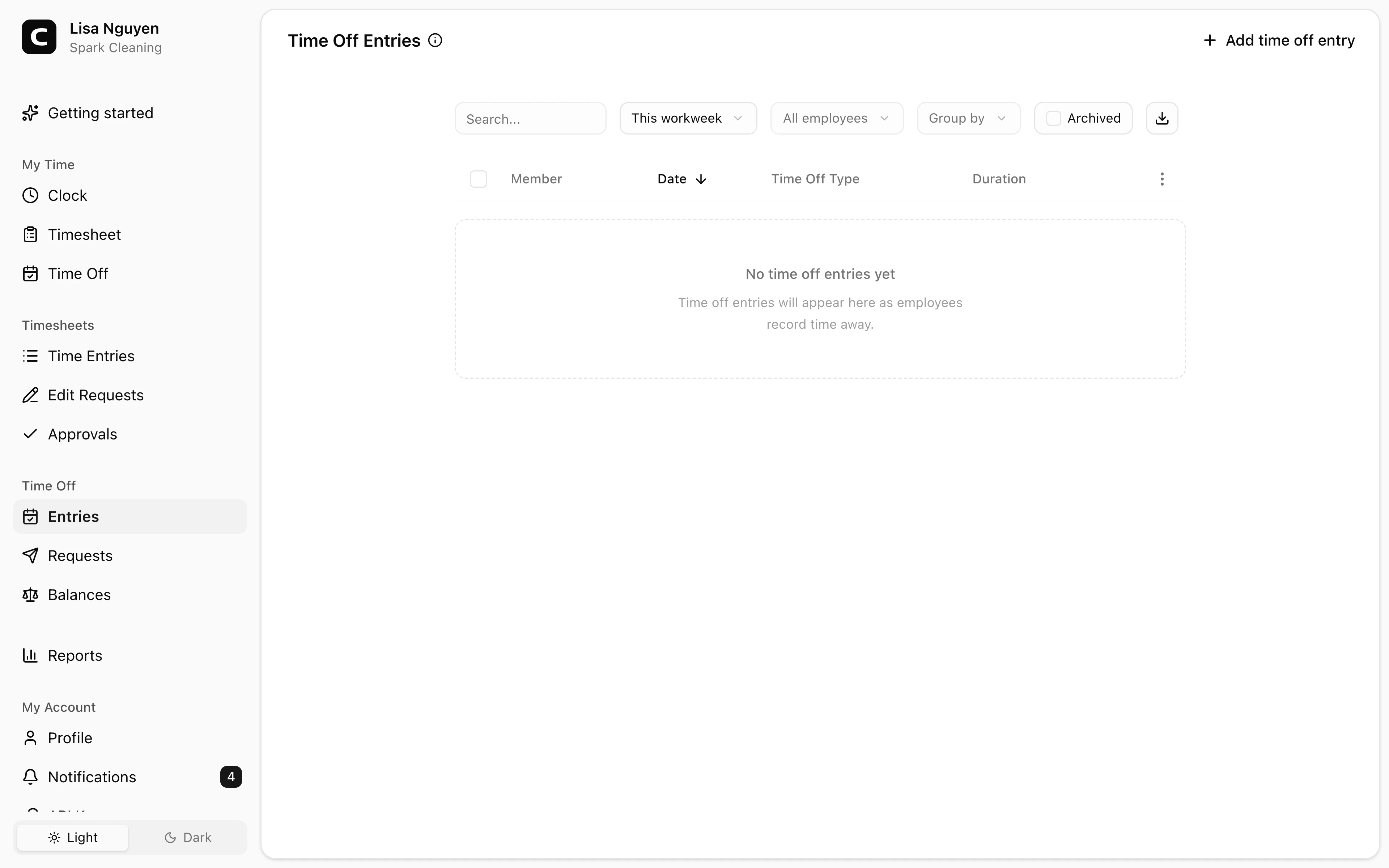
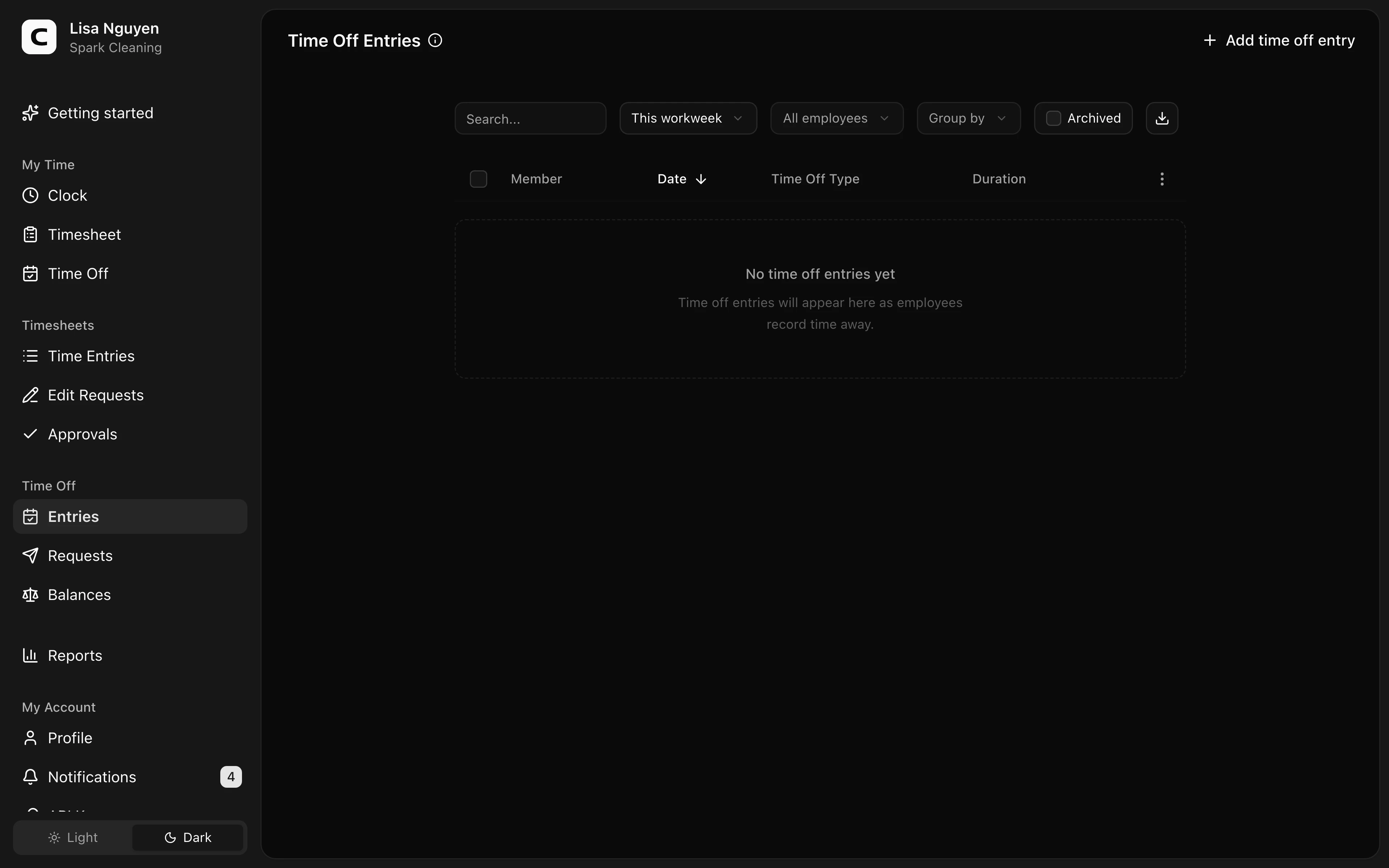
What this page shows
One row per time off entry, with the employee, the date the time off was taken, the time off type, and how many hours it counted for. Each day of a multi-day time off is its own row.
Entries land here in two ways:
- Approved time off requests create entries automatically once you approve them on the Time Off Requests page.
- Manual entries — use Add time off entry in the page header to record time off on someone's behalf.
If an entry has a note — left by the requester or added manually — a speech-bubble icon appears on the row. Click it to read.
Finding entries
Use the toolbar to choose a date range, filter by employee, group records, or search the visible entries.
Editing and archiving
- Edit time off entry (row menu) — opens a dialog to change the time off type, hours, or note. Balances adjust automatically.
- Archive (row menu) — removes the entry from balances and reports. For several entries, press Select, choose the rows, then press Archive selected in the floating selection bar.
Open the toolbar's secondary-actions menu and choose View archived entries to review archived records. Use Restore on one row or Restore selected for several, then press View current entries to leave the archived view.
When to use a different page
- Requests still waiting on a decision → Time Off Requests
- Current accrual and remaining balance per employee → Time Off Balances
Common questions
- An employee's time off isn't showing up.
Check the date range and employee filter first. If it's still missing, the request may not be approved yet — check Time Off Requests for pending items.
- How do I archive several time off entries at once?
Press Select, choose the rows, then press Archive selected in the floating selection bar. To undo, choose View archived entries from the secondary-actions menu and restore the entries. For a wholesale correction to someone's balance, the Time Off Balances page lets you adjust a balance directly with a required reason.
- How are the hours decided for multi-day time off?
Each entry stores the hours for that date. Editing an entry lets you change the time off type, hours, or note; to move time off to a different date, archive the entry and add a new one for the correct day.
Clockspot keeps clock-ins, corrections, approvals, and payroll-ready hours connected so owners and managers can review the workweek before payroll.
Want to simplify how your employees track time? See how Clockspot works.