My Schedule
Review your published shifts, request available open shifts, and share when you are available to work.
No login required. Opens in one click.
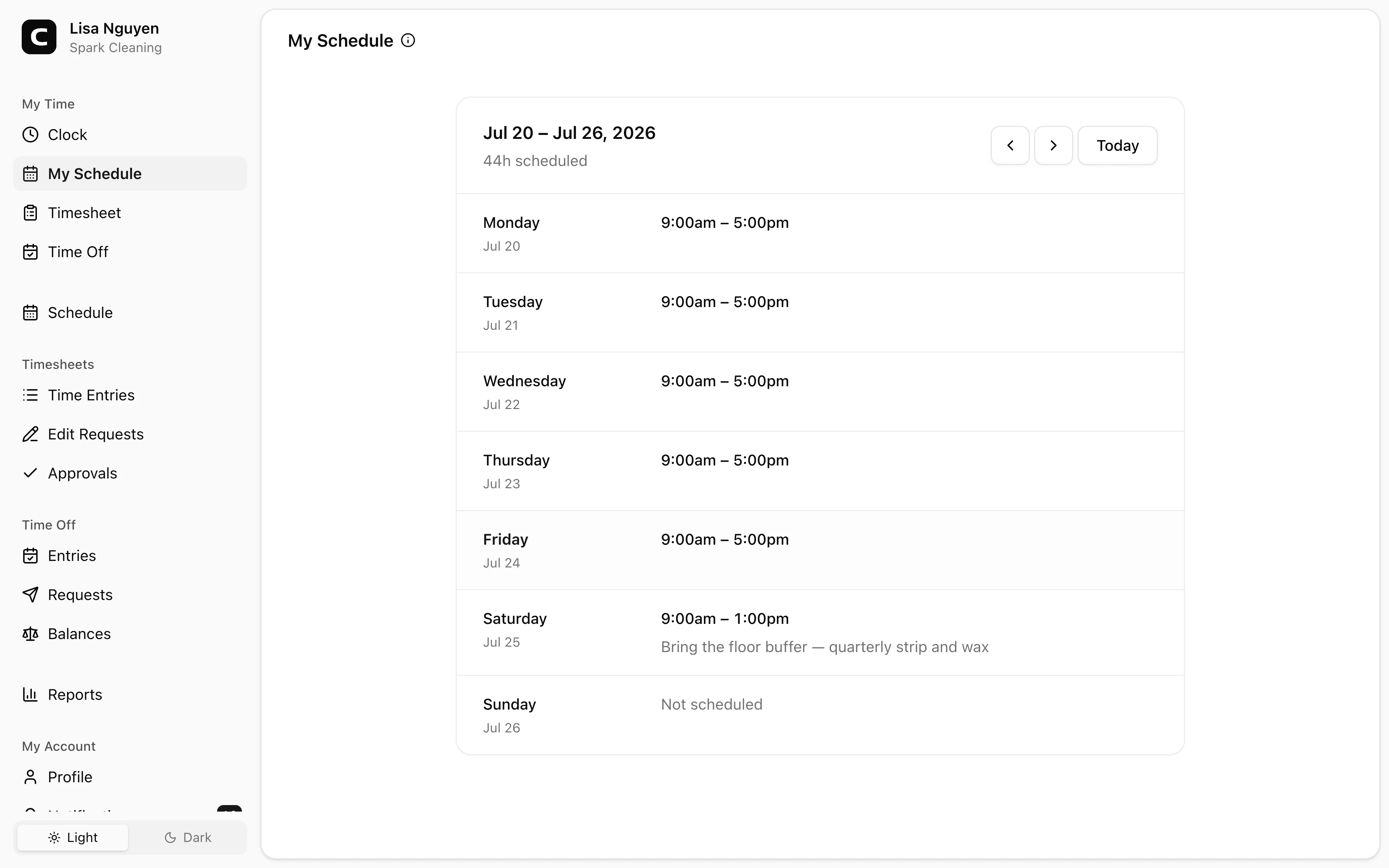
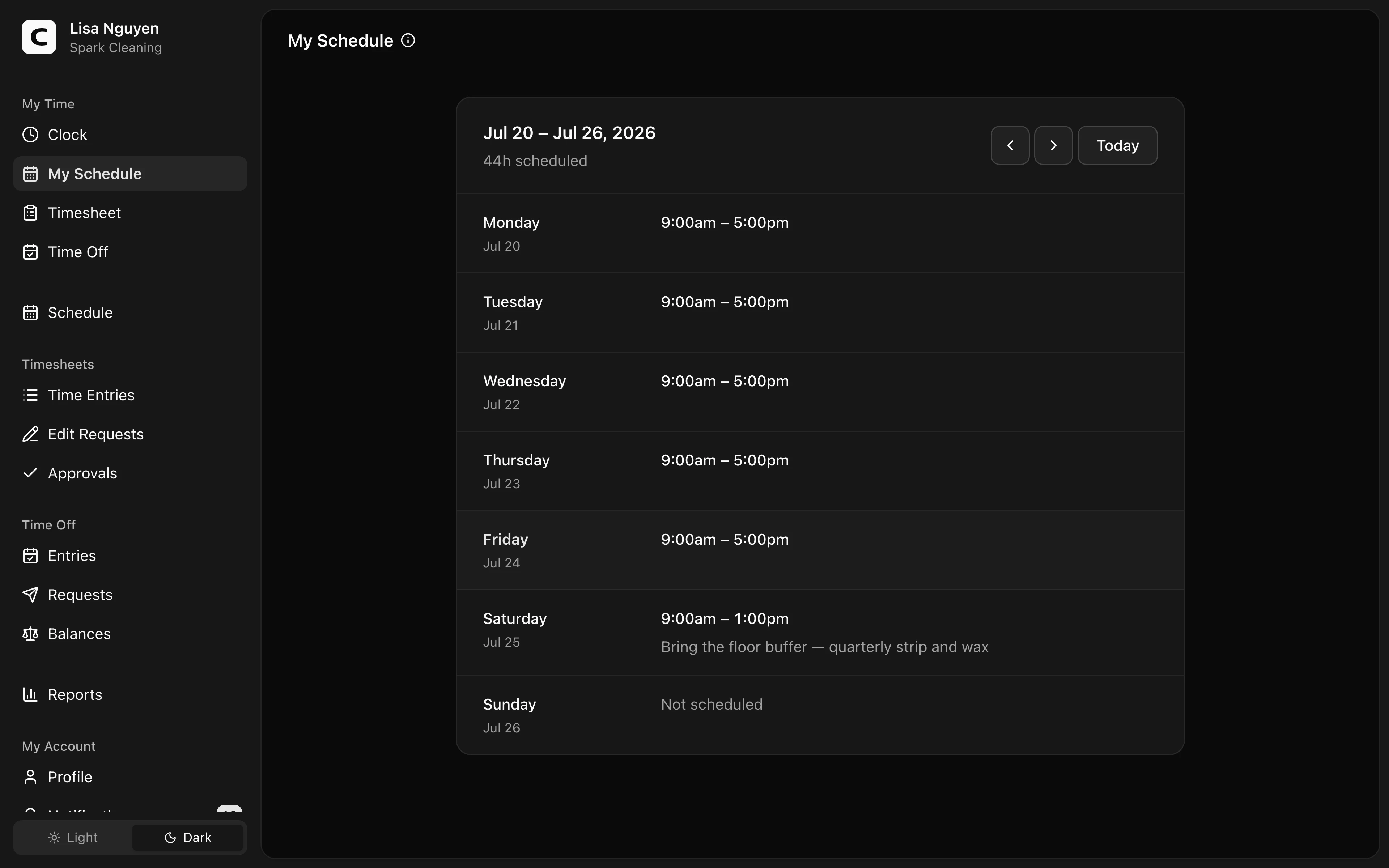
What this page shows
Use the three tabs to review your published Schedule, request Open shifts, and share your Availability. Your Schedule shows one section per day with times, duration, the job when one is set, the exact Work Site name and address when one is scheduled, and any note from your manager written out in full. Multiple shifts on the same day stay together. Days without a shift say Not scheduled. The toolbar shows the week, your total scheduled hours, and your shift count; use the arrows and Today to move between weeks.
Today's row is highlighted so you can find it at a glance on a phone.
Where shifts come from
Your manager builds the schedule and publishes it. You only ever see published shifts — never drafts — so everything on this page is a real commitment. When a schedule is published, or one of your shifts changes or is cancelled, you get a notification with a View schedule button that opens this page.
When your manager requires confirmation, press Confirm shift to acknowledge the current date and times. A later change to the work date, times, assignment, Job, or Work Site asks you to confirm the updated shift again. Confirmation acknowledges the schedule; it is not a clock-in and does not prove attendance.
If you cannot work a published shift, press I can’t work, add an optional note, and confirm. The shift stays assigned to you while your manager decides whether to find a replacement or cancel it. You are not responsible for finding a replacement. If your availability changes after reporting it, contact your manager; only a manager can resolve the coverage decision.
A shift that crosses midnight is listed on the day it starts — a 10:00pm – 6:00am shift appears on the evening's date.
Requesting an open shift
Open Open shifts to see published shifts you can currently request. Each card shows the date, times, duration, job, and the Work Site's name and general area when available. The street address and manager note stay private until the shift is assigned to you.
Press Request shift, add an optional note for your manager, and confirm. The card changes to Requested while the decision is pending; press Withdraw request if you no longer want it. Scheduling warnings appear on the card when something needs your attention before requesting.
Your manager can approve and assign the shift or choose not to approve your request. Open Your request history to see whether each request is awaiting review or how it ended, plus any message from your manager. After approval, the shift appears on your Schedule with its exact Work Site address and note.
If something looks wrong
Your published Schedule is read-only; your manager owns assigned shifts. Use I can’t work for a shift you cannot cover. If its date, time, location, or work details are wrong, contact your manager instead. Check your notification preferences if you want schedule notifications by text message as well as email.
Common questions
- My week is empty but my manager says the schedule is done.
You only see published shifts. If your manager has built the week but not pressed Publish yet, it isn't visible to you — ask them to publish it.
- Do I clock in from this page?
No — clock in and out from the Time Clock page, a kiosk, or by phone, exactly as usual. The schedule tells you when and where you're expected; it doesn't record your time or prove where you clocked.
- A shift disappeared from my week.
Your manager cancelled it — you'll also have received a cancellation notification with the shift's date and times. If that's unexpected, check with your manager.
- Why don't I see an open shift my coworker can see?
Open shifts are shown only while they are published, still in the future, and available for you to request. A scheduling conflict that blocks you from the shift can keep it out of your list.
- Does requesting an open shift mean it is mine?
No. The request stays Awaiting review until your manager presses Approve & assign. The shift appears on your Schedule after it is assigned to you.
- Does confirming a shift clock me in?
No. Confirmation only acknowledges the published schedule. Use the Time Clock when work begins.
- What happens after I press I can't work?
Your manager receives a coverage alert. The shift remains assigned to you until the manager finds a replacement, cancels it, or records that you can work after all or that the report was a mistake.
Clockspot keeps clock-ins, corrections, approvals, and payroll-ready hours connected so owners and managers can review the workweek before payroll.
Want to simplify how your employees track time? See how Clockspot works.