Schedule vs Actual
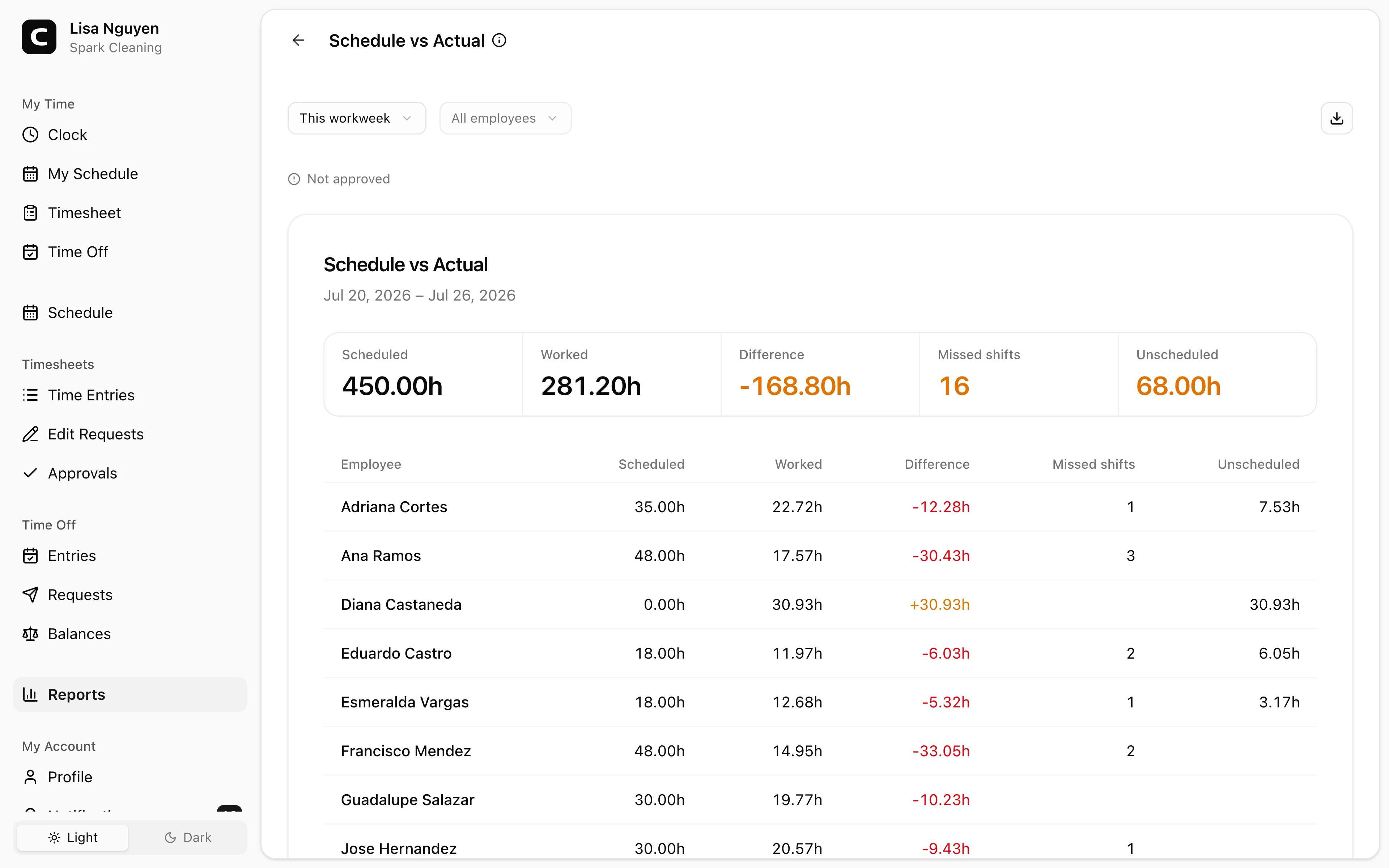
Compare completed scheduled shifts with recorded work to find missed shifts, early or late differences, and time worked without a schedule.
Questions this report answers
- Who missed scheduled work or worked without a scheduled shift?
- How did scheduled time compare with worked time?
- Who worked more or less time than scheduled?
No login required. Opens in one click.
What this report shows
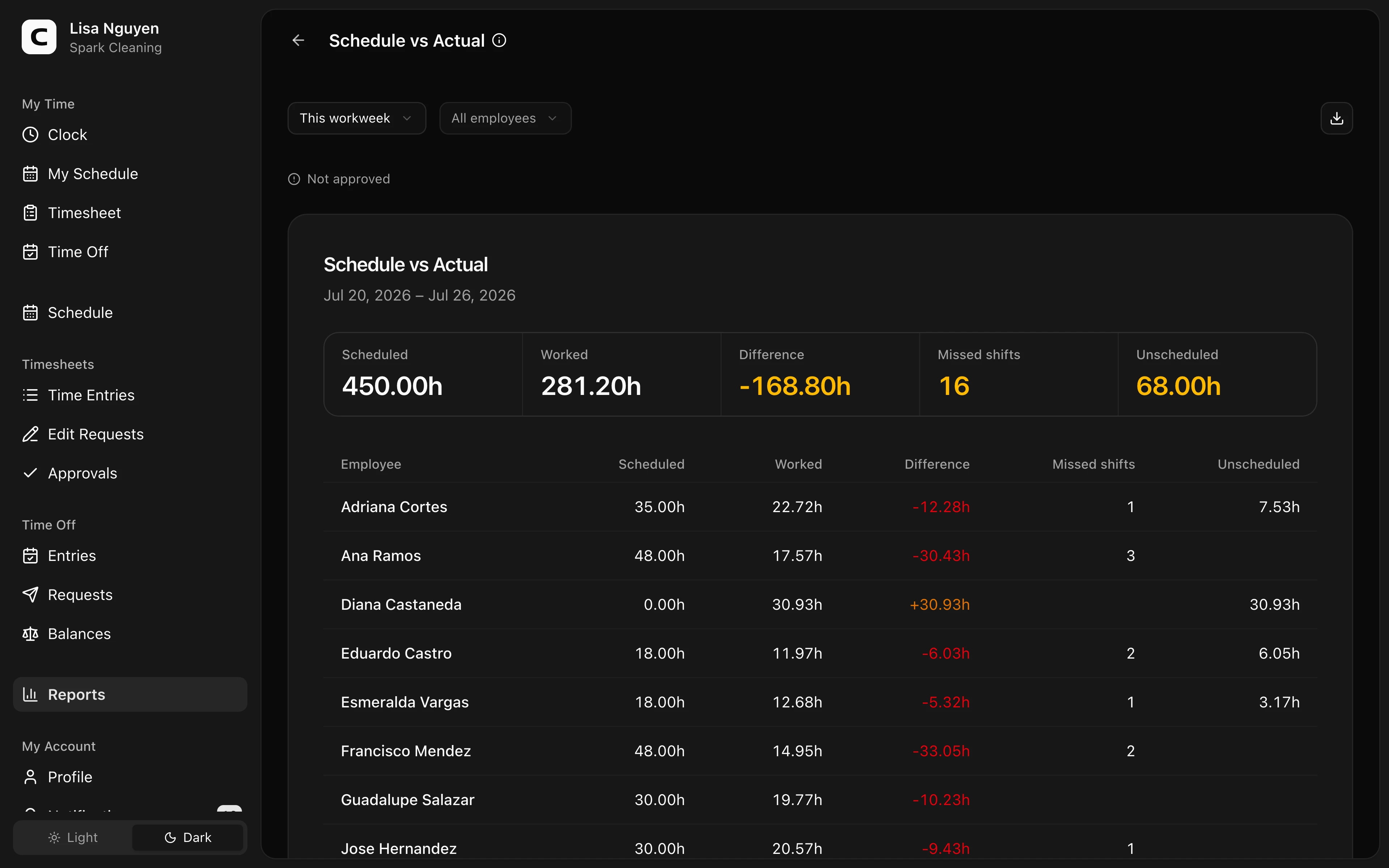
Schedule vs Actual compares the shifts you published on the Schedule page against the time employees actually clocked. Only published shifts count as scheduled time; drafts are not commitments.
The summary and Employee comparison table show Completed work and Completed plan as separate values. Both cover only days when every published shift has ended. Difference is Completed work minus Completed plan, so −2h means two hours less than the completed schedule and +2h means two hours more. Schedule left shows scheduled time that has not elapsed.
The Daily comparison table shows the same information per employee per day. A day stays Upcoming or In progress until every published shift for that day ends. The Attention column calls out missed shifts, with their times, and unscheduled work.
When the selected period has approval data, a status line above the report shows whether timesheets are approved, not approved, or partly approved.
How matching works
- A shift counts as missed when it has already ended and no completed time entry overlaps it. Future shifts and shifts still in progress are never counted as missed.
- Difference includes only days after every shift ends. Schedule left shows the scheduled minutes still ahead, so current or future shifts do not reduce the completed difference.
- Worked time counts as unscheduled when the entry overlaps none of that employee's published shifts, for example working a day with nothing scheduled.
- An overnight shift's scheduled minutes count on the day it starts; worked minutes count on the calendar day they occur, so a single overnight shift can show worked time on two days.
- An open entry does not count as worked time until the employee clocks out.
Filters
Use the date range and All employees controls in the toolbar.
What to do with a row
The report is read-only. For a wrong or missing time entry, open Time entries. To change the plan itself, open the Schedule page.
Exporting
Open the Export menu and choose Download CSV, Download Excel, or Download PDF. The export includes the per-employee summary and the per-day rows.
Common questions
- Why is the report empty when employees have been clocking time?
This report only compares against published shifts. If you have not built and published a schedule on the Schedule page, there is nothing to compare worked time to. For day-by-day worked and absent views, use Attendance.
- An employee worked their shift but the day still shows a negative difference.
On a completed day, a negative difference means the employee recorded fewer minutes than the completed schedule. The shift is not marked missed because the employee still recorded overlapping time. Upcoming and in-progress days do not receive a difference yet.
Clockspot keeps clock-ins, corrections, approvals, and payroll-ready hours connected so owners and managers can review the workweek before payroll.
Want to simplify how your employees track time? See how Clockspot works.