Labor Cost by Job
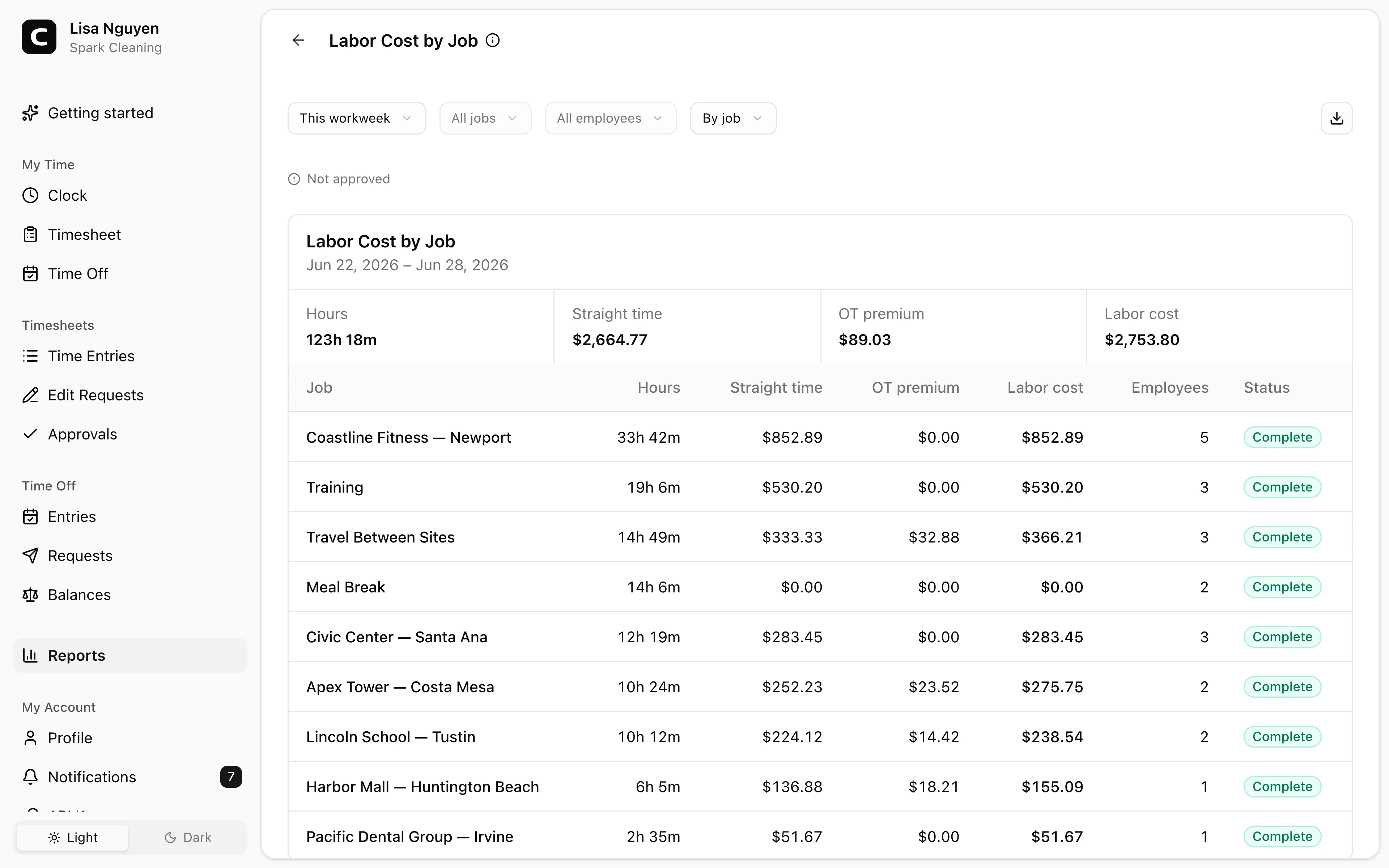
Compare worked hours, straight-time pay, overtime premium, and total labor cost by job so you can see where payroll dollars went.
Questions this report answers
- How many hours were worked on each job?
- What did labor cost for each job?
- How much overtime premium did each job incur?
- Which jobs used the most labor hours and cost?
No login required. Opens in one click.
What this report shows
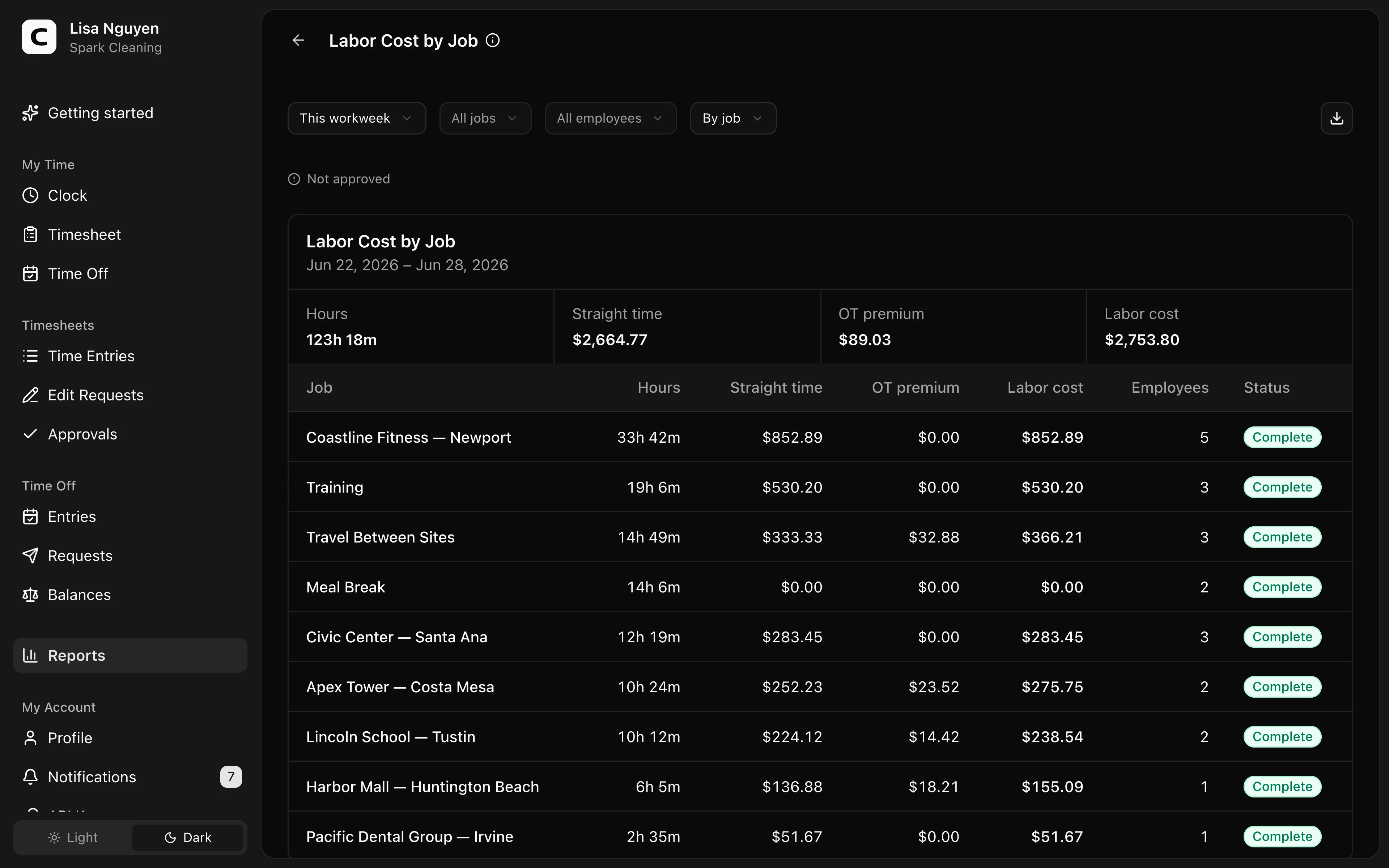
Labor Cost by Job shows worked time and pay allocation by job for a whole-workweek period. The summary totals Worked, Straight time, OT premium, and Labor cost. Worked includes paid and unpaid work; unpaid time is called out separately and does not add to labor cost.
Use By job to see one row per job, By job and Work Site to separate the same job across places, or By employee to see each employee's job lines. Every view includes Worked, Straight time, OT premium, and Labor cost. Job rows also show Employees.
Rows marked Needs review have missing payroll facts; the report can show some money totals as blank until employee pay or job pay is fixed. Rows without that label have complete cost inputs.
Filters
Pick a date range, then use All jobs, All Work Sites, All employees, and the view selector. No Work Site includes entries without an attributed Work Site. The date range snaps to whole workweeks because overtime premium allocation needs complete payroll weeks.
When approval data exists, a status line above the report shows whether the selected period's timesheets are approved.
Fixing missing cost
If the report shows Labor cost needs review, check Employee Pay for employee pay facts and Jobs for job pay policy. Rerun the report after the missing pay setup is corrected.
Exporting
Open the Export menu and choose Download CSV, Download Excel, or Download PDF. The export includes job totals, Job × Work Site totals, and employee cost detail with the same complete or needs-review status.
Common questions
- Why did my selected date range move?
Labor Cost by Job uses whole workweeks so overtime premium allocation is based on complete payroll weeks. The date picker snaps the range to your workspace's workweek boundaries.
- Can I see hours by job without pay?
Yes. Use Job Hours when you need hours by job but not labor cost.
- Why are some money fields blank?
Clockspot shows money fields as blank when the report does not have enough employee-pay or job-pay facts to calculate a final amount.
Clockspot keeps clock-ins, corrections, approvals, and payroll-ready hours connected so owners and managers can review the workweek before payroll.
Want to simplify how your employees track time? See how Clockspot works.