Time Off Usage & Balances
Find negative or unknown time off balances, then compare approved usage, pending requests, adjustments, and current availability for each employee.
Questions this report answers
- Which employees have—or would end up with—a negative time off balance?
- How much time off has each employee taken?
- Which time off requests are still pending?
- How would pending requests affect current time off balances?
No login required. Opens in one click.
What this report shows
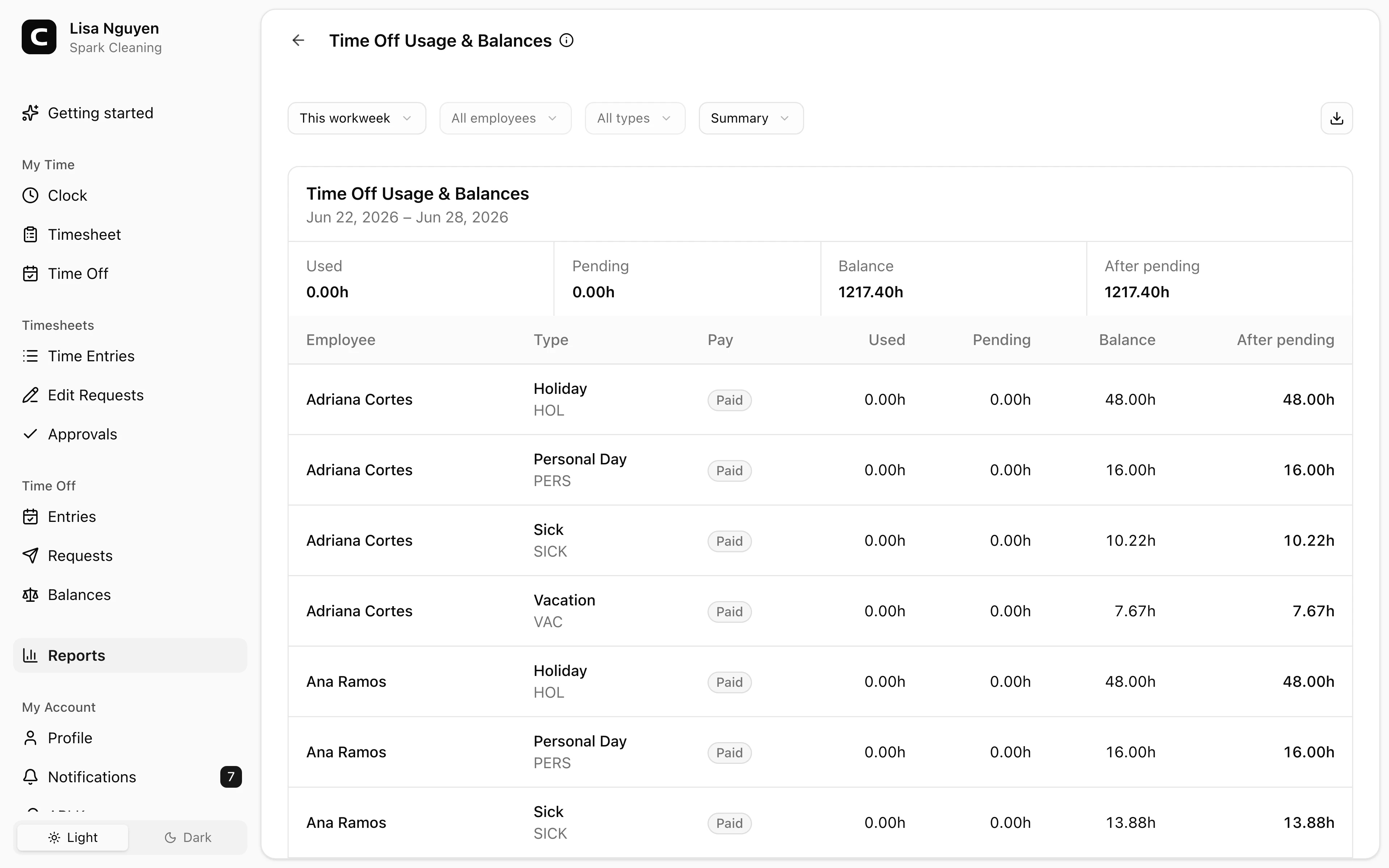
Time Off Usage & Balances compares time off taken in the selected period, pending requests in that period, current balances, balances after pending requests, and the current dollar value of paid balances.
The summary leads with Needs attention, then totals Used, Pending, Current balance, After pending, and Balance value. Needs attention counts employee/type rows that would be negative after pending requests or whose paid balance cannot be valued because a current hourly rate is missing.
The Summary view shows each employee and type, with negative current or after-pending balances highlighted and sorted first.
Switch to Taken for dated time off entries or Pending for pending request dates. Those views show Date, Employee, Type, Pay, Hours, and Note.
Filters
Use date range, All employees, All types, and the view selector. The date range scopes used time off and pending request hours. Current balances and Balance value are current when the report runs.
Reading balances
Balance is the employee's current balance for the time off type. Balance after pending subtracts pending request hours so you can see the likely balance if pending requests are approved.
Balance value is an accrual-liability estimate for paid time off balances. Clockspot multiplies the employee's current balance minutes by their current hourly rate, rounds to the nearest cent, and shows the result in dollars. Unpaid time off does not add liability. If a paid balance has hours but the employee has no current hourly rate on Employee Pay, Clockspot shows a dash for that row's Balance value and for the total instead of treating the unknown value as zero.
Exporting
Open the Export menu and choose Download CSV, Download Excel, or Download PDF. The export includes summary, taken, and pending detail. Summary exports include Current Balance Value Dollars.
Common questions
- Why does Balance not match the start of the date range?
Balance is current when the report runs. The selected date range controls Used and Pending, not the date used for the current balance.
- Does Balance value use the selected date range?
No. Balance value uses the current balance and current hourly rate when the report runs. The selected date range controls Used and Pending.
- Why does Balance value show a dash?
A dash means the row is unpaid or Clockspot cannot value a paid, non-zero balance because the employee has no current hourly rate on Employee Pay. If any paid row is missing a needed rate, the total Balance value also shows a dash.
- Where do I adjust an employee's balance?
Open Time Off Balances to review and adjust current balances.
- Where do pending hours come from?
Pending hours come from employee time off requests that are still waiting for approval. Review them on Time Off Requests.
Clockspot keeps clock-ins, corrections, approvals, and payroll-ready hours connected so owners and managers can review the workweek before payroll.
Want to simplify how your employees track time? See how Clockspot works.