Subscription & Billing
Review the workspace subscription, update the payment method, inspect past invoices, and see the billing details that determine continued access.
No login required. Opens in one click.
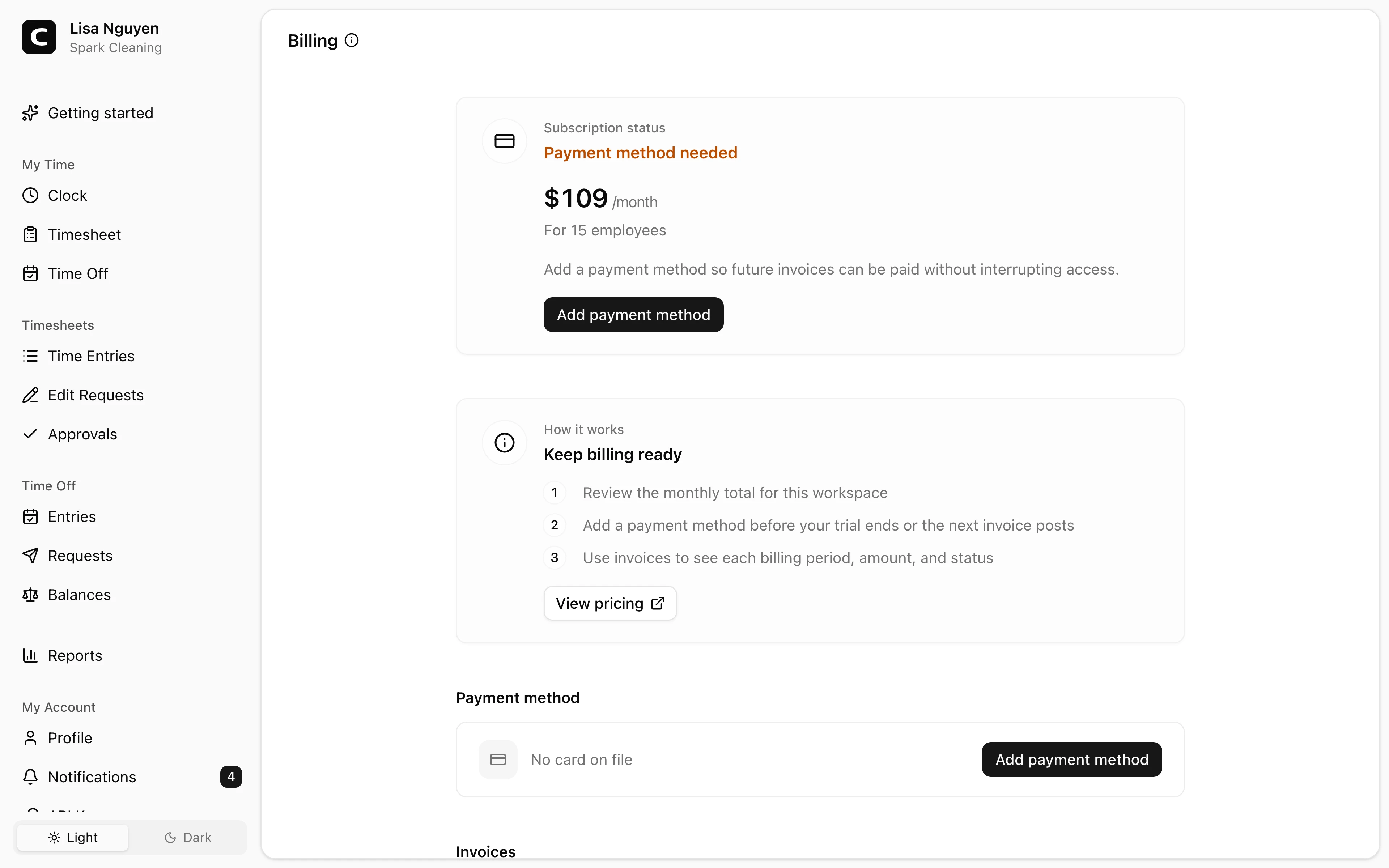
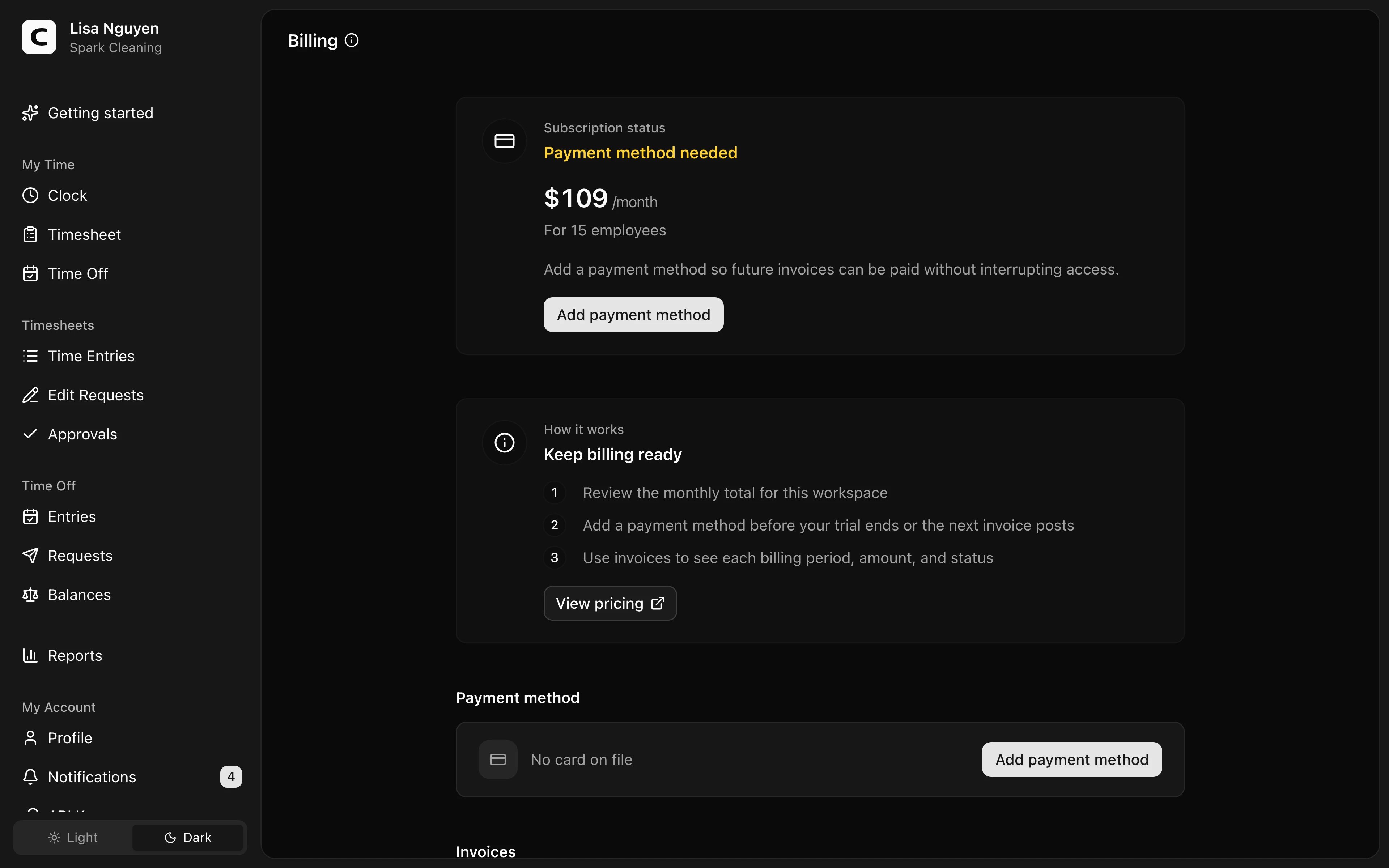
Subscription & Billing is available to Owners.
Subscription status
The Subscription status panel shows where the workspace stands and what to do next:
- Free trial - the trial is active and a card is already on file.
- Payment method needed - no card is on file yet.
- Trial ends soon or Trial ends today - the trial is close to ending and a card is still needed.
- Trial ended - the trial ended without a card; add one to reactivate the workspace.
- Payment failed - the last charge failed; update the payment method.
- Past due - payment still needs attention before workspace access is restored.
- Active - Clockspot is active and billing is set up.
The same panel shows the current monthly total and employee count for this company.
Clockspot counts people who have Count as an employee selected on their Access tab, even when Allow clocking in and out is off. Administrator or Owner access alone does not make someone count as an Employee. An Administrator or Owner does count when Count as an employee is selected. Clear that setting and the person stops counting as an Employee for the next invoice. Use View pricing for current plan details.
Payment method
Add a card with Add payment method, or Replace the one on file. Card details are entered in a secure Stripe form; Clockspot never sees or stores the full card number.
Remove takes the card off file. With no card available for a future charge, the workspace can move to Past due.
Invoices
The Invoices section lists each billing period under Period, with its Amount and Status - Paid, Failed, or Pending. If the workspace has not generated invoices yet, it says No invoices yet.
Canceling Clockspot
Contact Clockspot support anytime to cancel. There are no contracts or exit fees, and access continues through the current billing period.
Common questions
- My trial is about to end and I haven't added a card.
Add one before the trial ends if you want the workspace to stay active after the trial.
- A charge failed.
The subscription status shows Past due. Replace the payment method so the workspace has a valid card on file.
- Why am I being charged this much this month?
The Subscription & Billing page shows the current monthly total and employee count. Review Count as an employee on each person's Access tab if the count looks wrong, then use View pricing for current plan details.
- Should I send my card number to support?
No. Add or replace the card from Subscription & Billing so the card is entered directly into the secure payment form.
Clockspot keeps clock-ins, corrections, approvals, and payroll-ready hours connected so owners and managers can review the workweek before payroll.
Want to simplify how your team tracks time? See how Clockspot works.