Work Site Coverage
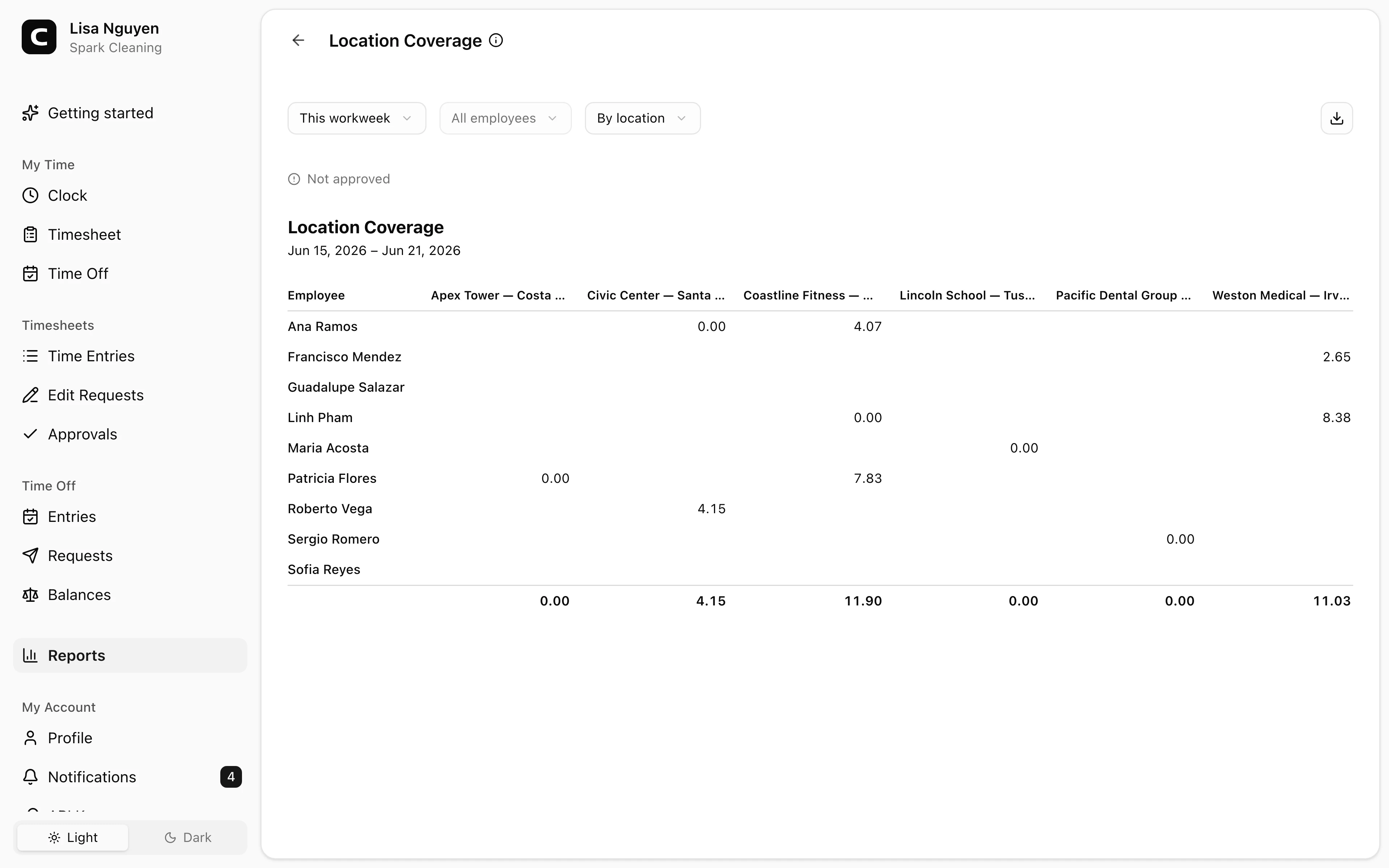
Compare each employee's attributed Work Sites by day so you can spot coverage patterns, site changes, and unexpected activity.
Questions this report answers
- How was employee time distributed across locations?
- Where did employees work each day?
- Which locations did each employee work at?
- Which locations had the most activity?
No login required. Opens in one click.
What this report shows
A matrix of employees against either Work Sites or dates:
- By Work Site (default) — rows are employees, columns are Work Sites. Each cell shows the hours attributed to that employee and Work Site, plus row and column totals.
- By date — rows are employees, columns are dates. Each cell shows the primary Work Site for that day, with +N when the employee recorded time at additional Work Sites.
For each entry, clock-in Work Site is the primary grouping. Clock-out is used only when clock-in has no Work Site. Different clock-in and clock-out sites are counted for review but are not treated as verification failures.
Filters
Date range, Work Site, employee, and view mode in the toolbar. An approval status line above the grid shows how many of the period's timesheets are approved, and links to Approvals when any are still open.
Exporting
The export menu offers Download CSV, Download Excel, and Download PDF. The export includes both the Work Site grid and the date grid.
When to use a different report
- Hours per Work Site with employee breakdown → Work Site Summary
- Every clock-in/out with Work Site attribution → Work Site Activity
- Unverified events or conflicting Work Site approvals → Clock Verification
Common questions
- A cell is empty in the By-Work-Site view.
That employee had no time attributed to that Work Site during the date range.
- A cell shows "+N" in the By-date view.
The employee had time attributed to more than one Work Site that day. The visible name is the Work Site with the most time; +N is the count of additional Work Sites.
- An employee's hours here don't match the Hours Summary report.
Hours Summary includes paid time off (which this report doesn't); confirm both reports are scoped to the exact same date range.
Clockspot keeps clock-ins, corrections, approvals, and payroll-ready hours connected so owners and managers can review the workweek before payroll.
Want to simplify how your team tracks time? See how Clockspot works.