Reports
Current Status
See who is clocked in, on time off, scheduled today, or off duty right now.
No login required. Opens in one click.
What this report shows
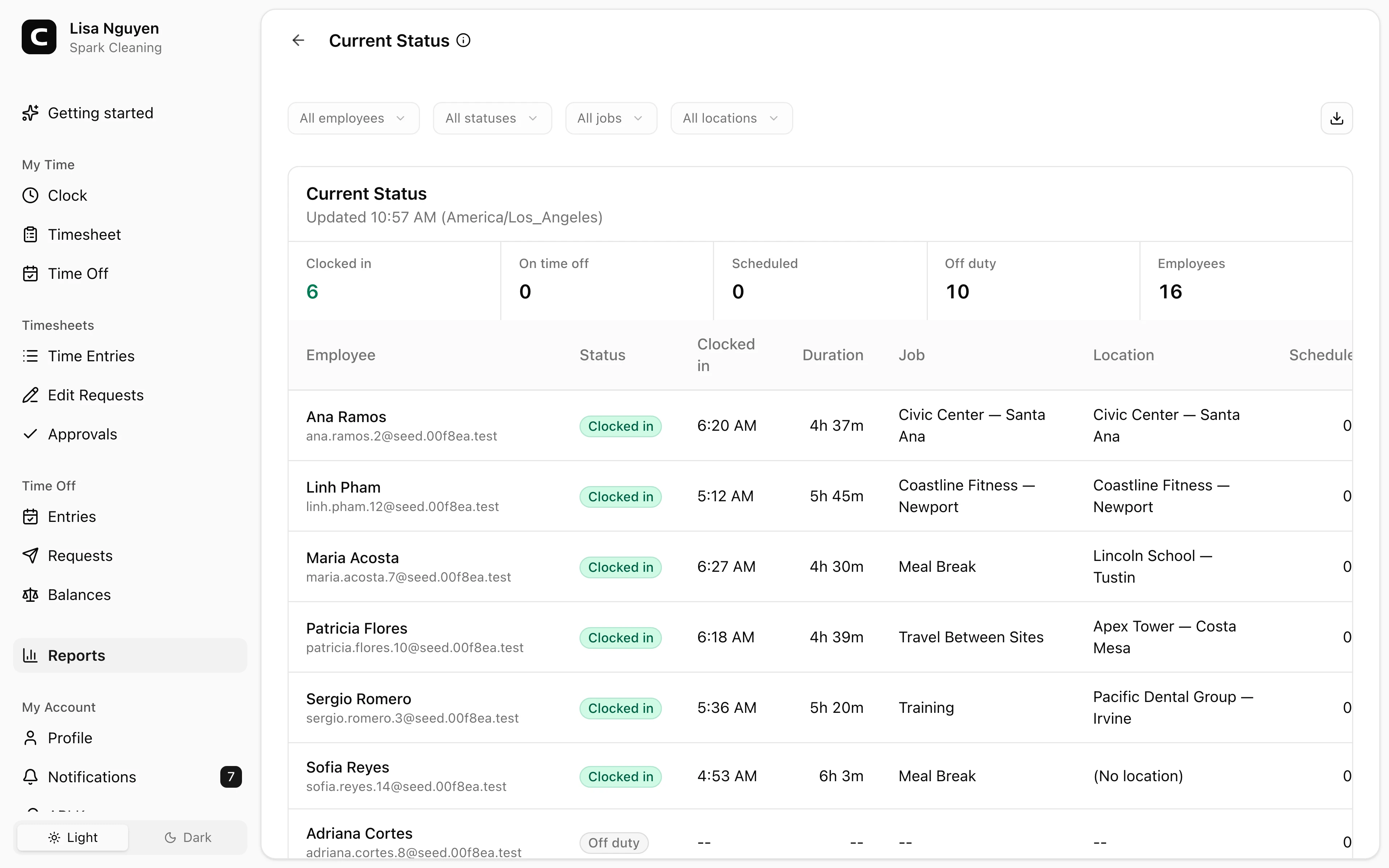
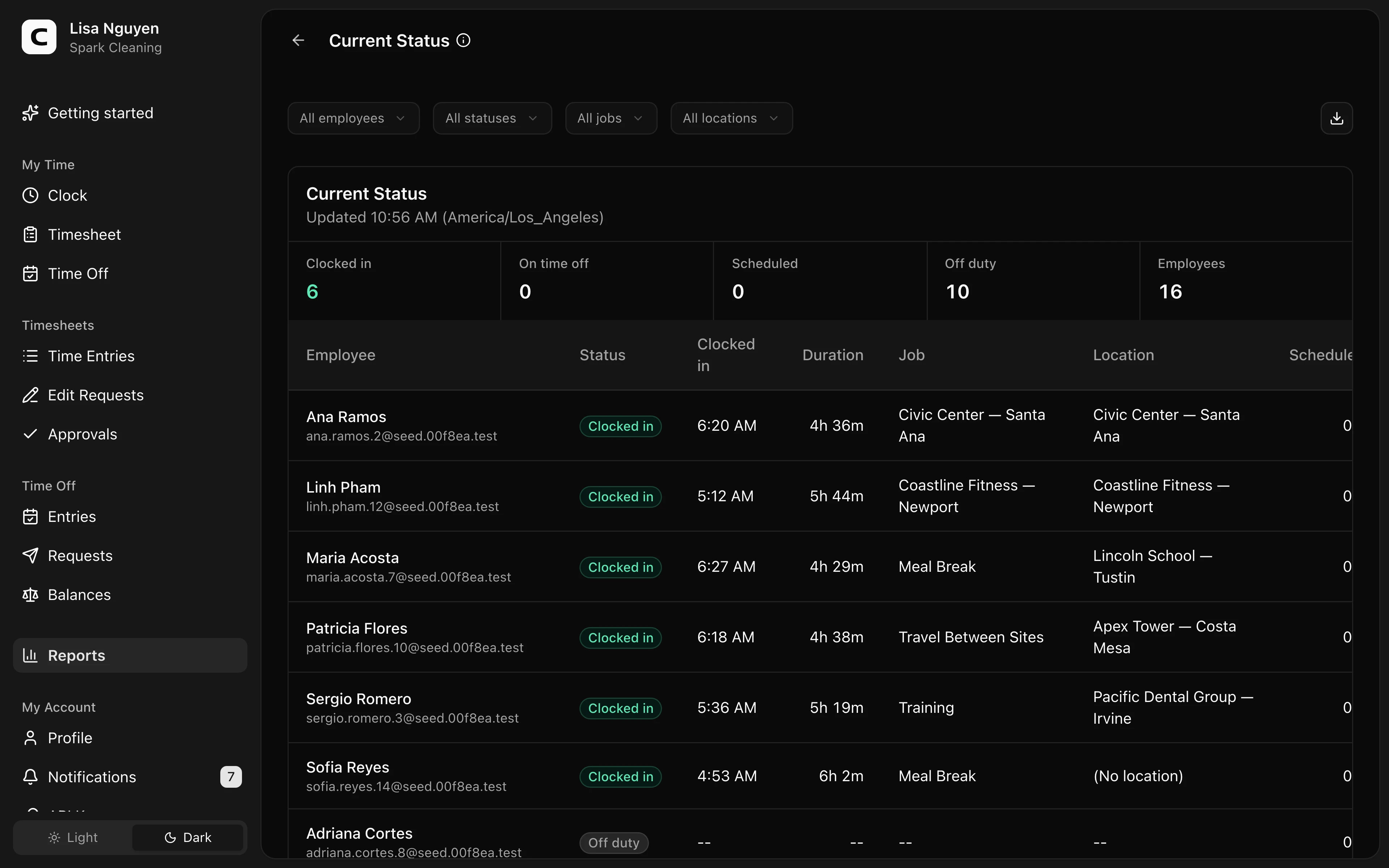
Current Status is a live roster snapshot for admins. It shows each employee as Clocked in, On time off, Scheduled today, or Off duty.
The summary row counts Clocked in, On time off, Scheduled, Off duty, and Employees. The table shows Employee, Status, Clocked in, Duration, Job, Location, Scheduled, and Time off.
Use this report for day-of coverage questions. It is not payroll history; use Attendance, Hours Summary, or Payroll Summary when you need completed period totals.
Filters
Use All employees, All statuses, All jobs, and All locations to narrow the roster. The location filter applies to employees who are currently clocked in.
Exporting
Open the Export menu and choose Download CSV, Download Excel, or Download PDF. The export captures the current filtered snapshot, including the selected status, job, and location filters.
Common questions
- Why does the roster change while I am looking at it?
Current Status is a live snapshot. It updates as employees clock in, clock out, or have time off recorded for today.
- Why is an employee listed as Scheduled today instead of Off duty?
Scheduled status comes from the employee's work schedule. Review the employee's schedule on Employees or the workspace default in Time Tracking Settings.
- Can I use this for payroll?
No. Use this report to answer "who is in right now." For payroll-period numbers, use Payroll Readiness and Payroll Summary.
Related
How overtime works
How Clockspot classifies overtime hours into report tiers.
Running payroll
The path from a closed pay period to numbers you can hand to your payroll provider.
Reports
Open the report that matches the hours, payroll, job, or clock-location question you need to review.
Daily Summary
Review one day's clock activity, open punches, time off, pending edits, and cleanup items.
Attendance
See who worked each day, with hours, absences, and in/out times.
Attendance Exceptions
Find scheduled absences, missing clock-outs, unscheduled work, and scheduled-hour variances.
Hours Summary
See each employee's regular, overtime, and time off hours for the period.
Overtime
See who hit overtime each week, with the rule behind each tier.
Payroll Readiness
Check payroll blockers, warnings, and cleanup actions before using payroll totals.
Payroll Summary
See payroll-ready hours and pay per employee, ready to process.
Timesheet Audit
Review direct edits and edit requests with who changed what, when, and why.
Job Hours
See how employee hours break down by job and project.
Labor Cost by Job
See hours, straight-time pay, overtime premium, and labor cost by job.
Time Off Usage & Balances
Compare time off used, pending requests, current balances, and balances after pending.
Verification Exceptions
Review clock events missing expected location, kiosk-photo, or phone voice evidence.
Location Summary
See how hours and headcount break down across clock locations.
Location Activity
See the clock-in and clock-out location for every shift.
Location Compliance
Find time entries with missing or mismatched clock locations.
Location Coverage
Compare where each employee worked, by location and by day.
GPS Clock Event Map
See GPS-tagged clock events plotted on a map.
Site Overview
Scan hours, entries, and employees at each clock location.