Timesheet Audit
Audit direct edits and employee change requests with the original value, new value, person responsible, timestamp, and stated reason.
Questions this report answers
- Who changed a time entry, what changed, and when?
- Why was an employee’s time changed?
- Which changes were made directly or through an edit request?
No login required. Opens in one click.
What this report shows
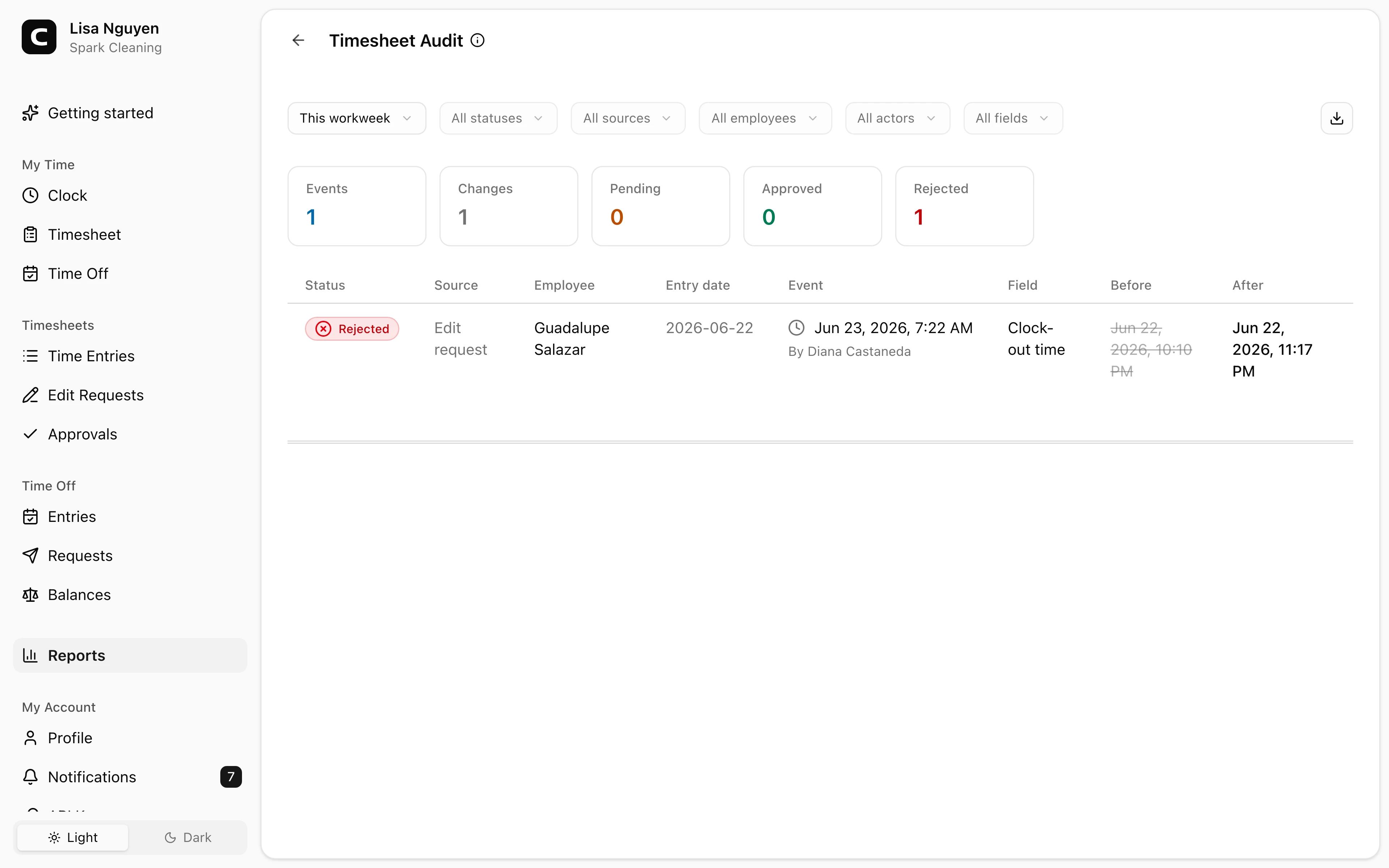
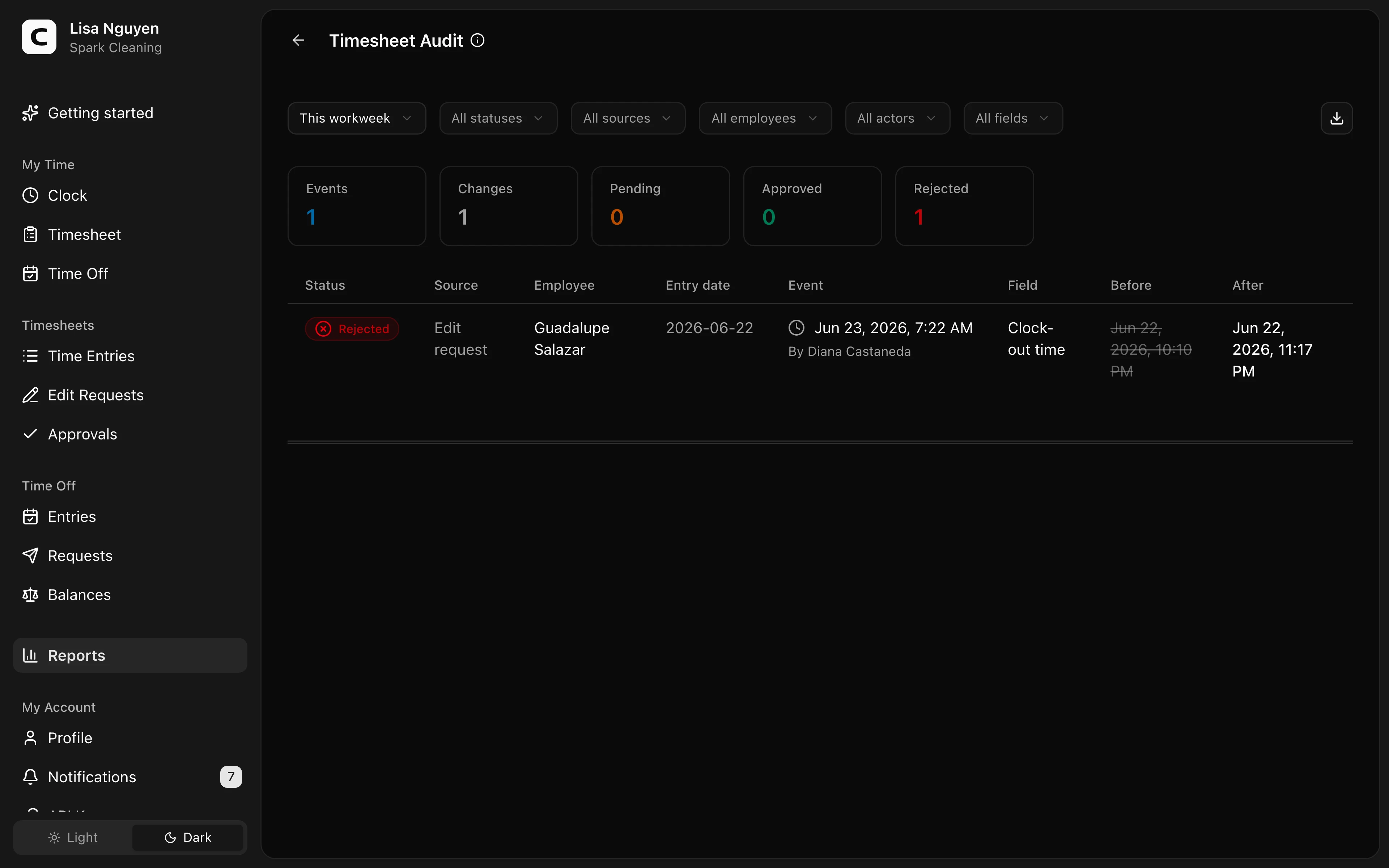
Timesheet Audit is a read-only history of time-entry changes. It keeps the employee, every field changed in one edit, the person who acted, the request status, and any notes together.
The summary counts Edit events, Direct edits, Pending requests, Approved requests, and Rejected requests. The table shows Employee, Changes, Activity, Status, and Notes.
Each row represents one edit event. If one edit changes several fields, every change appears in that row. Activity shows whether the change was made, requested, approved, or rejected, along with the person and time.
Filters
Use date range, All statuses, All sources, All employees, All actors, and All fields. Field options can include Clock-in time, Clock-out time, Note, Job, and any custom time-entry fields that appear in the audit data.
Reading changes
An added value uses Set to. A removed value uses Previous. Other completed changes use Before and After.
A pending or rejected request uses Current and Requested so you can distinguish the recorded value from the employee's requested correction. Employee reason and Reviewer comment identify who wrote each note.
Rows are newest first. On smaller screens, the same edit events appear as cards.
Exporting
Open the Export menu and choose Download CSV, Download Excel, or Download PDF. Exports keep one row per changed field so every before and after value remains available outside Clockspot.
Common questions
- Can I approve or reject an edit request from this report?
No. Use Edit Requests to approve or reject pending requests. Timesheet Audit is for reviewing change history.
- Why does one event show several changes?
One edit can change more than one field. Timesheet Audit keeps those fields together so you can review the complete edit without treating it as several separate events.
- Where do direct edits come from?
Direct edits are changes made by an Administrator on Time entries. Edit-request rows come from employee correction requests reviewed by a manager or Administrator.
Clockspot keeps clock-ins, corrections, approvals, and payroll-ready hours connected so owners and managers can review the workweek before payroll.
Want to simplify how your employees track time? See how Clockspot works.