Clock Activity Map
Plot employee clock-in and clock-out events on a map, inspect the underlying entry, and focus on locations that may need attention.
No login required. Opens in one click.
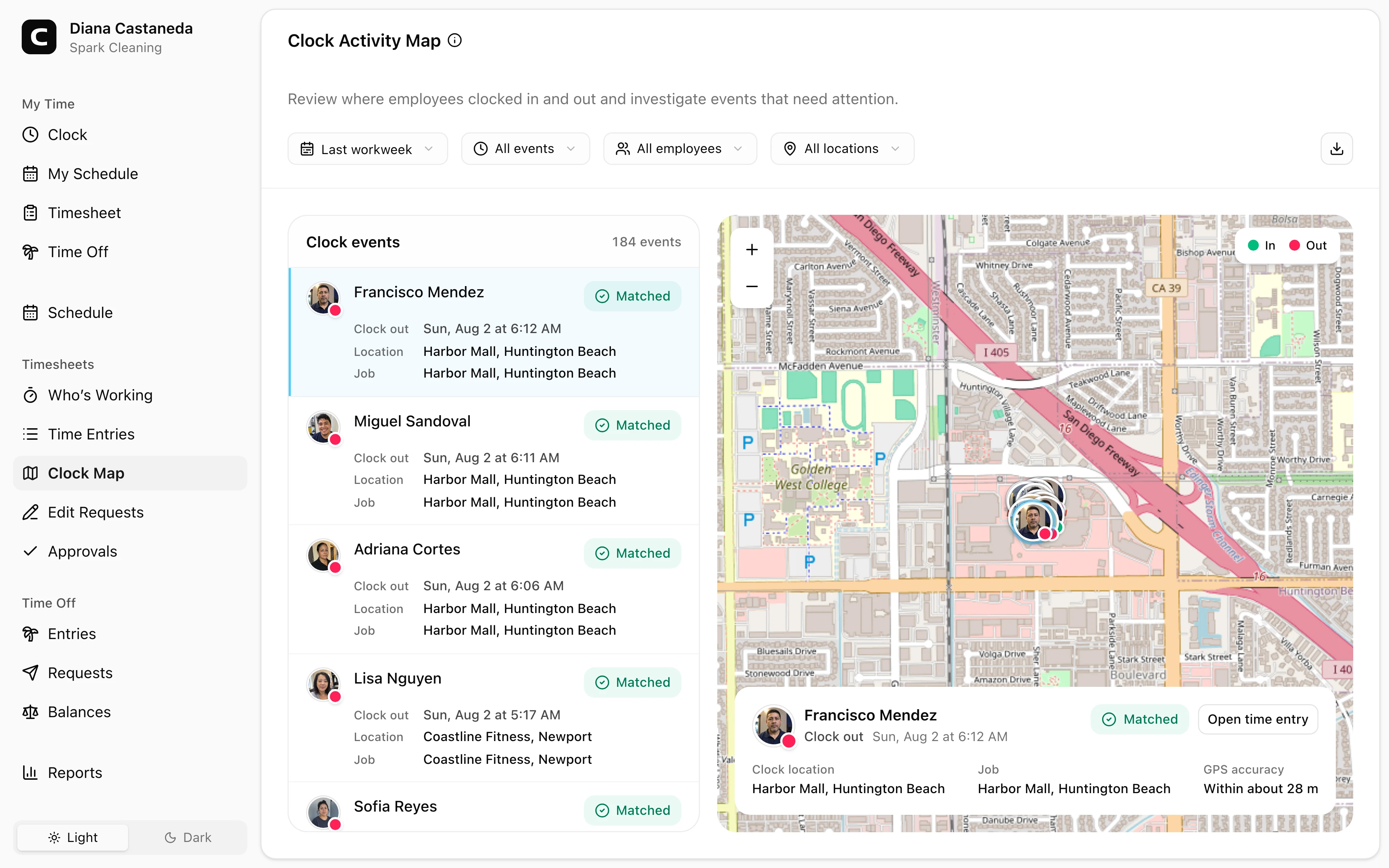
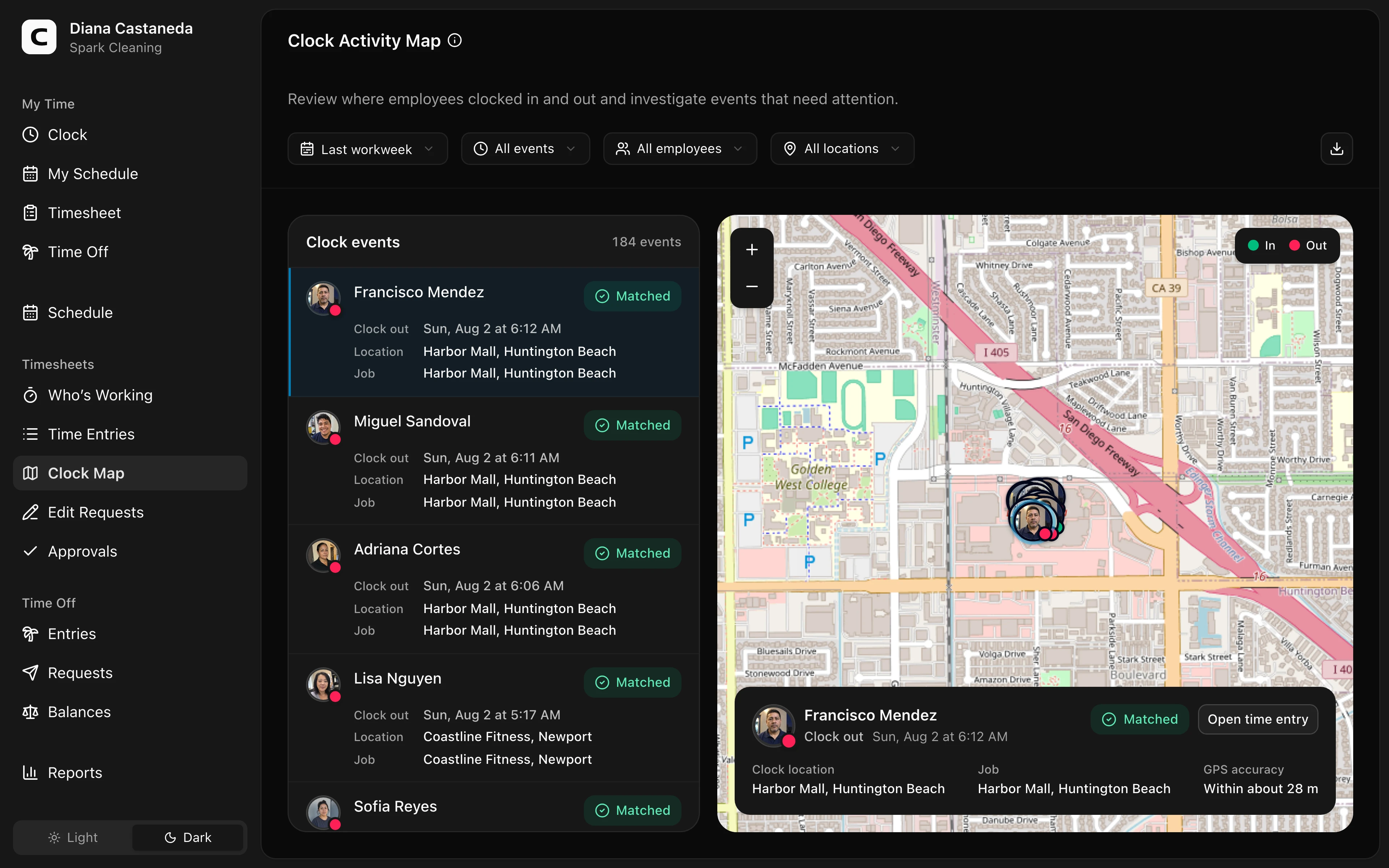
Review a clock event
The list shows clock-ins and clock-outs in the selected date range, including events without GPS coordinates. Select an event to review its employee, time, Work Site attribution, job, verification outcome, and GPS accuracy. Press Open time entry when you need to inspect the full entry.
The marker and avatar dot use green for clock-ins and red for clock-outs. Events without GPS coordinates remain in the list but do not appear on the map.
The compact summary above the list and map shows clock events, employees, mapped events, and verification issues for the current filters.
Filter the events
Use the date range, verification status, employee, and Work Site filters to narrow the list. Verification status is independent of whether an event has GPS coordinates:
- Verified — every clocking approval that applied to the event matched.
- Unverified — at least one applicable approval did not match.
- No approvals configured — the workspace had no applicable approval for that clock method.
- Verification unavailable — Clockspot could not evaluate the applicable approval from the available event context.
An event without GPS remains in the list and can still be verified by another method, such as an approved IP network or browser.
Export the events
Press Export, then choose Download CSV or Download Excel. The export uses the same date range and filters as the page and includes events without GPS coordinates.
When to use a report
- Hours rolled up per Work Site → Work Site Summary
- Clock-in and clock-out Work Sites paired by time entry → Work Site Activity
- Clock-approval and Work Site exceptions summarized by issue → Clock Verification
- Hours and employee counts at each Work Site → Work Site Overview
Common questions
- A pin appears far from where I expected.
GPS readings can drift, especially indoors. Select the event to confirm the employee, time, Work Site attribution, verification outcome, and GPS accuracy before deciding whether it needs follow-up.
- Can I see the route between two clock-ins?
No — the map shows discrete clock events only, not travel between them.
Clockspot keeps clock-ins, corrections, approvals, and payroll-ready hours connected so owners and managers can review the workweek before payroll.
Want to simplify how your employees track time? See how Clockspot works.