Work Sites
Define the physical places where work happens, add optional GPS areas, and connect jobs or clocking approvals when those relationships are useful.
No login required. Opens in one click.
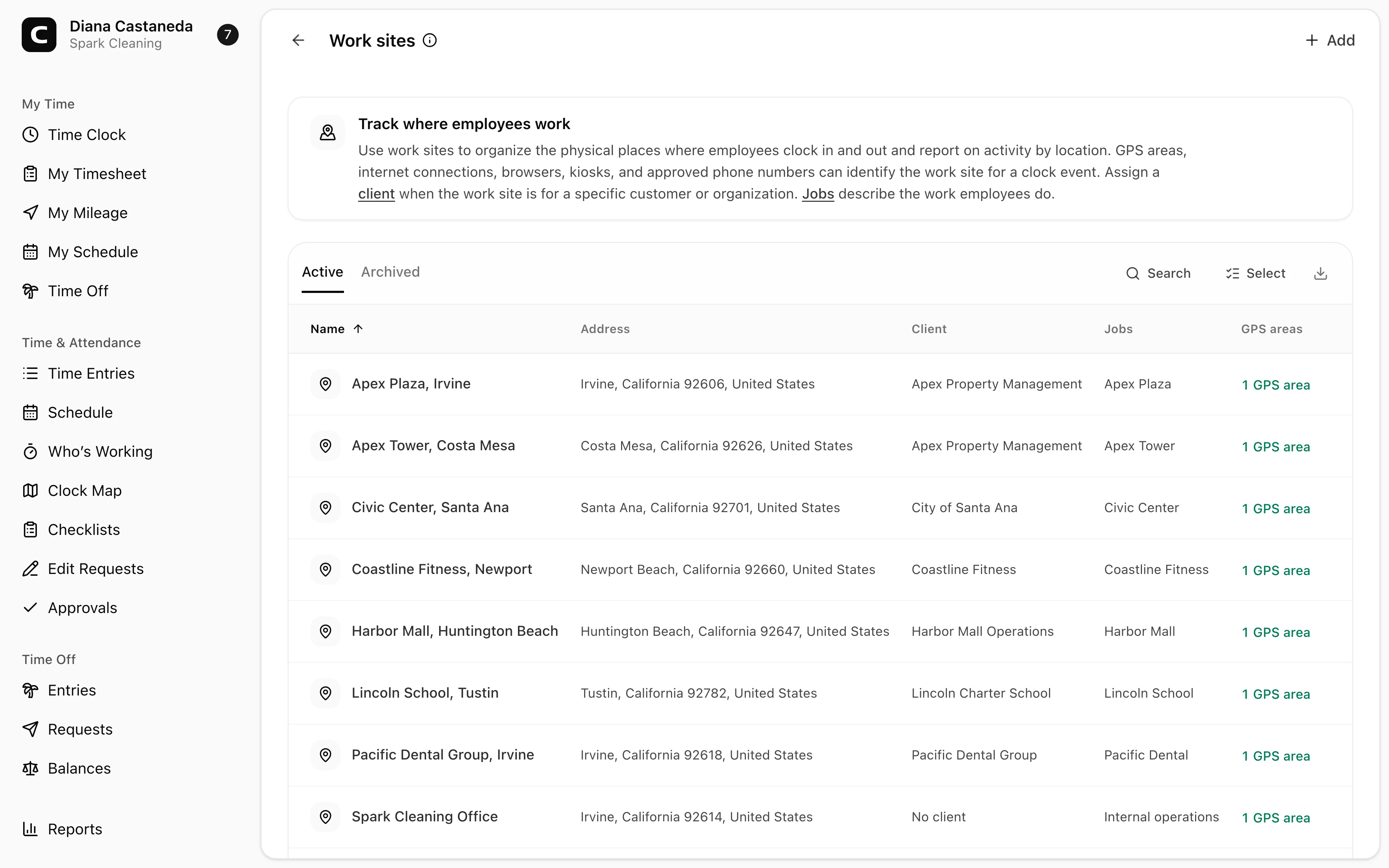
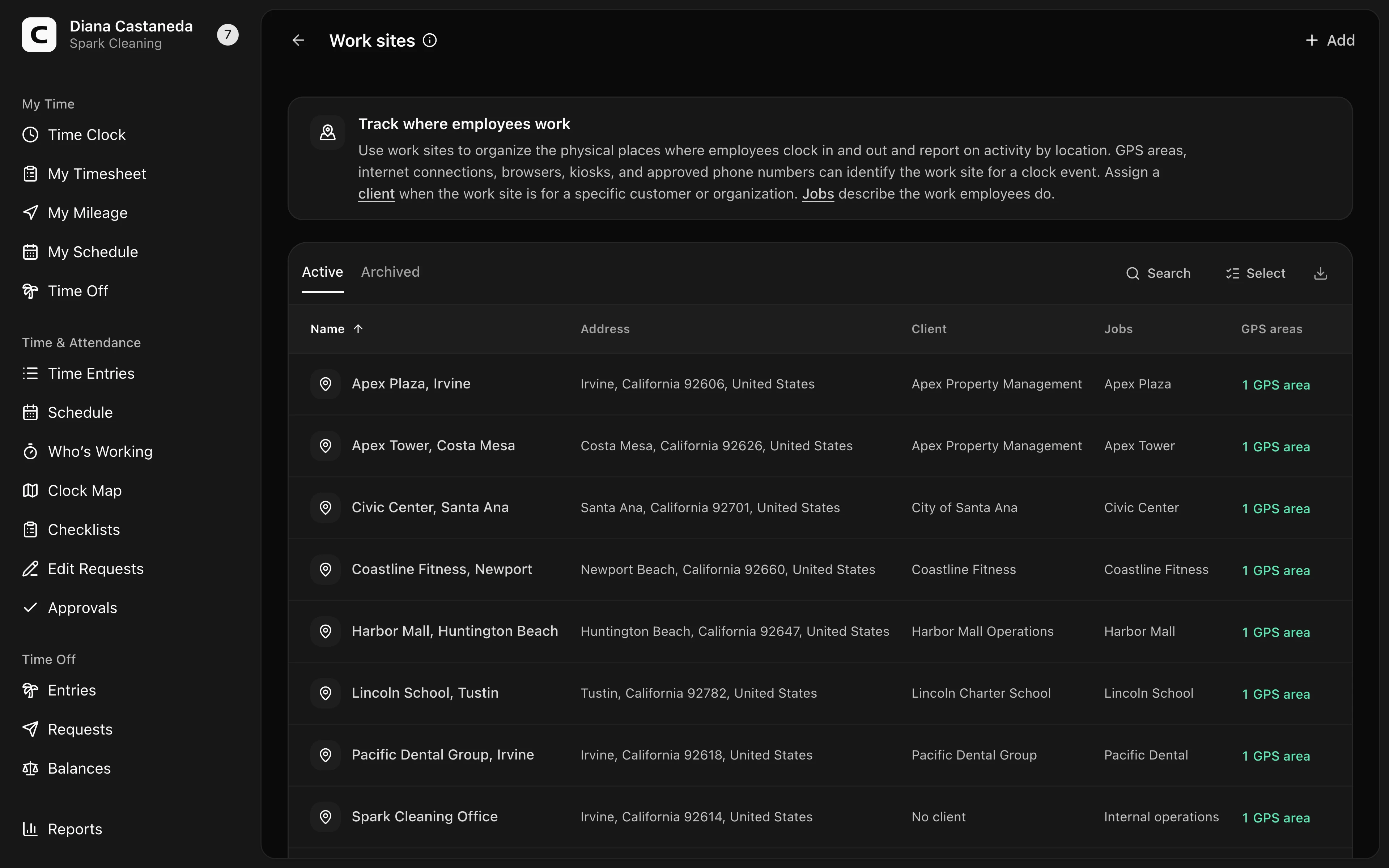
What a Work Site is
A Work Site is a physical place where employees may work, such as an office, customer property, or construction site. Give it a recognizable name and, optionally, a postal address.
Work Sites are separate from jobs and clock-in rules:
- A job describes the work employees select and can be linked to one or more Work Sites.
- A clock-in can match a GPS area, workplace internet connection, registered browser, kiosk, or approved phone number.
- A Work Site is the physical place shown with clock activity. It can exist without any clock-in restriction.
This separation lets you represent places without forcing a clocking restriction. For example, a customer site can be useful for job reporting even when employees are allowed to clock from anywhere.
Adding a Work Site
- Open Settings > Work Sites.
- Press Add.
- Enter a Work site name.
- Add the optional address fields.
- Add one or more optional GPS areas when employees should be inside the area to satisfy a clock-in restriction.
- Press Add work site.
Each GPS area has a latitude, longitude, and radius in meters. The device must provide a position inside the radius for that area to match. Device accuracy varies, so use a radius that fits the site. Clockspot checks the position at the clock event; it does not continuously track the employee.
Linking jobs to Work Sites
Open Jobs, add or edit a job, and choose its Work Sites. When the selected job has one Work Site and no clock-in method identifies a different place, Clockspot can attribute the event automatically. When a job has multiple possible Work Sites and no clock-in method establishes one, the employee's Time Clock page asks which Work Site applies. In that job-only case, the employee can also choose Not at a work site.
Linking a job to a Work Site identifies the place for reporting; it does not prove that the employee was physically there. That depends on a matching GPS area, internet connection, browser, kiosk, or approved phone number.
Linking other clocking approvals
GPS areas live inside Work Sites. Other clocking approvals are managed on the page for that method:
- In Clock-in Verification, use Internet connection to add a workplace's public IP address or range, or This browser to register the current browser and device.
- In Kiosks, register a shared kiosk and optionally associate it with a Work Site.
- In Phone Clocking, approve caller IDs and optionally associate them with a Work Site.
The Work Site link on an internet connection, browser, kiosk, or approved phone number is optional. The clock-in can still match without that link. When every matched method that has a Work Site identifies the same place, Clockspot attributes the clock event to that Work Site automatically. If matched methods identify different Work Sites, an employee using the Time Clock chooses the correct site. A noninteractive clock action has no one to ask, so Clockspot records it without a Work Site and keeps every matched method for manager review.
Work Site alerts
Work Site alerts help managers catch an unopened location or more paid labor than expected. They use clock-ins attributed to the physical Work Site and do not require assigned shifts or a published schedule.
- Open Settings > Work Sites.
- Open the Work Site's menu and choose Work Site alerts.
- Choose the Time zone. Leave it on Workspace time zone unless this site uses a different local time.
- Under Opening coverage, choose the days when at least one employee should clock in and set the expected time.
- Under Daily labor, choose the days to monitor and enter the combined paid hours that should trigger an alert.
- Under Who should receive Work Site alerts?, choose All Owners and Administrators or Specific people. If you choose specific people, select the Owners or Administrators responsible for this site.
- Press Save changes.
Opening coverage
After an expected clock-in time passes, Clockspot checks whether anyone clocked in at that Work Site on the local date. An earlier time entry that was still open at the expected time also counts, such as an overnight entry that ends that morning. The same employee does not need to work there every day.
Daily labor
Clockspot adds the paid time from every employee and every time entry attributed to that Work Site on the local date. Separate clock-ins add together. Paid breaks count as labor and unpaid breaks do not. An open time entry contributes through the time of the check.
The alert is created after the combined paid time reaches the amount set for that weekday. This is a Work Site total, not a limit for one employee. Set different amounts for days with different staffing patterns, such as a busy Saturday or a shorter Sunday. Each site can create one daily labor alert per local date.
Daily labor alerts are an early warning about actual paid time. They do not replace employee overtime rules or job labor budgets.
The Work Site needs at least one way to identify its clock-ins before you can add either alert. You can use a GPS area, linked job, kiosk, internet connection, browser, or approved phone number.
When you choose specific people, only those people receive either type of Work Site alert. The all-managers option alerts every Owner and each Administrator who can manage all employees. Recipients can control additional Email and SMS delivery in Notification Preferences.
Verification outcomes
For every recorded clock action, Clockspot saves one of these outcomes for the applicable clocking method:
- Verified — at least one configured location or device matched. Clockspot also keeps which ones matched.
- Unverified — a location or device was configured, but none matched.
- Not checked — no location or device was configured for that clocking method.
A manual entry, or an entry recorded before verification outcomes were introduced, can show Verification unavailable instead. Missing Work Site attribution is not the same as an unverified event. Review the result and captured context from Time entries, or use Clock Verification to find unmatched events.
Archiving
Use a Work Site's menu to choose Archive work site. Archiving also archives its GPS areas and any internet connections, browsers, or approved phone numbers linked to it. Existing historical records remain intact.
Choose Archived to restore a Work Site. Restoring the Work Site does not reactivate those clock-in methods; review and add the ones you want to use going forward.
Common questions
- Does every Work Site need a GPS area?
No. A Work Site can represent a physical place for job and time-entry reporting without restricting clock-ins. Add a GPS area only when employees should be inside that area to satisfy the clock-in restriction.
- Can one job be performed at more than one Work Site?
Yes. Link all applicable Work Sites when you add or edit the job. If no matched clock-in method establishes one site automatically, the employee's Time Clock page asks them to choose one. Not at a work site remains available when the choices came only from the job.
- Can an internet connection or browser be used without a Work Site link?
Yes. A clock-in can still match that connection or browser. Link it to a Work Site when a unique match should attribute the clock event to that place automatically.
- Do coverage alerts require a schedule?
No. After an expected clock-in time passes, a coverage alert checks whether anyone clocked in at the Work Site on the local date. It does not depend on an assigned or published shift.
- Does a daily labor alert check one employee's hours?
No. It adds paid time from every employee and every clock-in attributed to that Work Site on the local date. Use Overtime Rules for employee overtime and job labor budgets for job-level spending.
Clockspot keeps clock-ins, corrections, approvals, and payroll-ready hours connected so owners and managers can review the workweek before payroll.
Want to simplify how your team tracks time? See how Clockspot works.