Subscription & Billing
Review the workspace subscription, update the payment method, inspect past invoices, and see the billing details that determine continued access.
No login required. Opens in one click.
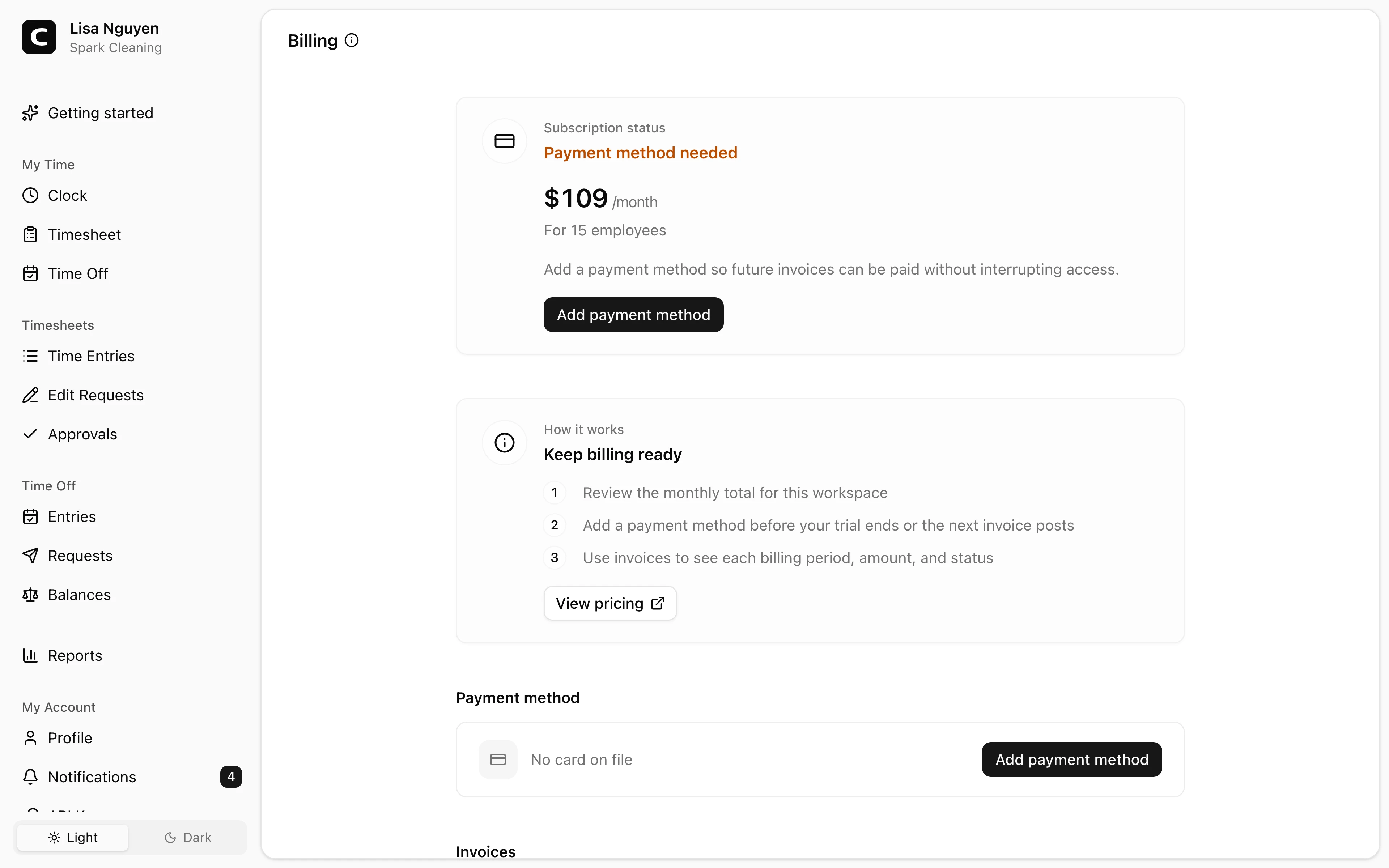
Subscription & Billing is available to Owners.
Subscription status
The Subscription status panel shows where the workspace stands and what to do next:
- Free trial - the trial is active and a card is already on file.
- Payment method needed - no card is on file yet.
- Trial ends soon - the trial is close to ending and a card is still needed.
- Trial ended - the trial ended without a card; add one to reactivate the workspace.
- Payment due - an invoice is unpaid and no card is on file; add a payment method.
- Payment failed - the last charge failed; update the payment method.
- Payment processing - a payment is still processing; check the invoice details before trying another card.
- Payment not confirmed - the payment result is not yet confirmed. This does not mean the card was declined.
- Past due - payment still needs attention before workspace access is restored.
- Active - Clockspot is active and billing is set up.
The same panel shows the current monthly total and employee count for this company.
Clockspot counts people who have Count as an employee selected on their Access tab, even when Allow clocking in and out is off. Administrator or Owner access alone does not make someone count as an Employee. An Administrator or Owner enters the counted workforce when Count as an employee is selected. One owner account is included at no extra charge; the invoice Details shows whether that allowance was applied. Clear that setting and the person stops counting as an Employee for the next invoice. Use View pricing for current plan details.
Payment method
Add a card with Add payment method, or use Replace payment method to change the one on file. Card details are entered in a secure Stripe form; Clockspot never sees or stores the full card number.
Remove payment method takes the card off file; it does not cancel renewal. A new unpaid invoice with no card can show Payment due, then Past due if workspace access pauses.
Saving a card may also charge any payment already due.
Saving a card and collecting a payment are separate outcomes. If the confirmation says the card was saved but payment is processing or not confirmed, review the invoice Details before trying another card. The subscription panel tells you whether the workspace remains active or read-only.
Invoices
The Invoices section lists each billing period under Period, with its Amount and Status. Processing and Not confirmed distinguish payments still in progress or awaiting confirmation from Failed payments. If the workspace has not generated invoices yet, it says No invoices yet.
Choose Details beside an invoice to see how its amount was calculated, including the pricing, employees counted for billing, and any included owner account. Expand Employees at invoice issuance to see the names saved when the invoice was issued. Later employee changes do not change that invoice.
The same view shows payment attempts with the card details recorded for each attempt, payment checks, recorded refunds or disputes, and email notices. An email accepted by the email provider is not confirmed delivered. Missing details on older invoices are identified explicitly; missing records do not prove that a payment or email never occurred.
Canceling Clockspot
Choose Cancel subscription in Subscription & Billing and review the access end date before confirming. Cancellation stops future renewals; you do not need to remove the card. Access continues until the date shown in the dialog, or ends immediately if no remaining access period applies. The workspace then becomes read-only. Your records remain available to view and export. Previous payments are not refunded, and existing unpaid invoices remain due and may still be charged.
To restart billing, use Resume subscription. Adding or changing a card does not resume the subscription by itself.
Common questions
- My trial is about to end and I haven't added a card.
Add one before the trial ends if you want the workspace to stay active after the trial.
- A charge failed.
Review the invoice Details and subscription status. If the latest result confirms the payment failed, replace the payment method so the workspace has a valid card on file.
- Why am I being charged this much this month?
Open Details beside that invoice to review its pricing and the employee names saved when it was issued. The current monthly total and employee count describe the current workforce, so they may differ from an older invoice. If the count for future invoices looks wrong, review Count as an employee on each person's Access tab and use View pricing for current plan details.
- My card is saved, but the payment is not confirmed.
This does not mean the card was declined. Check the invoice Details for the latest payment status before trying another card. The subscription panel shows whether the workspace is active or read-only while the payment outcome is unresolved.
- Should I send my card number to support?
No. Add or replace the card from Subscription & Billing so the card is entered directly into the secure payment form.
Clockspot keeps clock-ins, corrections, approvals, and payroll-ready hours connected so owners and managers can review the workweek before payroll.
Want to simplify how your employees track time? See how Clockspot works.