Mileage
Review current work trips and exact distance totals by employee, Job, and Work Site without counting voided or superseded records.
Questions this report answers
- How much business mileage was recorded, and for which employees or work?
- How much business mileage did each employee record?
- How much mileage was recorded for each Job or Work Site?
No login required. Opens in one click.
What this report shows
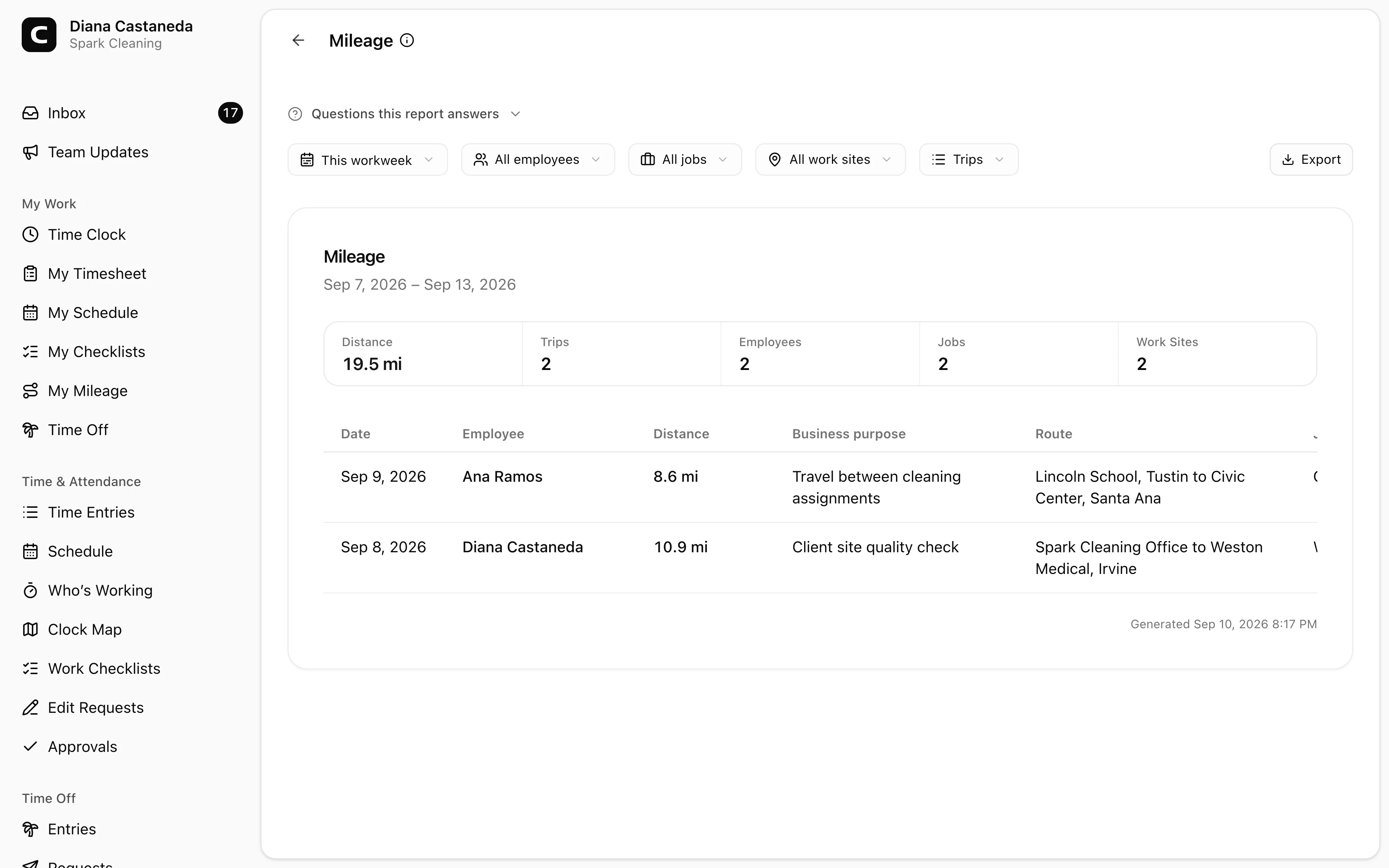
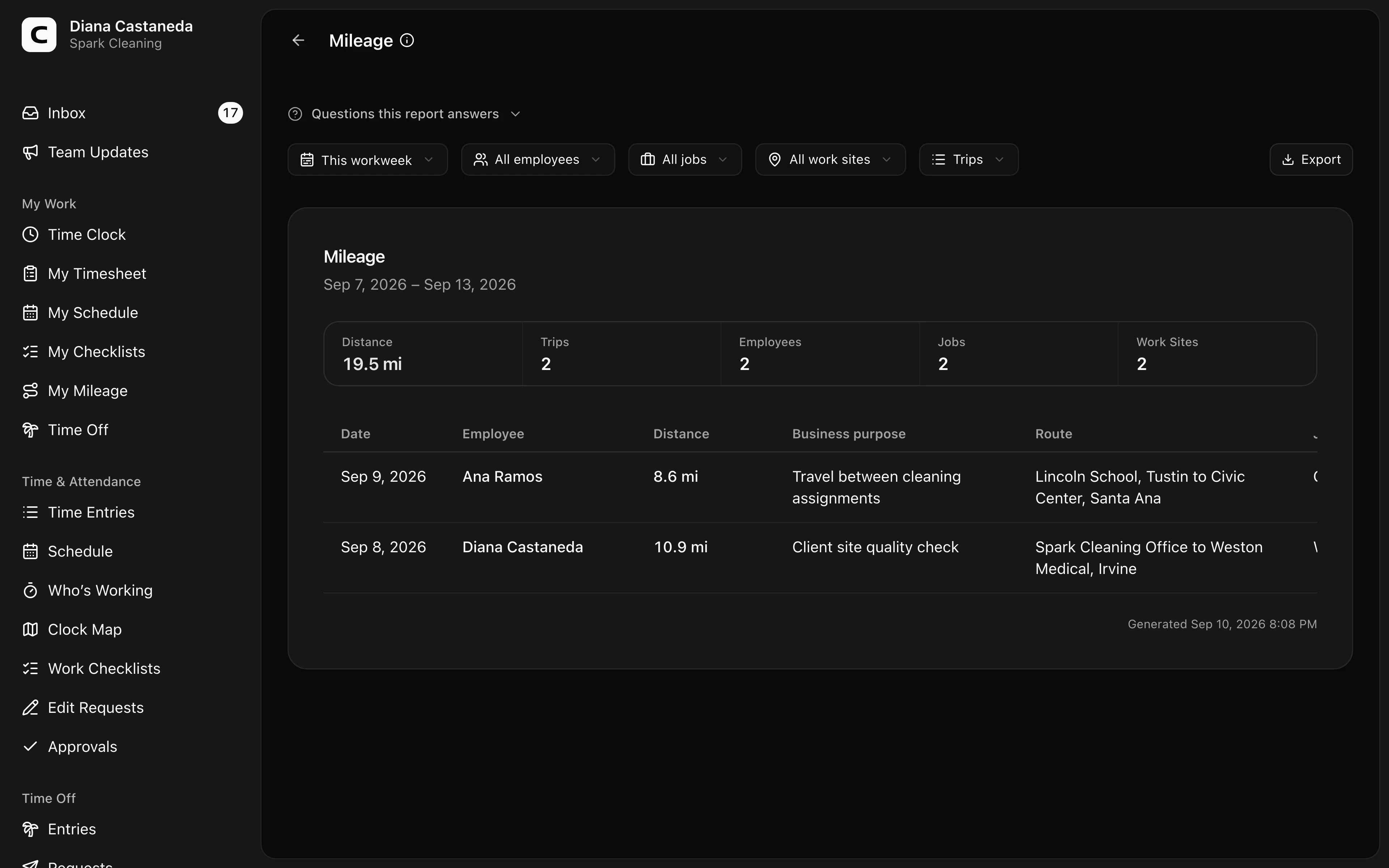
Mileage shows the current work trips recorded during the date range you choose. It answers how much distance was recorded and lets you review the same trips individually, by employee, by Job, or by Work Site.
The default Trips view shows the trip date, employee, exact distance and unit, business purpose, route, Job, Work Site, and note. Use the other views when you need totals instead of individual trip details.
Which trips count
The report counts only the current version of each trip.
- A trip that has not been voided counts.
- When a trip is corrected, its replacement counts and the original does not.
- A voided trip does not count.
Voided trips and corrected originals remain available in Trip history for audit purposes. They are intentionally excluded here so the same distance cannot be counted twice.
Reading distance totals
Each trip keeps the unit used when it was recorded. If a period contains both miles and kilometers, Clockspot shows separate exact totals such as 47 mi + 12 km. It does not silently convert one unit into another or relabel old trips when the workspace setting changes.
Filters and views
Use the date range, Employee, Job, and Work Site filters to narrow the report. Choose (No job) or (No work site) to find trips missing that attribution.
- Trips shows each current trip.
- By employee totals distance and trip count for each employee.
- By job totals distance and trip count for each Job.
- By Work Site totals distance and trip count for each Work Site.
The filter choices describe the whole accessible period before the other filters are applied, so you can move between employees, Jobs, and Work Sites without losing valid choices.
Correcting a trip
This report is read-only. Open Settings, choose Mileage, then use Trip history to correct or void a trip. Rerun this report after the change; its rows and totals will reflect the current version automatically.
Exporting and scheduling
Open Export to download CSV, Excel, or PDF. A single export includes the trip details plus the employee, Job, and Work Site breakdowns.
You can also add Mileage to Scheduled reports after Mileage has been configured for the workspace.
Common questions
- Why is a trip missing after I corrected it?
The original trip is kept in Trip history but removed from report totals. Its current replacement appears instead, provided the replacement date and filters fall in this report period.
- Why do I see both miles and kilometers?
Each trip preserves the unit used when it was recorded. Clockspot keeps those totals separate rather than making an implicit conversion that could change your records.
- Does this calculate reimbursement?
No. The Mileage report shows recorded distance and work attribution. It does not apply reimbursement rates, tax rules, approvals, or payment status.
Clockspot keeps clock-ins, corrections, approvals, and payroll-ready hours connected so owners and managers can review the workweek before payroll.
Want to simplify how your employees track time? See how Clockspot works.