Reports
Location Summary
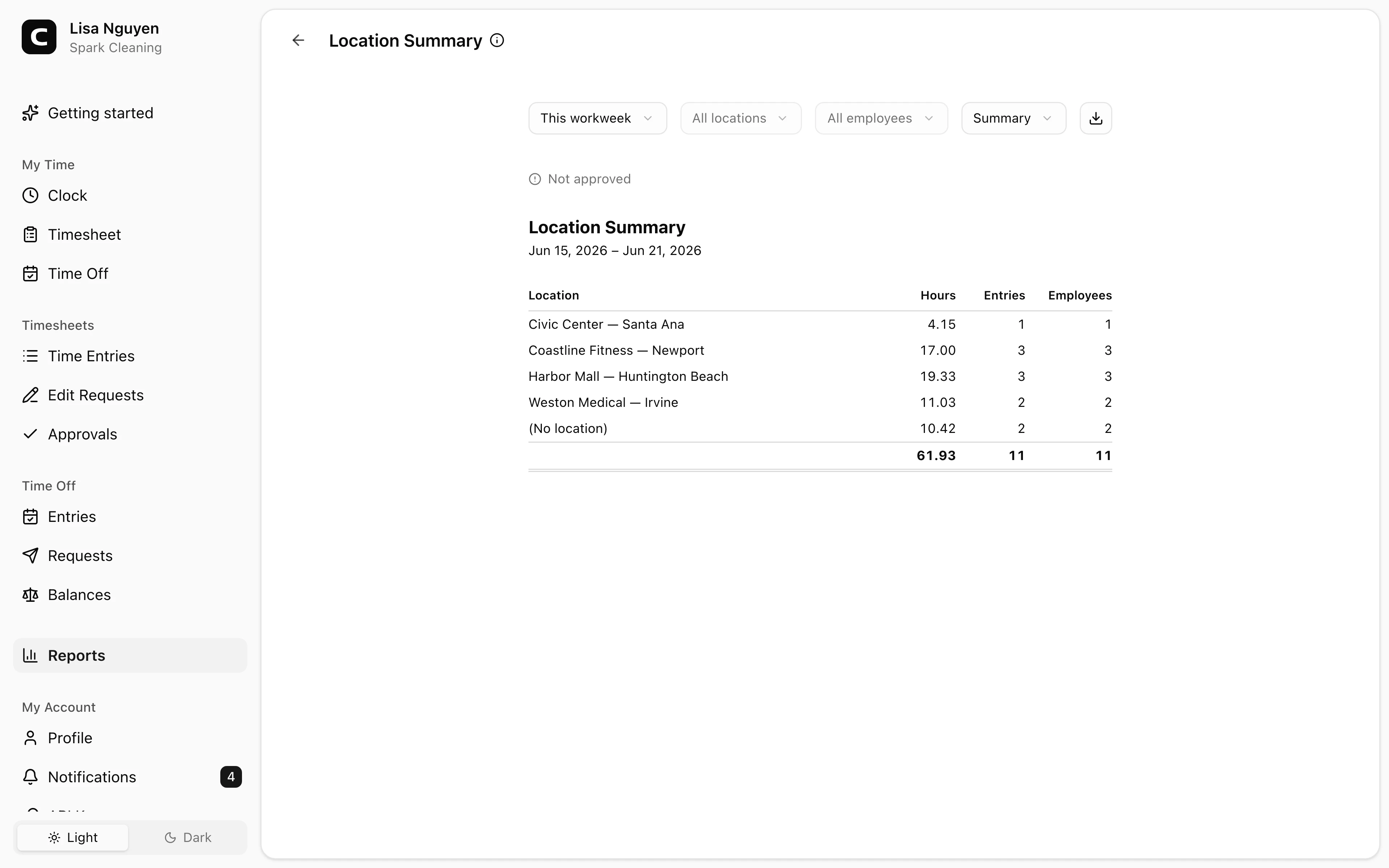
See how hours and headcount break down across clock locations.
No login required. Opens in one click.
What this report shows
Hours employees logged at each clock location in the date range. Three views:
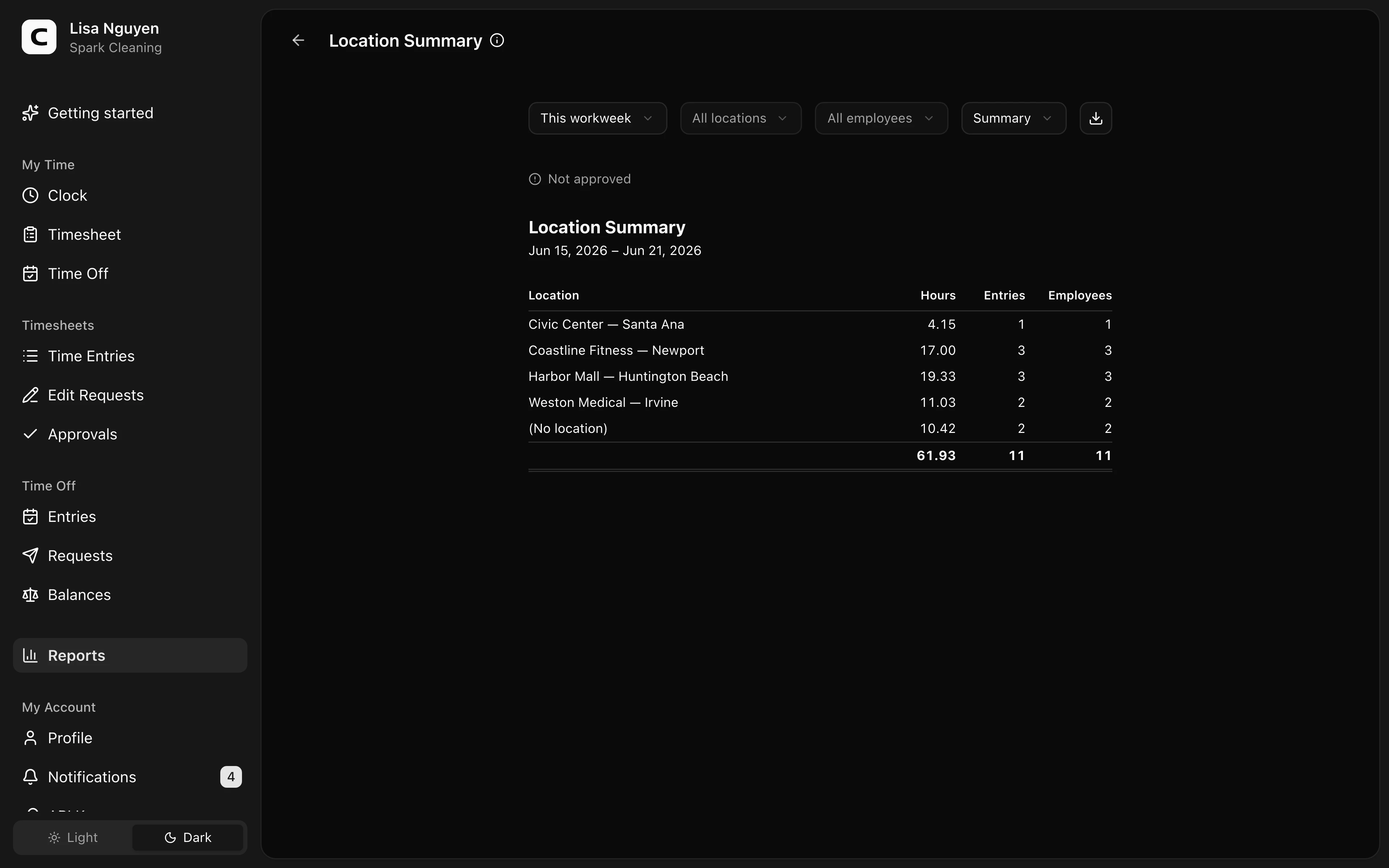
- Summary (default) — one row per location with Hours, Entries, and Employees (the count of distinct people who clocked in there).
- By location — each location with the employees who clocked in there and their hours.
- By employee — each employee with the locations they clocked in at and their hours.
Filters
Date range, location, employee, and view mode in the toolbar. Above the report, a status line shows how many timesheets for the period are approved — when some aren't, it reads {n} of {n} not approved and links to Approvals.
Exporting
The export menu acts on the current view: Download CSV, Copy to clipboard, or Print.
When to use a different report
- Every clock-in and clock-out, with where it happened → Location Activity
- Where each employee worked by day or location → Location Coverage
- Missing or mismatched location data → Location Compliance
- GPS clock events on a map → Location Map
Common questions
- Why don't the distinct-employee counts add up across locations?
Most employees clock in at more than one location and they're counted in each. Per-location counts won't add up to your employee headcount.
- A location has zero hours but I know people clocked in there.
Check the date range and filters first. If they're correct, the entries may have been clocked at a different (or no) location — open the Time entries page for that period to verify.
Related
How overtime works
How Clockspot classifies overtime hours into report tiers.
Running payroll
The path from a closed pay period to numbers you can hand to your payroll provider.
Reports
Open the report that matches the hours, payroll, job, or clock-location question you need to review.
Attendance
See who worked each day, with hours, absences, and in/out times.
Hours Summary
See each employee's regular, overtime, and time off hours for the period.
Overtime
See who hit overtime each week, with the rule behind each tier.
Payroll Summary
See payroll-ready hours and pay per employee, ready to process.
Job Costing
See how employee hours break down by job and project.
Location Activity
See the clock-in and clock-out location for every shift.
Location Compliance
Find time entries with missing or mismatched clock locations.
Location Coverage
Compare where each employee worked, by location and by day.
Location Map
See GPS-tagged clock events plotted on a map.
Site Overview
Scan hours, entries, and employees at each clock location.