Clocking & time entries
Approvals
Approve, reject, or cancel submitted timesheets by employee and period.
No login required. Opens in one click.
What this page shows
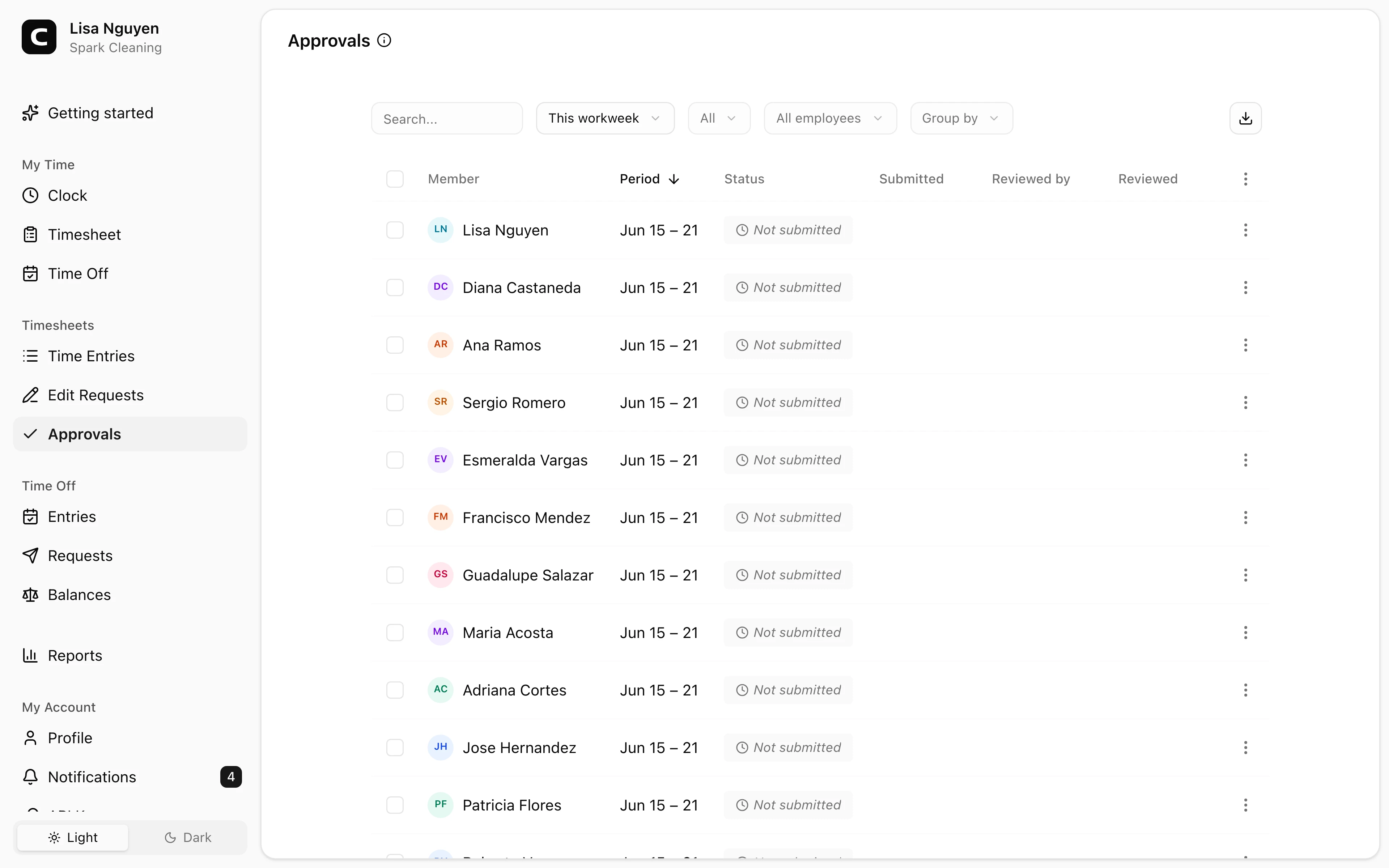
One row per employee, per period — the current state of that timesheet approval. Filter by date range, employee, or status in the toolbar.
The notes icon on a row means there's a submission or review note attached; click to read.
The lifecycle
- Not submitted — the employee hasn't submitted this period yet.
- Submitted — the employee submitted; you decide.
- Approved — locked. To change an entry, either cancel the approval and reopen the period, or have the employee file an edit request.
- Rejected — sent back to the employee with your note.
Reviewing a timesheet
Open a row's menu:
- View timesheet — opens the Time Entries page filtered to this employee + period so you can inspect every entry.
- Review (submitted only) — opens a dialog to approve or reject with an optional note.
- Approve (not-submitted only) — approve directly without waiting for the employee to submit (e.g. they're out and you trust their entries).
- Cancel approval (submitted or approved) — reverse the current approval state and reopen entries for editing.
Bulk decisions
Select rows and use Approve, Reject, or Cancel in the toolbar. Buttons only appear when every selected row is eligible — e.g. Reject only shows when all selected are Submitted. Bulk decisions don't carry a per-row note; open each row individually if you need one.
Common questions
- An employee hasn't submitted but I know their timesheet is correct.
Use Approve in the row menu (or the bulk action on selected not-submitted rows) to approve directly — no employee submission needed.
- An entry on an approved timesheet was wrong. What's the cleanest fix?
Use Cancel approval to reverse the decision, fix the entry from the Time Entries page, then re-approve. Alternatively, the employee can submit an edit request without unlocking the timesheet.
- What happens to the entries inside a rejected timesheet?
The entries stay as they are but they're unlocked — the employee can edit them and resubmit for review.
Related
Clock
Clock in at the start of your shift and out at the end, with a job and notes when your workspace uses them.
Timesheet
Review your recorded time entries and submit them to your manager for approval.
Requesting a time entry edit
Ask your manager to fix a recorded time entry — correct the times, the job, or add a note.
Time entries
Review, add, edit, and approve your employees' time entries.
Edit Requests
Approve or reject employee-requested changes to time entries.