Notifications
Notification Preferences
Choose which events reach you, and whether by email or SMS.
No login required. Opens in one click.
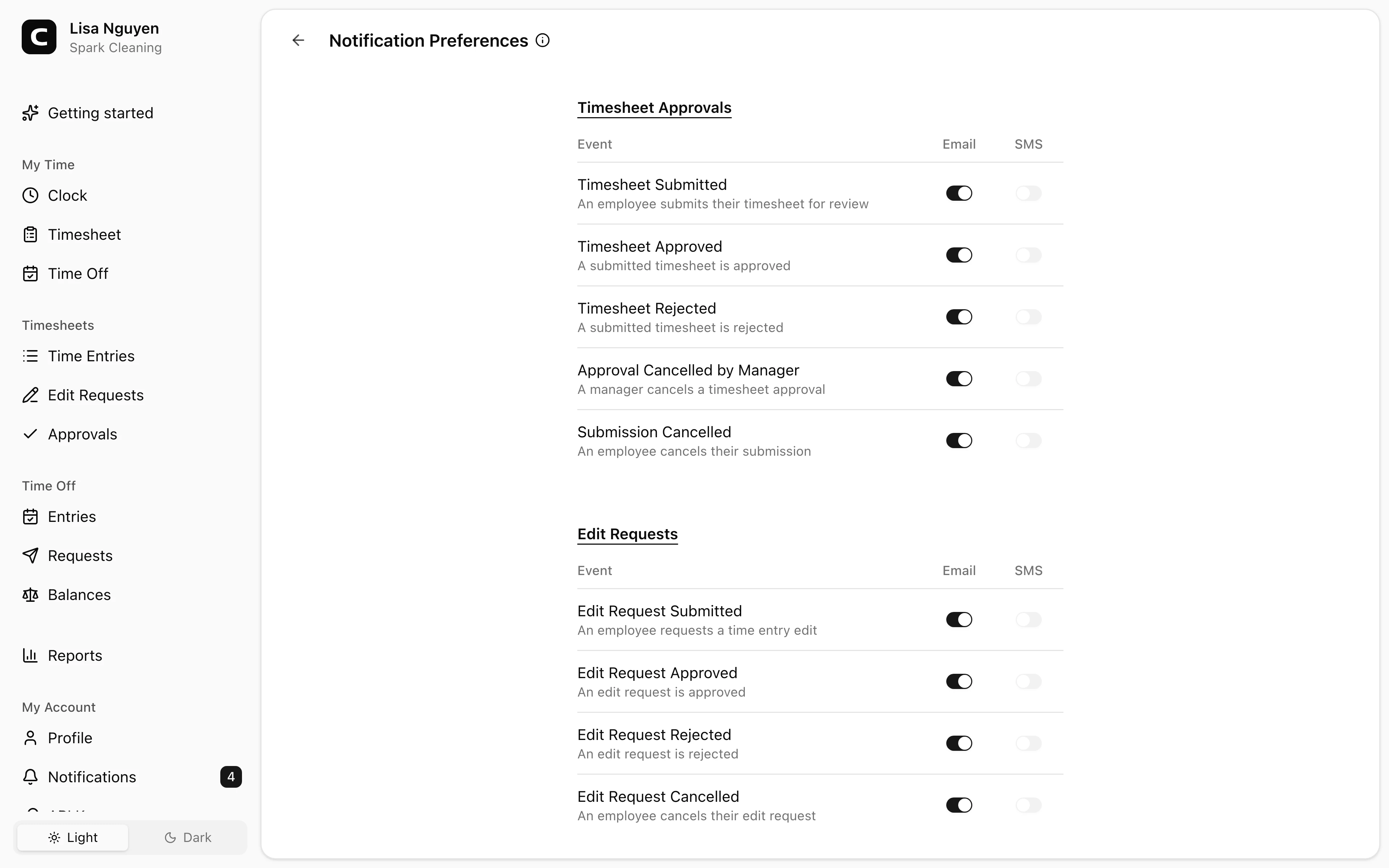
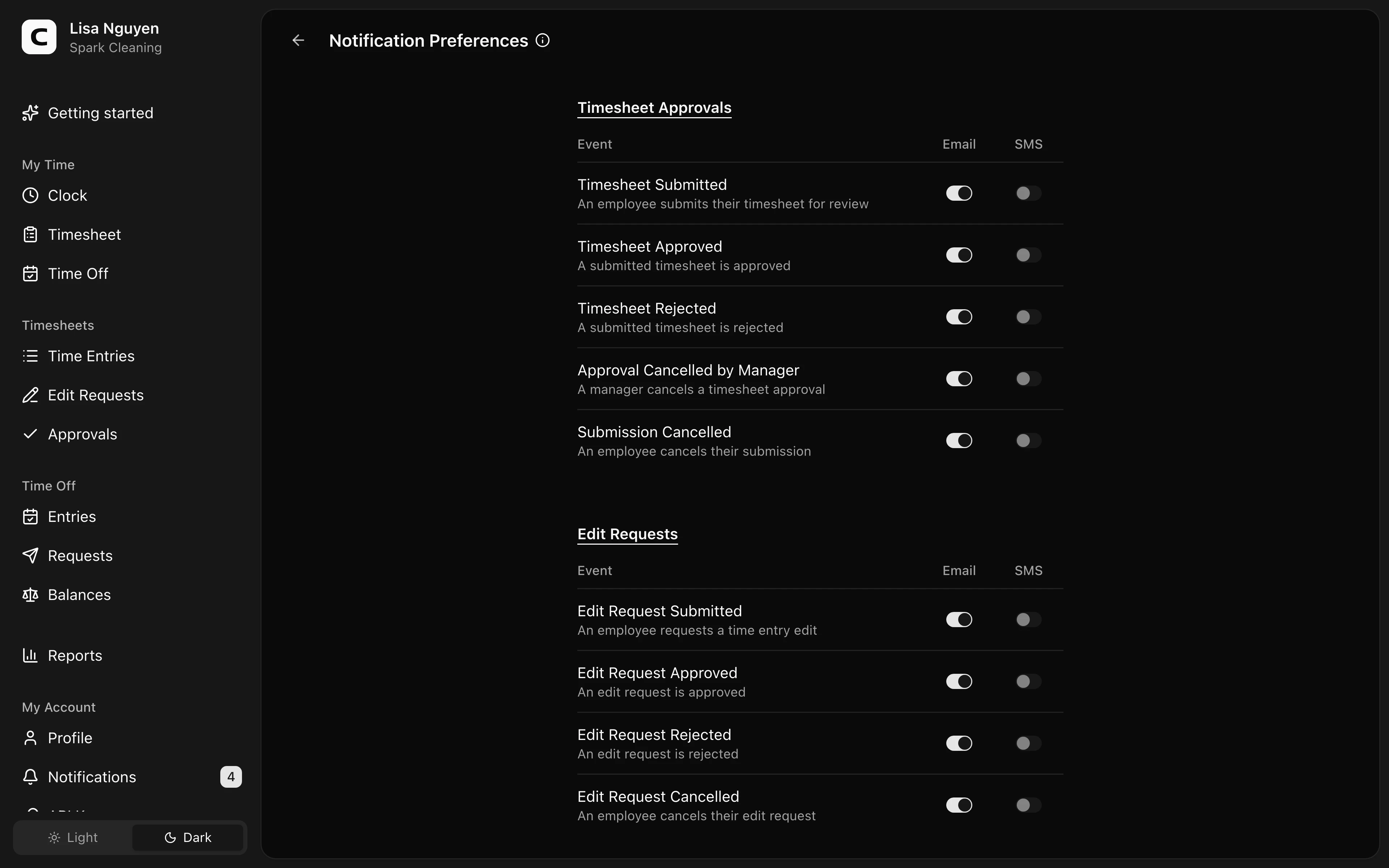
Open Notification Preferences from the Preferences button in the top-right of the Notifications page.
What you can configure
For your account, choose whether each notification event should be delivered by Email, SMS, both, or neither. Events are grouped into five categories:
- Timesheet Approvals — submissions, decisions, cancellations.
- Edit Requests — submissions, decisions, cancellations.
- Time Off Requests — submissions, decisions, cancellations.
- Clock Locations — unrecognized clock-in or clock-out locations.
- Workspace Administration — accepted invitations, role changes, and removed employees.
In-app notifications (the bell icon and the Notifications page) are always on — these toggles control the additional Email and SMS channels only.
Some events only support Email. When SMS is not available for an event, the SMS column shows a dash instead of a switch.
Saving
Toggle the channels you want and press Save. Changes apply to your account only; each employee has their own notification preferences.
SMS requires a verified phone number on My Profile. Until you have one, the SMS switches stay disabled. Enabling SMS opts you in to recurring transactional texts at that number — reply STOP to cancel or HELP for help.
Common questions
- In-app notifications keep appearing even after I turn off Email and SMS.
In-app is always on. Only Email and SMS are controlled here. Use the Notifications page to clear your inbox.
- I'm not getting SMS even though it's enabled.
Verify your phone number on My Profile. SMS only delivers to verified numbers.
Related