Workspace setup
Company
Keep your company name, time zone, and address current.
No login required. Opens in one click.
What you can set
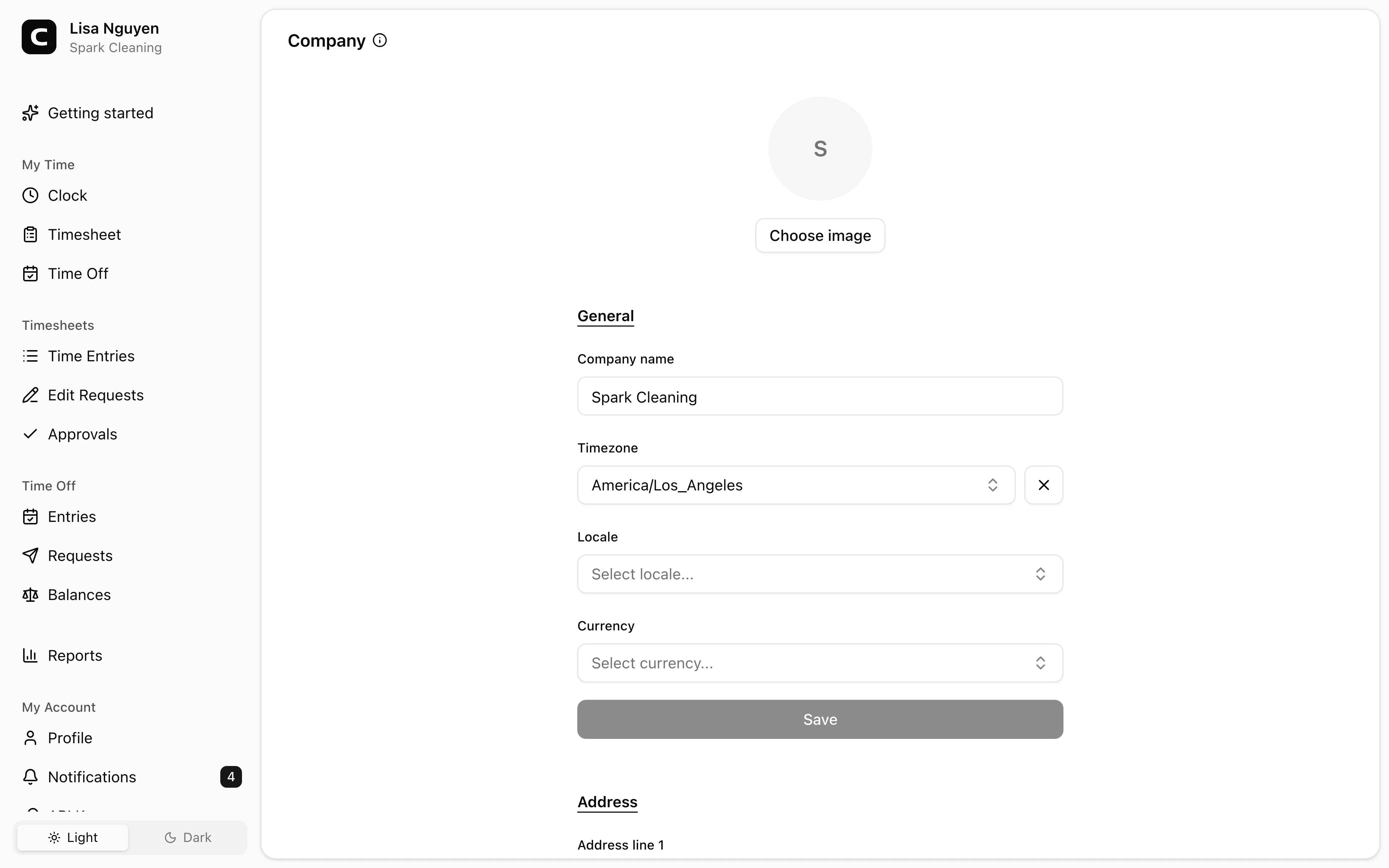
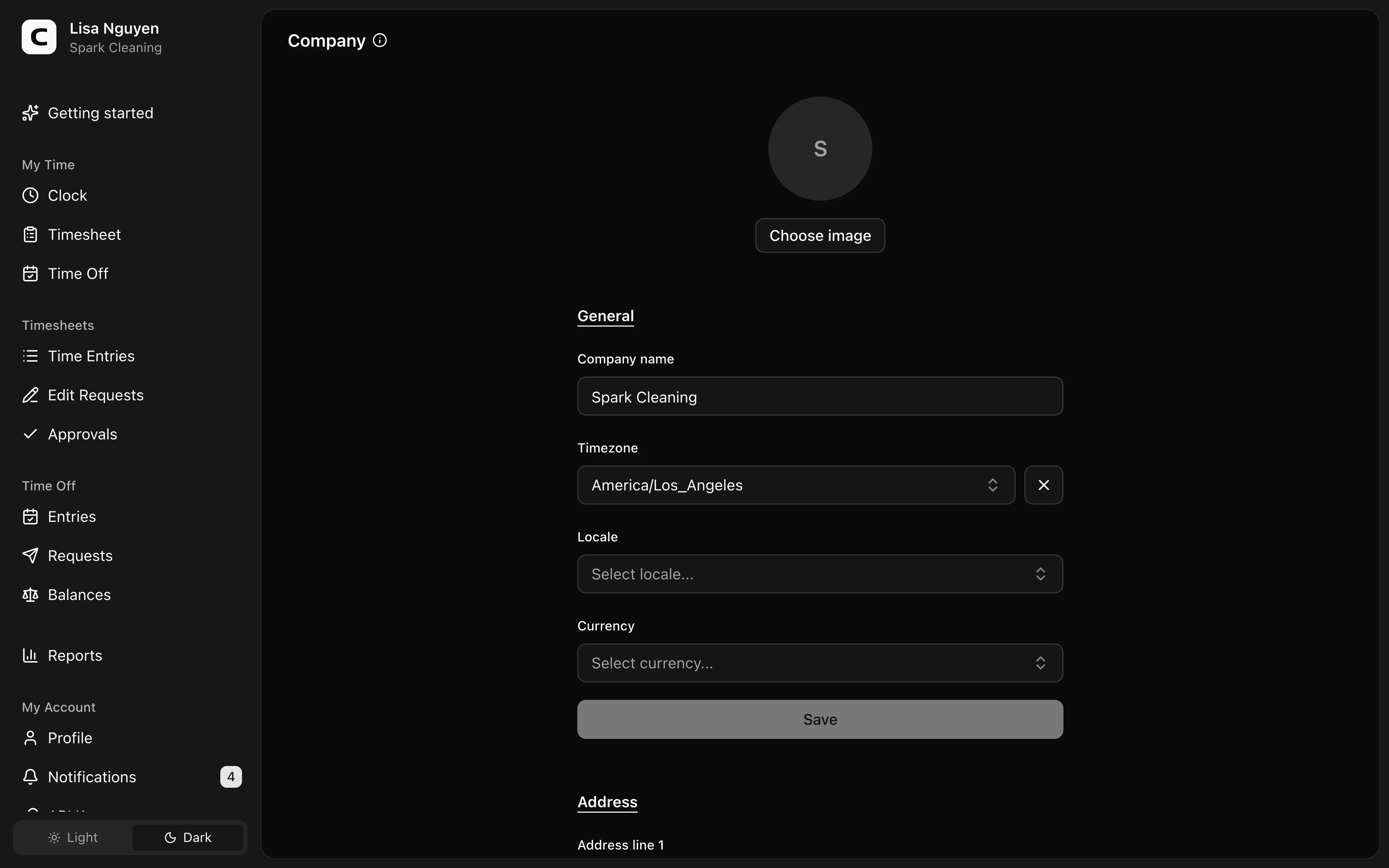
- Company image — set it with Choose image or clear it with Remove.
- Company name — shown in the workspace switcher.
- Timezone — the workspace's stored default timezone; each person sees times in their own My Profile timezone.
- Locale — your workspace's default locale.
- Currency — your workspace's default currency.
- Address — your company address.
Common questions
- Can I run multiple companies from one workspace?
One workspace = one company. To track multiple legal entities, create a separate workspace per entity.
- What's the difference between Company timezone and My Profile timezone?
Company Timezone is the workspace's stored default. Times throughout the app — including reports — display in your own My Profile timezone (or your device's, if you haven't set one).
Related
Employees
Invite employees, edit profile details, and handle owner-only access changes.
Compensation
Set each employee's pay type, hourly rate when applicable, exemption status, and pay schedule, and keep a history of pay changes.
Roles & access
Who can see and do what — the difference between employees, admins, and the owner.
Custom fields
Add employee and time-entry fields for the details your workspace needs to track.
Jobs
Group time entries by job, project, client, or task so you can review where hours and labor costs go.
Time Tracking Settings
Find the settings that control clock-ins, schedules, overtime, jobs, time off types, locations, kiosks, and phone clocking.
Timesheet Settings
Set required time-entry details, unrecognized-location warnings, and clock-time rounding.
Work Schedule
Set the default workweek and scheduled hours used by attendance and workweek-based reports.
Overtime Settings
Choose the current overtime thresholds and multipliers used by Clockspot reports.
API Keys
Connect third-party apps to your Clockspot workspace without sharing your password.