Workspace setup
API Keys
Connect third-party apps to your Clockspot workspace without sharing your password.
No login required. Opens in one click.
How it works
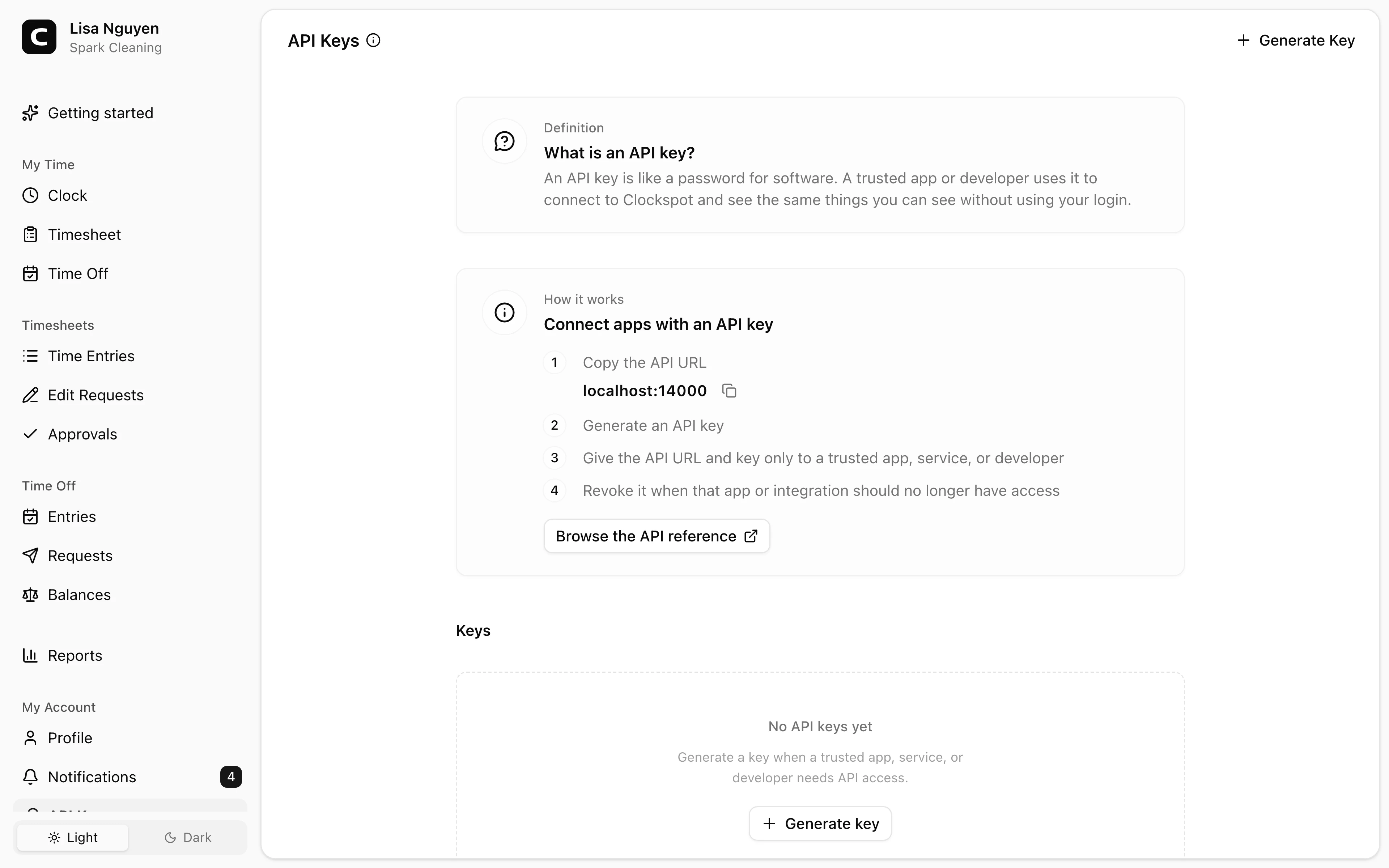
The How it works panel shows the address integrations connect to, with a Copy URL button and a link to the API reference.
Each key is tied to the person who created it and uses that person's current permissions in this workspace. Since only the owner can create keys, a new key starts with owner-level access. The key stops working if it is revoked or if that person is removed from the workspace.
Generating a key
Press Generate Key in the page header, name it descriptively, and press Generate. The new key value appears once.
Paste the copied key into the tool you're connecting, and keep your own record of which tool uses it.
Identifying keys
Each key is a card under Keys, showing:
- The name you gave it when generating.
- A hint — the last few characters of the key, so you can match a card here against the value stored in your secrets manager.
- Last used — when the key last made a request, or Never used. Useful for spotting abandoned keys.
- Added — when the key was generated.
Rotating keys
Best practice: rotate periodically, and any time someone with access leaves.
- Generate a new key.
- Update the integration to use the new key.
- Confirm the integration works.
- Revoke the old key.
Revoking
Open a card's menu and choose Revoke to permanently delete a key. Any tool using that key immediately loses access. Revoking can't be undone, so confirm nothing still depends on the key first.
Common questions
- I lost the key value.
Generate a new key. The old value can't be recovered — by design.
- Can two integrations share one key?
Use one key per connected tool when you can. That makes rotation and revocation easier to reason about later.
- How do I tell which integrations use which keys?
The name and hint on each card are the only signals. Naming keys descriptively at generation time is the simplest way to keep track.
Related
Employees
Invite employees, edit profile details, and handle owner-only access changes.
Compensation
Set each employee's pay type, hourly rate when applicable, exemption status, and pay schedule, and keep a history of pay changes.
Roles & access
Who can see and do what — the difference between employees, admins, and the owner.
Custom fields
Add employee and time-entry fields for the details your workspace needs to track.
Jobs
Group time entries by job, project, client, or task so you can review where hours and labor costs go.
Company
Keep your company name, time zone, and address current.
Time Tracking Settings
Find the settings that control clock-ins, schedules, overtime, jobs, time off types, locations, kiosks, and phone clocking.
Timesheet Settings
Set required time-entry details, unrecognized-location warnings, and clock-time rounding.
Work Schedule
Set the default workweek and scheduled hours used by attendance and workweek-based reports.
Overtime Settings
Choose the current overtime thresholds and multipliers used by Clockspot reports.