Locations & devices
Clock Locations
Define places, networks, or devices so Clockspot can identify where employees clock from and flag unrecognized activity.
No login required. Opens in one click.
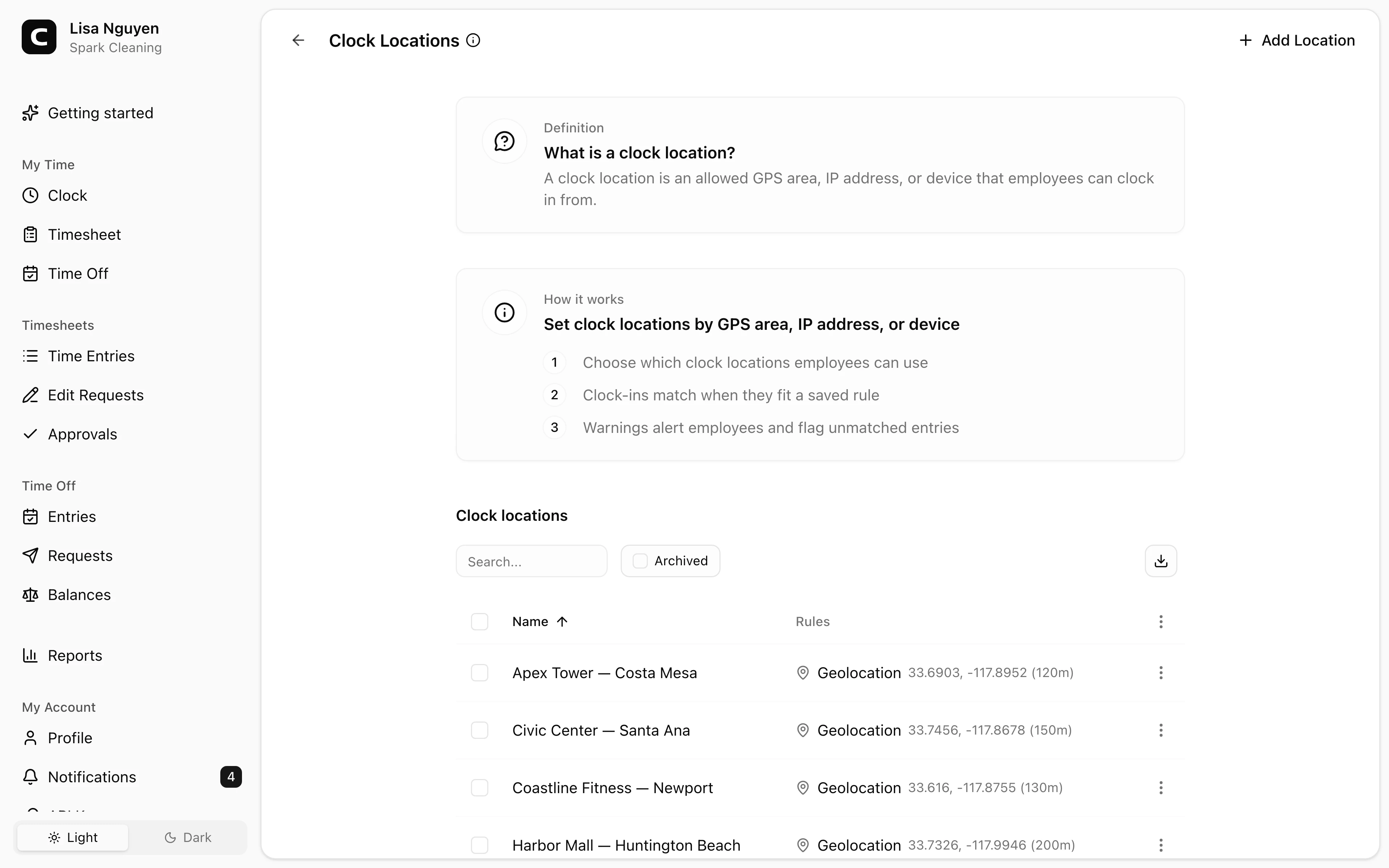
What a clock location is
A name plus one or more rules that describe how an employee must be present to clock in there. The supported rule types:
- Geolocation — a latitude, longitude, and radius (in meters). The device's GPS must report a position inside the radius.
- IP — IP addresses the device must connect from (e.g. your office Wi-Fi).
- Device — registers the current browser as a recognized device for this location, saving a fingerprint unique to it.
A single location can combine rule types — for example, "Office HQ" matched by either the office Wi-Fi IP or its geofence.
Adding a location
Press Add Location in the page header, name it, and press Add rule to add at least one rule. Save.
How clock-ins match locations
When an employee clocks in or out, Clockspot checks the available context against your active clock locations. A matching location can then appear on the time entry and related location reports.
If the workspace has Warn employees clocking from unrecognized clock locations enabled in Timesheet Settings from Time Tracking Settings and no clock location matches, web clock-ins show the employee a warning, admins and the owner can be notified, and the entry is highlighted for managers — visible on the Location Compliance report.
Archiving
Use Archive (row menu or bulk action) to retire a location. Toggle the Archived view and use Restore to bring it back. Locations can't be deleted — archiving keeps historical entries linked correctly.
Common questions
- An employee says they were on-site but their clock-in didn't match.
For Geolocation, the radius may be too tight or the device location may be inaccurate. For IP, confirm the device is on the expected network. For Device, confirm the device is part of the rule.
- Where do I see who clocked in here?
Open Reports, then use the location report cards to review hours, presence, and per-location details.
- Can I rename a location?
Yes — use Edit location in the row menu. The new name flows through to reports.
Related
Kiosks
Set up shared clock-in screens on a tablet or computer so employees can clock in and out with their own PIN.
Clocking in at a kiosk
Clock in and out at a shared device by selecting your name and entering your PIN.
Phone clocking
Set up phone clocking — give each employee a PIN to clock in and out by calling a number.
Clocking in by phone
Clock in and out by calling the phone-clock number and entering your phone clock ID and PIN.