Locations & devices
Kiosks
Set up shared clock-in screens on a tablet or computer so employees can clock in and out with their own PIN.
No login required. Opens in one click.
What a kiosk is
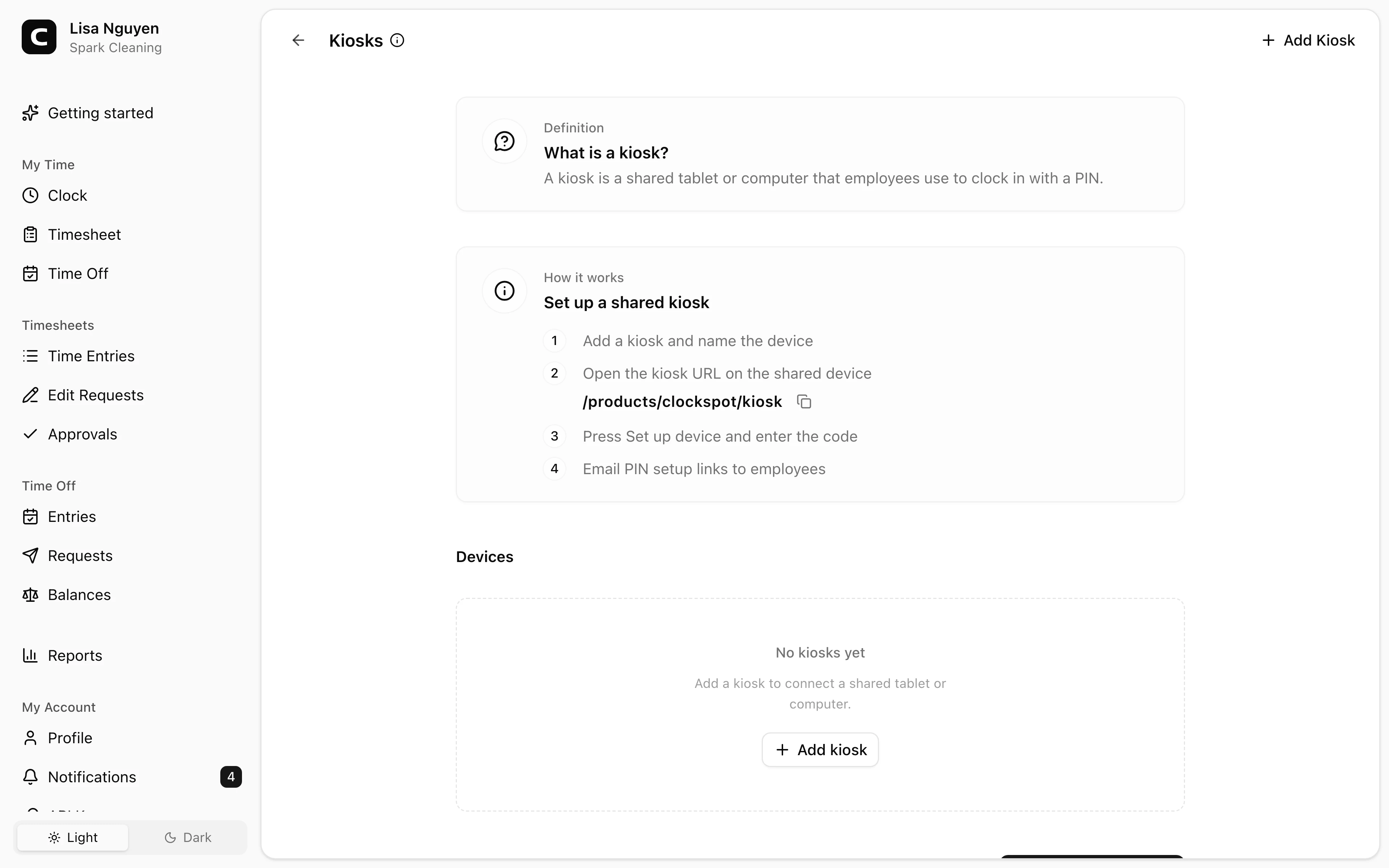
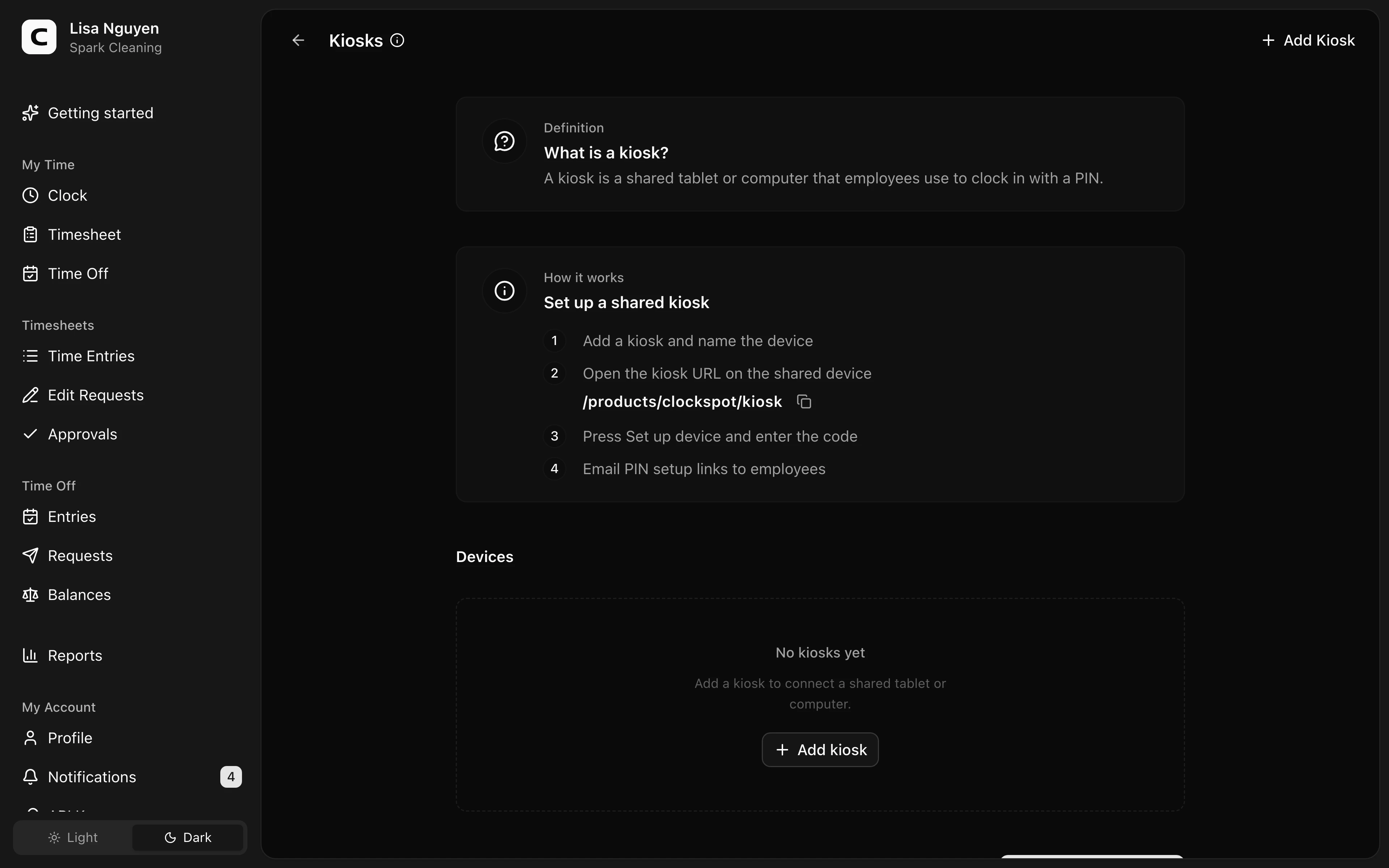
A kiosk is a shared clock-in screen you set up on a tablet or computer — for example, a front-desk screen or a tablet by the time clock. Employees use it to clock in and out with their own PIN. You register each device once; after that it stays on the clock screen and signed in across restarts.
The page runs the whole rollout from one place: the web address to open on your shared device, a card per kiosk with its status — Not set up, Waiting for device, or Connected — and a list of every employee with their kiosk PIN status.
Adding a kiosk
Press Add Kiosk and give the device a name you'll recognize later (for example, "Front desk"). Then choose who can clock in there: All employees, or Only assigned employees if the device should serve a specific crew — pick the names from the list. The kiosk's card shows the choice, including how many employees are assigned. The new kiosk starts at Not set up — no device is attached yet.
Connecting a device
On the kiosk's card, press Set up device. Clockspot shows the web address to open on the device, plus an 8-digit setup code that expires in 15 minutes.
On the shared device, open that address — it shows a Set up this kiosk screen — enter the code, and press Register device. The kiosk's card changes to Connected and the device lands on the clock screen, where it stays.
If the code expires before you use it, press Get new code for a fresh one.
Giving employees a PIN
Each employee needs a personal 6-digit PIN to clock in at a kiosk. The Kiosk PINs list shows everyone with a status — Ready (they can clock in now), Link sent, Link expired, or Not set up — so you can see the whole rollout at a glance.
The fastest way to start is Email setup links — Clockspot emails a link to everyone marked Not set up or Link expired, and each person chooses their own PIN, so you never see or handle it. Anyone with an active link is skipped, so pressing it again won't re-email or cut off someone mid-setup. Each link expires in 7 days, and no one's current PIN changes until they use it. The same send is available as a toggle when you add or edit a kiosk — its label counts the emails, and it only goes to the employees who can clock in at that kiosk.
To set up one person, press Set up on their row. From there, press Email setup link to send them a link, or Set PIN manually to enter a 6-digit PIN yourself. Once they're ready, the row's Manage button opens the same screen to email a reset link, change the PIN, or Remove PIN to revoke kiosk access.
The PIN is per employee, not per kiosk — the same PIN works at every registered kiosk in your workspace.
How employees clock in
At a registered kiosk, the employee finds their name on the clock screen, presses Clock in or Clock out, and enters their 6-digit PIN to confirm. A confirmation shows who clocked in or out and when, then the screen clears for the next person.
Archiving
Use Archive in a kiosk card's menu to retire it — for example, when a device is replaced. Archiving signs that device out: it drops back to the Set up this kiosk screen and can't clock anyone in until a kiosk is registered on it again.
Common questions
- Where do I enter the setup code?
On the shared device, not here. Pressing Set up device shows the web address to open on that device; it lands on a Set up this kiosk screen with a field for the code.
- An employee can't clock in at the kiosk.
Check their row in the Kiosk PINs list — Ready means they have a PIN. If they're marked Not set up or Link expired, press Set up on their row to email a link or set a PIN, and confirm they're entering all 6 digits.
- An employee's PIN setup link expired.
Setup links expire after 7 days — their row shows Link expired. Press Set up on their row, then Email setup link to send a fresh one.
- Do I need a separate PIN for each kiosk?
No. An employee's kiosk PIN works at every registered kiosk in the workspace — unless a kiosk is set to Only assigned employees, in which case only the assigned names appear on that kiosk's clock screen.
- Can I limit which employees use a kiosk?
Yes. When adding or editing a kiosk, choose Only assigned employees and pick the names. That kiosk's clock screen then lists only those employees.
- How is this different from phone clocking?
A kiosk PIN clocks in on a shared on-site device. Phone clocking clocks in by calling a dial-in number, with its own page and per-employee setup. They're independent: an employee can have either, both, or neither.
Related
Clock Locations
Define places, networks, or devices so Clockspot can identify where employees clock from and flag unrecognized activity.
Clocking in at a kiosk
Clock in and out at a shared device by selecting your name and entering your PIN.
Phone clocking
Set up phone clocking — give each employee a PIN to clock in and out by calling a number.
Clocking in by phone
Clock in and out by calling the phone-clock number and entering your phone clock ID and PIN.