How to Track Employee Hours by Job or Location
Employee hours are easier to trust when you know where the work happened and what the employee was doing.
For some businesses, total hours are enough. For others, payroll, job costing, overtime review, mileage, or client billing depends on the job or location attached to the shift. If that detail is missing, the total may be paid correctly but still be hard to explain.
Decide what needs tracking
Do not track job and location details just because software allows it.
Track the details that matter for your business:
- Job or project.
- Department.
- Work location.
- Customer or service site.
- Cost code.
- Role or task.
The goal is to make payroll and reporting clearer, not to create extra fields nobody uses.
Job and location tracking should support the broader payroll-ready time tracking workflow, not add detail for its own sake.
Capture the detail when work happens
Job and location data is strongest when employees select it while clocking in, switching tasks, or starting a new job.
If managers add the detail later from memory, the record gets weaker. If payroll adds the detail during export, payroll may be guessing.
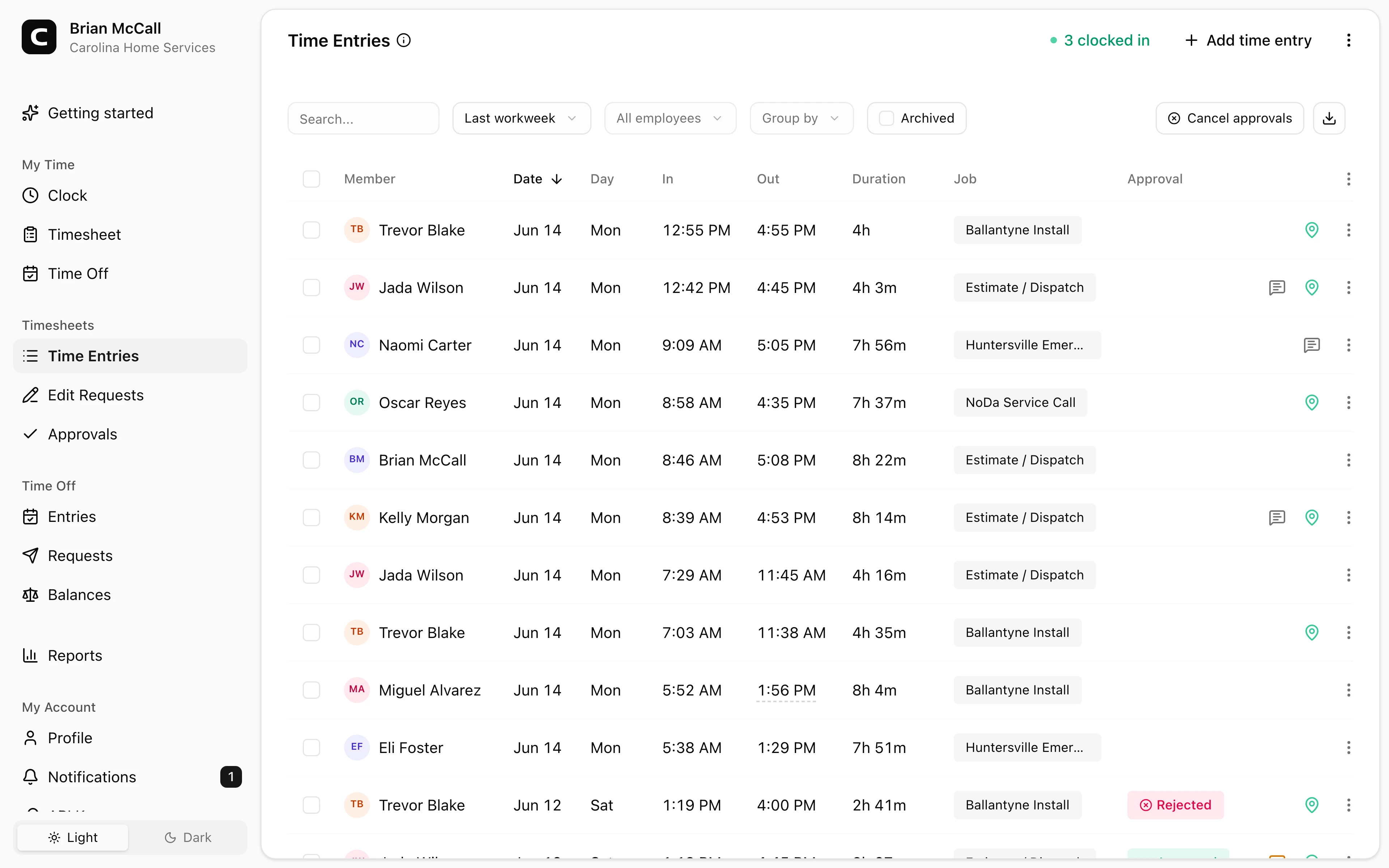
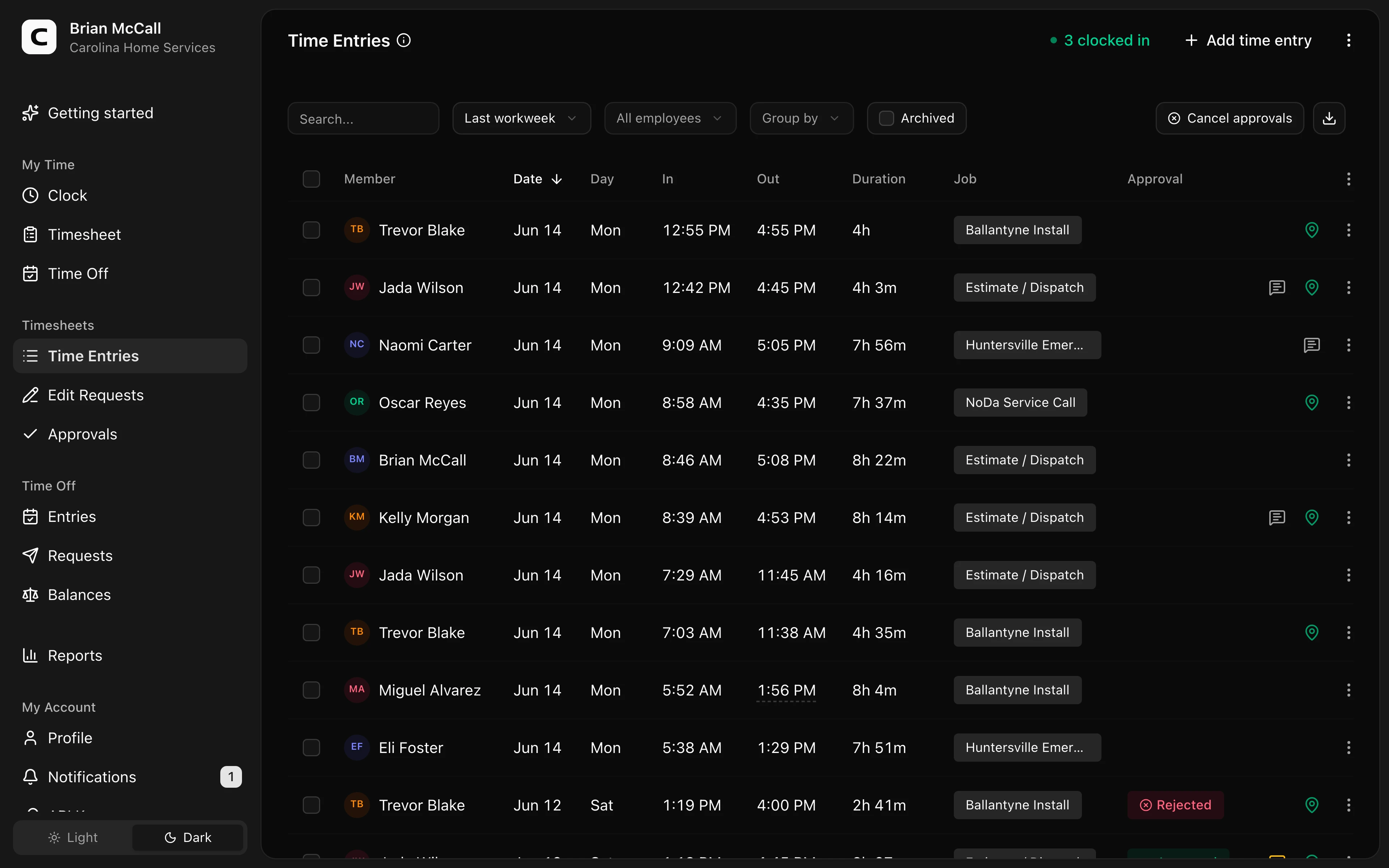
Explore the sample account
Carolina Home Services is an example contractor in Charlotte, North Carolina, with employee time cards, edits, approvals, jobs, and reports already filled in with sample data.
No login required. Opens in one click.
Review mismatches before payroll
Before payroll closes, review records that do not match the expected schedule:
- Employee worked at a different location.
- Time is assigned to the wrong job.
- Shift has no job or location.
- Employee changed jobs during the day.
- Manager edited the assignment after the fact.
- Travel or drive time may need separate handling.
For drive-time rules, read travel time pay. For mileage reimbursement, read mileage reimbursement requirements by state.
Use job and location for approval
Managers should approve not only the hours, but the context around the hours.
If an employee worked eight hours, the manager should know whether those hours belong to the right job, location, or department before payroll or reporting uses the record.
For the approval workflow, read how to approve employee time cards.
Avoid overtracking
Too many required fields can make time tracking worse.
Employees may pick random options just to clock in. Managers may spend more time cleaning up records. Payroll may receive detailed data that is not actually reliable.
Use the fewest job or location fields that answer real business questions.
For a short policy on when employees choose a job, department, or location, start here and adapt it to your workflow.
Common mistakes
Tracking location but not job
Location tells you where work happened. Job or department tells you what the work was for. Some businesses need both.
Letting payroll fix assignments later
Payroll usually does not know the shift context. The manager closest to the work should review assignments.
Making every field required
Required fields only help if employees can choose the right answer quickly.
Forgetting travel time
Moving between job sites can raise separate pay questions. Do not hide travel inside a generic location change.
FAQ
Should employees choose a job when clocking in?
Yes, if job assignment affects payroll, costing, reporting, billing, or manager approval. If it does not affect anything, do not add friction.
Should employees choose location?
Choose location tracking when employees work across sites, stores, customers, or field jobs and the business needs to know where time was worked.
Can managers change job or location after the shift?
Yes, but the change should include the reason for the correction and an approval trail if it affects payroll or reporting.
The bottom line
Job and location tracking should make the time record easier to explain.
Track the details that matter, capture them when the work happens, review exceptions before payroll, and avoid fields that add noise without improving the record.
For Clockspot product pages, see the time clock for field employees, job code time clock, time clock for multiple locations, job costing for hours by job, or GPS time tracking for location review.
Keep reading
How to Track Employee Hours for Payroll
Use this payroll-ready time tracking workflow to capture hours, review exceptions, approve edits, and keep records you can explain later.
Time Clock App for Schools and Childcare: What to Look For
Choose a school or childcare time clock by checking staff clock-ins, room or department detail, missed punches, breaks, approvals, payroll export, and records.
Time Clock App for Event Staffing and Valet Teams: What to Look For
Choose an event staffing or valet time clock by checking venue clock-ins, job detail, missed punches, GPS review, approvals, and records.
Time Clock App for Property Management and Self Storage: What to Look For
Choose a property management or storage time clock by checking site hours, location detail, mobile clock-ins, corrections, approvals, and records.
About Clockspot
Clockspot helps small businesses track employee time and keep payroll-ready records. Used in all 50 states since 2007, we focus on getting time and pay right — including the wage-and-hour rules that shape both.
Clockspot helps small businesses keep employee hours connected to jobs, locations, edits, approvals, and payroll-ready records. See how Clockspot tracks jobs and locations.