


Cut costs and finish payroll in minutes, not days.
Clockspot makes time tracking easy for remote teams of all sizes.
-
Clock in from any approved device
Clock in from any mobile device with a toll-free number or WiFi connection.
-
Track GPS and caller ID
Know exactly where employees clock in from using GPS or caller ID.
-
Prevent buddy clocking
Avoid buddy-clocking by using our voice authentication feature.
-
Manage timesheets online
Review, edit, and approve timesheets online. See who's working in real-time.
-
Job costs and Paid Time Off
Automatically calculate PTO accruals, job costs, overtime, and more.
-
Easy payroll reporting
Generate and export detailed payroll reports in a matter of seconds.
Perfect for remote employees, field workers, and mobile teams.
No more guessing whether employees are at the job site. See everything online and in real-time.
Here's how Clockspot makes time tracking painless from clock-in to payday:
First, an employee clocks in using our toll-free number 877-342-0832 or online.
Punching in with Clockspot's mobile time tracking software takes 30 seconds or less. To ensure accuracy and security, you're shown:
- Caller ID
- Device ID
- GPS Coordinates
- Voice recording (to avoid buddy-clocking)
Instantly, you see a real-time report of employee hours and the jobs they're working on.
- Add job codes to track time spent on specific tasks, projects and clients.
- Configure your employee's paid time off (PTO) with quick and easy settings for automatic accrual.
- Set hourly rates or employee costs for individuals or groups.
Once logged in, employees can view their own hours, payslips and overtime, giving them confidence that their time is being tracked correctly.

Now, you can manage all of your timesheets online from one clean, simple hub.
- Sort by employee, date, project, location, client or task.
- Review, approve or make changes to timesheets on the fly.
- Communicate privately with employees using fast, built-in messaging.
- Get edit requests directly from employees within the software.

Need to make an edit? No problem! Clockspot tracks all changes with a digital audit trail.
- Spot previous changes easily as they're highlighted in yellow.
- See who made the change, what the change was, and what the original numbers were.
- Set individual roles and permissions to allow others to make changes or prevent those who shouldn't.

Ready to run payroll? Clockspot automates all the repetitive, annoying tasks so you can finish faster.
- Set up pay schedules once and never need to again.
- Track reimbursements, deductions and additional earnings as-needed.
- Generate detailed payroll and drill-down reports in a matter of seconds.
- Export reports to PDF or Excel with a couple of clicks.

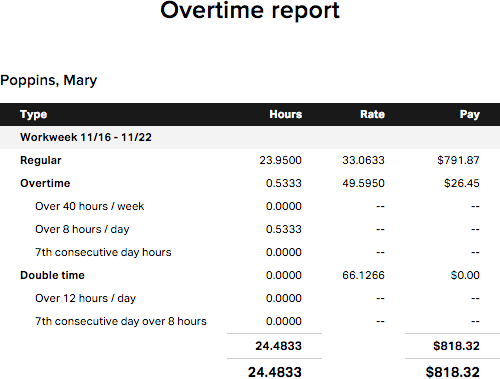
Improve your scheduling with fast & accurate overtime reporting.
- See when employees are approaching overtime and adjust accordingly.
- Get alerted when employees are nearing overtime.
- Supports California overtime.
- Generate earnings and payroll reports.
And much much more...
We're constantly adding new features and improving our software, so we recommend you try our free 15-day trial! More features:
-
Manual time entry
-
Time off requests
-
Clock time rounding
-
Timesheet edit requests
-
Message employees in the app
-
Track deductions and reimbursements
-
Share payslips with employees
-
Allow employees to record a work report
-
Data backed up daily
-
Stay secure with SSL encryption
See all features